Emails are an integral part of our daily life and for professionals, emails are of utmost importance. Many Outlook users for various reasons that vary from user to user want to backup Outlook emails. For the same, users search for a way to backup Microsoft Outlook emails and in this write-up, we will address this issue in a holistic manner.
Be with the blog till the end and backup Outlook emails in a professional manner. Here, are two different methodologies for this backup task.
Why Outlook Backups are Essential for Business?
Default email settings are designed for accessibility, not longevity. Relying on built-in Microsoft features for long-term data security creates a false sense of protection.
The Fallacy of the “Deleted Items” Folder
Many users treat the Deleted Items folder as a secondary archive. This is a high-risk strategy. In a standard Microsoft 365 environment, data follows a strict, destructive lifecycle:
- Deleted Items – Items remain here until the folder is emptied manually or a retention policy triggers.
- Recoverable Items (The “Hidden” Layer) – Once purged from Deleted Items, data moves to this hidden server partition.
- Permanent Purge – After a default window of 14 to 30 days, Microsoft 365 permanently deletes this data.
Without an external backup, your data effectively has an “expiration date.” A 3-2-1 Backup Strategy eliminates this risk by maintaining three copies of data on two different media types, with one copy stored off-site.
Risks of Local-Only PST Storage (Ransomware & Corruption)
Storing backups exclusively as local PST files on a single workstation is a “single point of failure” approach that is increasingly dangerous in the 2026 threat landscape.
- Targeted Encryption – Modern ransomware specifically scans for and encrypts .pst and .ost extensions to paralyze business communication and increase ransom leverage.
- The “50GB” Stability Barrier – Large PST files are structurally fragile. Once a file exceeds the 50GB threshold, the risk of header corruption increases significantly, often rendering the entire archive unreadable.
- Hardware & Sync Failures – Local files are rarely part of a real-time sync. If a local drive fails or a laptop is lost, the “backup” disappears along with the primary data.
To mitigate these risks, professional environments must move these archives into an independent, secure cloud or a redundant, encrypted physical storage array.
Safeguard your Outlook 365 and OWA mailboxes data effortlessly. Shoviv Office 365 Backup provides secure, automated backups to PST, MBOX, ensuring your emails are always protected. Secure your business continuity today!
Protect your Outlook.com data with the Shoviv IMAP Backup Tool. Effortlessly export emails to PST, MBOX, or EML while maintaining folder hierarchy and data integrity.
Method 1: Backing Up the “Classic” Outlook Desktop App (PST Export)
The Classic Outlook desktop application remains the most robust environment for managing local data. Its native export engine allows for precise control over archival tasks, ensuring a comprehensive snapshot of your professional communications.
Step-by-Step: Using the Import/Export Wizard
Apart from Outlook 2010 and the web service, which uses slightly different systems, most versions of Microsoft Outlook include an option to export everything to a file, and there is a standard set of steps you can follow. It will generate an Outlook PST file so that you can save it to your online backup or an external drive.
- Firstly, click the File button in the upper-left corner of the screen.
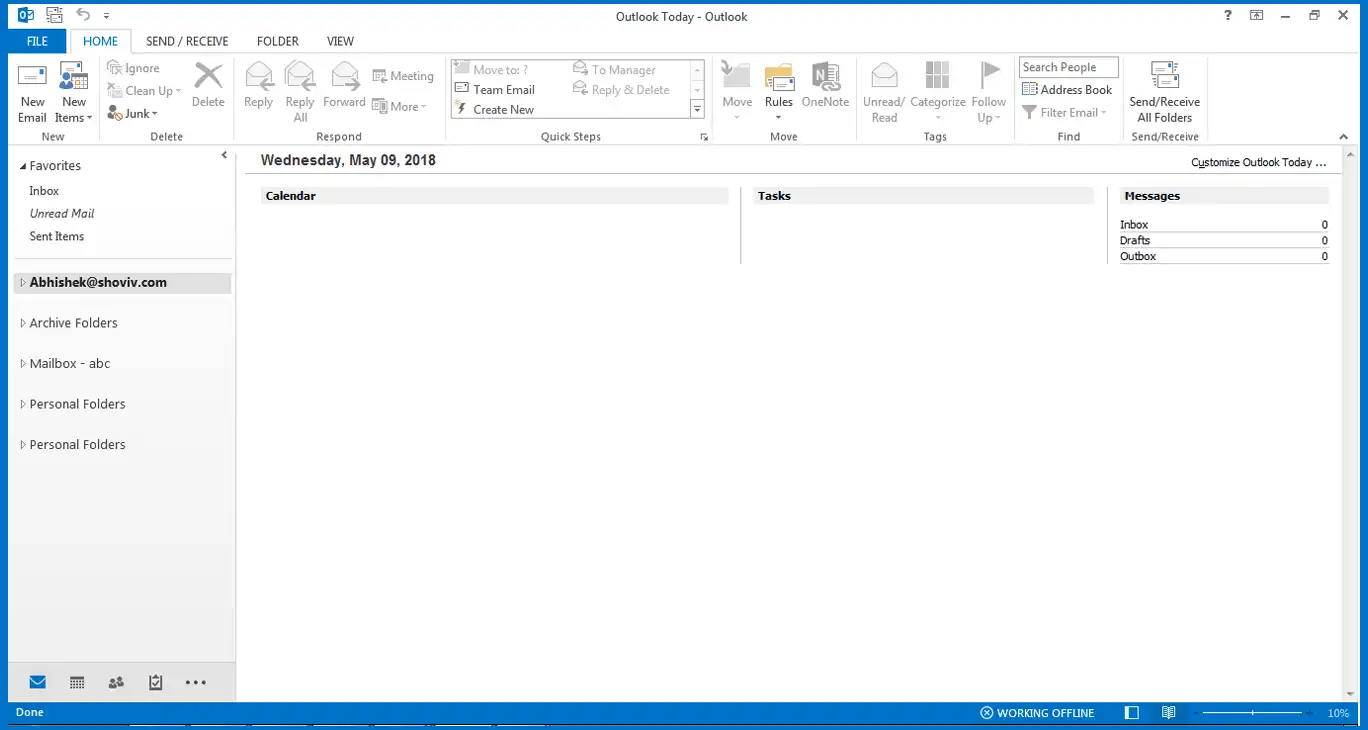
- From the drop-down menu on the left side of the window, select “Open & Export.” You can skip this step if you are using an older version of Outlook than 2013.
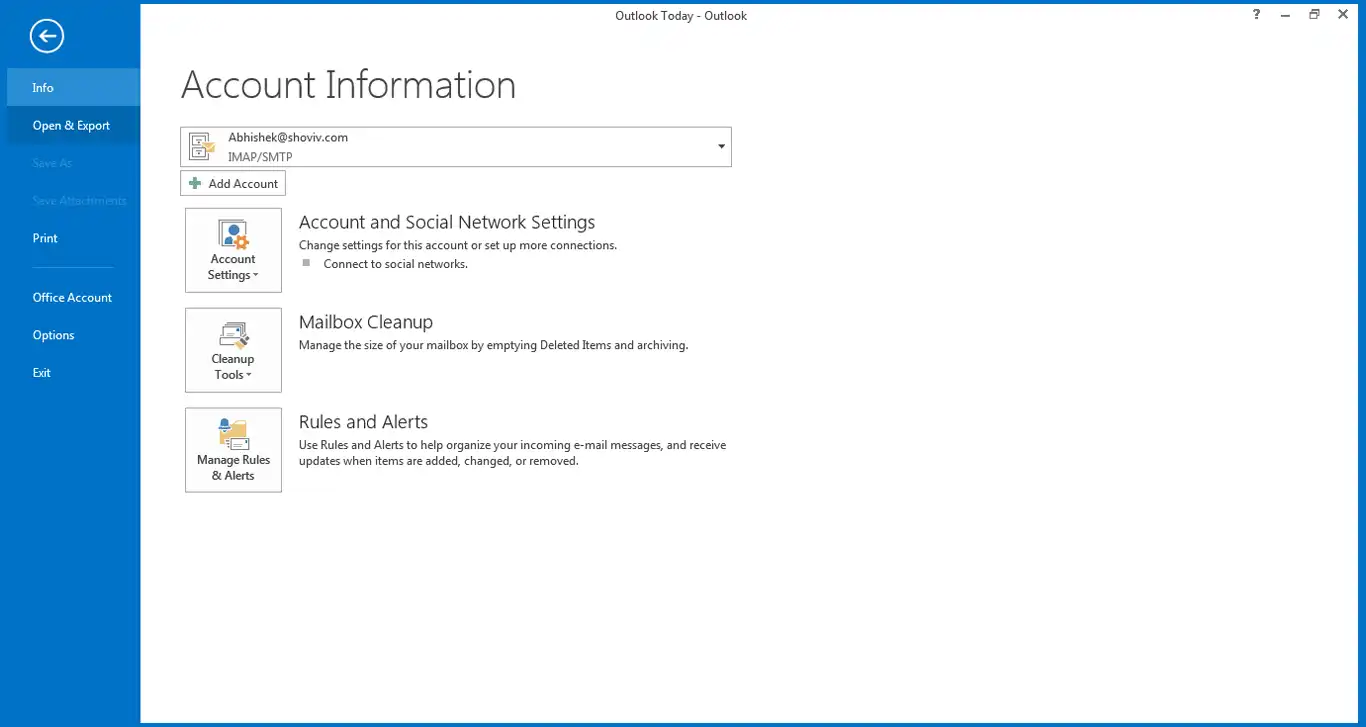
- Click the “Import/Export” button.
- Select “Export to a file” and then click “Next” in the import-and-export wizard.
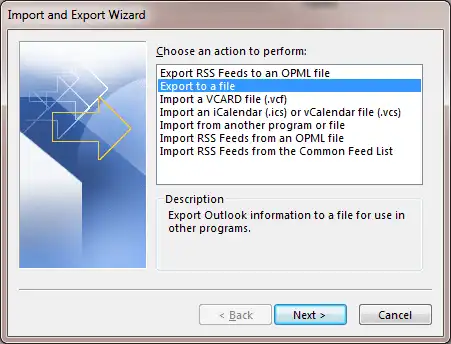
- To start, select “Outlook data file (PST)” and the folder or account to backup. Then browse the location where to save the PST file and click on the Finish button.
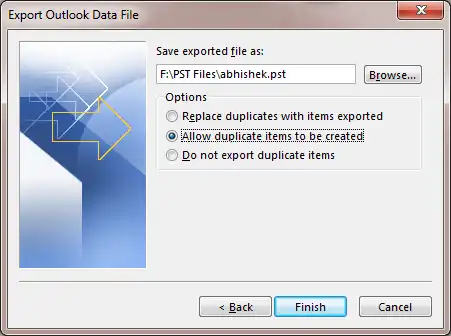
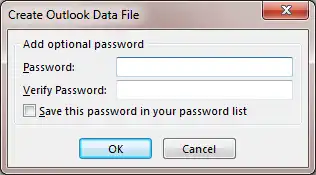
- After clicking “Finish,” you can apply the password to the resultant PST file.
- At last, go to the backup folder and double-check that it’s still there.
Troubleshooting: Why the Export Button is Sometimes Greyed Out
If the Import/Export option is disabled (greyed out), it usually indicates a configuration or permission conflict. Address these common causes:
- Administrative Policy – In corporate environments, IT administrators often disable local export features via Group Policy (GPO) to prevent data exfiltration. Consult your IT department to verify if this restriction is active.
- Outlook Trial/Demo Version – Unactivated or trial versions of Office often have limited functionality. Ensure your Microsoft 365 subscription is active and the application is fully licensed.
- Language Mismatch – A rare but persistent bug occurs if the Windows System Locale (non-Unicode language settings) does not match the Outlook installation language. Verify this in Control Panel > Region > Administrative.
- Damaged Outlook Profile – A corrupted user profile can block access to core features. Attempting a Profile Repair or creating a new profile often resolves the issue.
Method 2: Backing Up the “New” Outlook for Windows
As Microsoft transitions toward a web-based architecture, the “New” Outlook for Windows introduces a simplified interface but alters how local data is handled. In the 2026 landscape, this version is often described as a “one-way street” because while data can leave the app, bringing it back in remains a technical hurdle.
How to Export to PST in the New Outlook for Windows Interface
Microsoft has recently integrated a native export tool to help users maintain data sovereignty. The New Outlook uses a server-side extraction process. Unlike the legacy desktop client, this method prepares your data in the cloud before providing a local download link. To generate a backup file from the New Outlook app, follow these steps:
1. Verify Application Version
Confirm you are operating within the New Outlook interface. If you are currently in the legacy environment, activate the “Try the new Outlook” toggle located in the upper-right corner to switch versions.
2. Access Data Export Settings
Select the Gear icon (Settings) in the top-right header. From the configuration menu, navigate to General > Privacy and data. (Note: In some enterprise builds, this may also be located under Accounts > Export Mailbox).
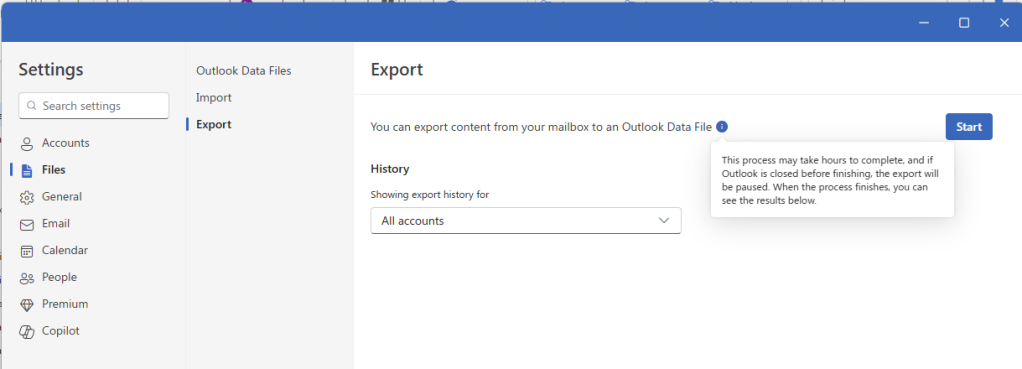
3. Define the Archive Scope
Determine the volume of data for extraction. You may choose to package the entire mailbox or isolate specific directories such as Inbox, Sent Items, or personalized folders. Advanced filters may also be available to restrict the export by specific date ranges or item categories (e.g., Contacts vs. Emails).
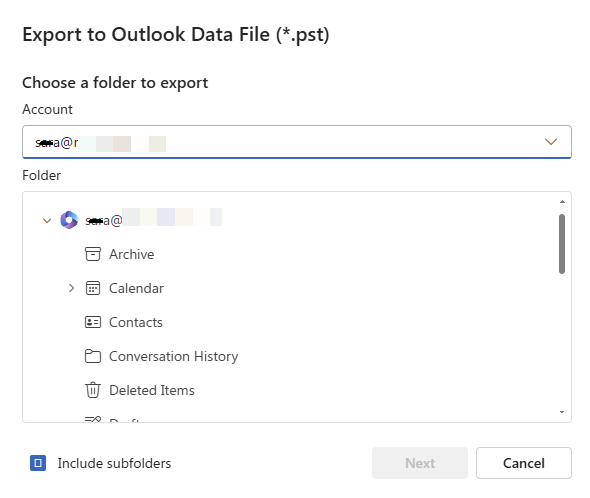
4. Authorize the Extraction Task
Select the Export button to initiate the request. Because the New Outlook processes this task on Microsoft’s servers, the duration is dependent on your total mailbox size. This can range from a few minutes to several hours for high-capacity enterprise accounts.
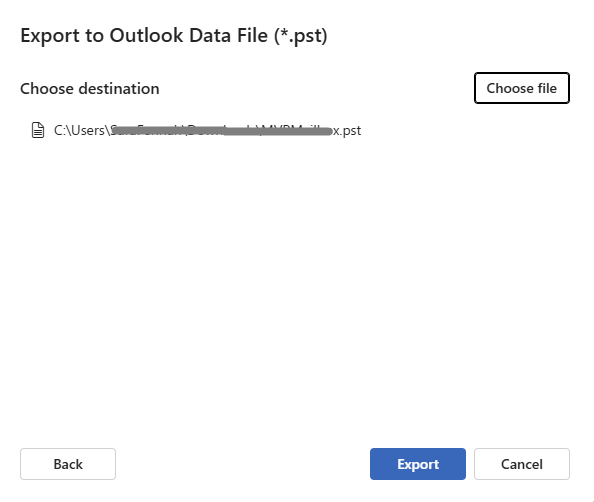
5. Retrieve and Secure the PST File
Monitor the Privacy and data section for a status update. Once the extraction is complete, a Download link will be generated. Download the resulting .pst file immediately and store it in an encrypted or restricted-access directory to protect sensitive corporate intelligence.
Is This the Only Way to Back up Outlook Email?
A lot of professionals search for an alternate way for Outlook Email Backup as the manual method is not an absolute solution. The manual method has several limitations, some of which are:
- It is only suitable for single users and if you have very few emails.
- The manual method consumes a lot of time and hence to back up Outlook emails, you should have a lot of time.
- Technical expertise is required as you have to handle all the technical steps on your own and chances of human error are always there.
- You will not get any advanced options to manage the resultant file.
Method 3: Enterprise-Grade Outlook Backup Using Shoviv
Manual exports are often insufficient for professional environments with large data volumes or multiple users. An enterprise-grade solution like Shoviv automates the archival process, ensuring high-speed data mobility while maintaining strict security standards.
Bypassing Microsoft 365 Throttling with Multi-Threaded Sync
One of the primary hurdles in cloud backups is Microsoft 365 Throttling. Microsoft limits the rate of data transfer to ensure service stability for all users. During large manual exports, this often results in timed-out sessions or significantly degraded speeds.
Shoviv utilizes an advanced Multi-Threaded Sync engine to address this:
- Concurrent Processing: The software opens multiple secure connections to the Microsoft server simultaneously.
- Smart Throttling Management: It intelligently adjusts data flow to stay within the maximum allowed limits without triggering a “block.”
- Consistent Throughput: This ensures that even mailboxes exceeding 100GB are backed up in a fraction of the time required by standard tools.
Incremental Backups: Saving Only New Data to Save Bandwidth
Running a “Full Backup” every day is a waste of bandwidth and storage space. It also puts unnecessary strain on your local network. Shoviv addresses this through a high-performance Incremental Backup facility.
- Delta Sync Logic: After the initial backup is complete, the software identifies only the “delta” (new or modified emails).
- Zero Duplicity: It automatically skips items that have already been backed up in previous cycles.
- Efficiency: This reduces backup windows from hours to minutes, ensuring your data is always current without impacting system performance.
Cross-Platform Flexibility: Exporting Outlook to MBOX, EML, or MSG
While PST is the native format for Outlook, long-term data sovereignty often requires platform-independent formats. Shoviv provides the flexibility to export Outlook data into several professional formats:
- MBOX: Ideal for users migrating to open-source clients like Thunderbird or specialized Linux environments.
- EML: A universal format where each email is saved as an individual file. This is perfect for legal discovery and easy file-level searching.
- MSG: Best for archiving specific, high-value conversations or attachments that need to be opened individually in Outlook without loading a full database.
- PST: A native outlook email format. Used for managing emails locally.
This versatility ensures that your backed-up data remains accessible, regardless of which email client your organization chooses in the future.
Professional Way to Backup Outlook Emails:
To backup emails from Outlook, a professional and one-stop solution is a must as professional wants an easy and efficient way. For the same, Shoviv IMAP Backup and Restore Tool is an advanced utility and it has multiple user-centric features. Some of the highlights are:
- Shoviv IMAP Backup and Restore Tool can backup emails from any email client using IMAP including Outlook.
- Users can backup Outlook emails to PST, MBOX, EML, and MSG like prominent file formats.
- It runs on job-based processing and in a job user can add multiple mailboxes of any size and run them concurrently.
- Along with backup of emails, users can restore/export email data from files to IMAP mailbox.
- Filter options, default incremental facility, and scheduler like other facilities are also present within the software.
- A free demo version of the software is also available to download.
How to Back up Emails from Outlook Using Shoviv Software?
- First, install and open the Shoviv IMAP Backup and Restore software.
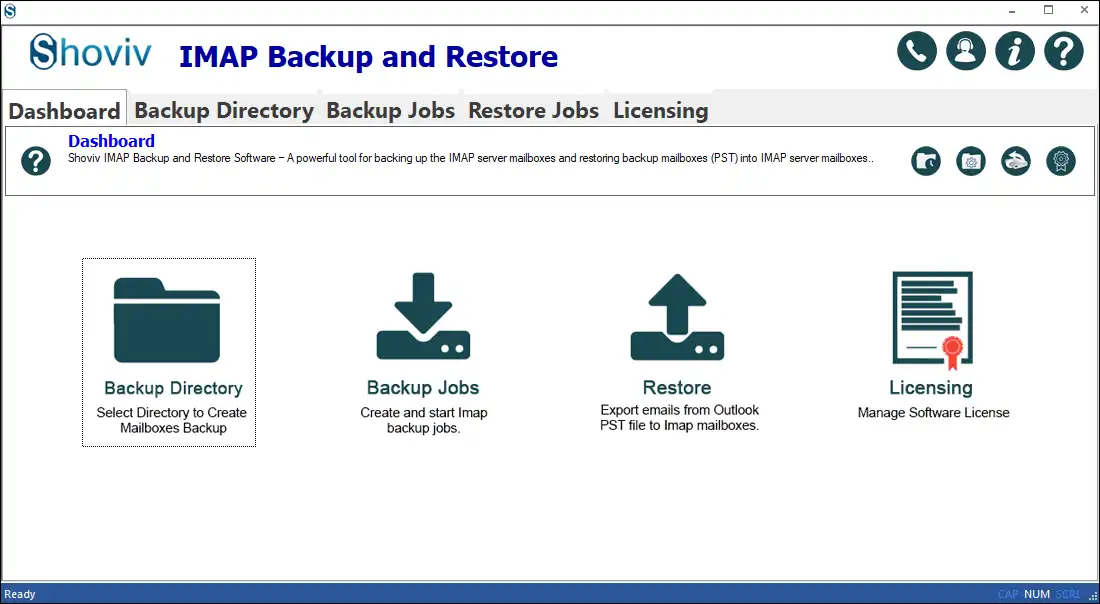
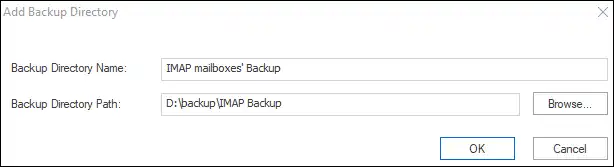
- Now click on the Backup Directory and browse the backup directory path where your Outlook email backup will be saved.
- Now click on the Backup Job to create. Select the IMAP Server (multiple Mailboxes) or Single Mailbox as per the need. You can also simply select the email server. Enter the job name, and add the mailbox by entering the server name and other credentials.
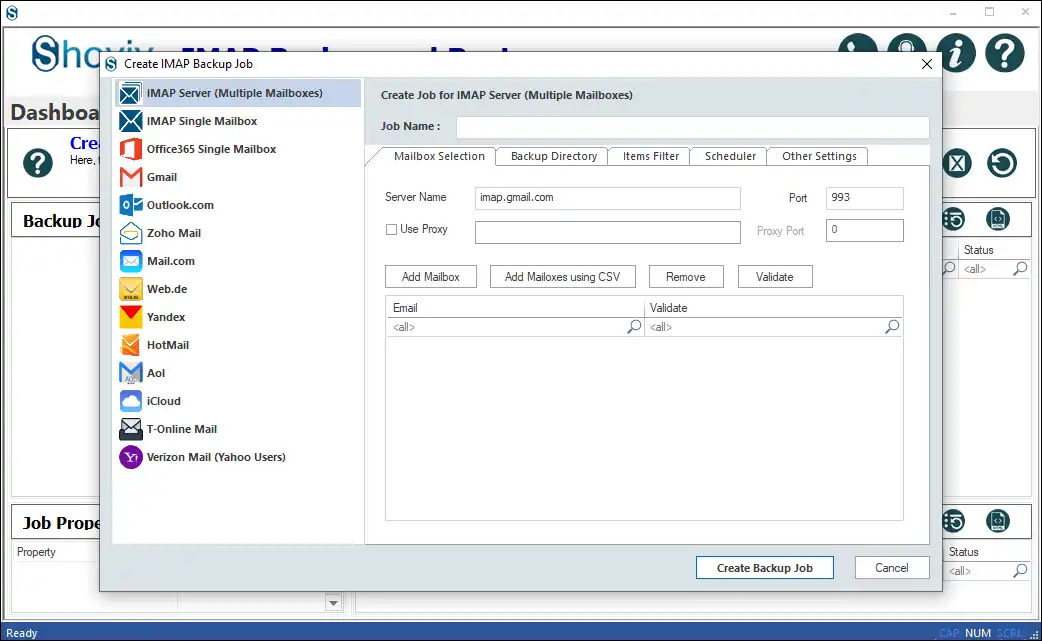
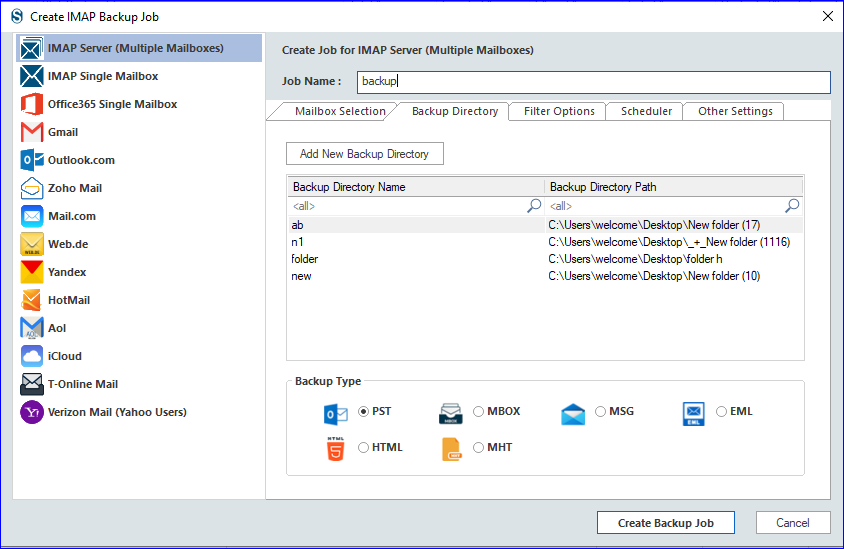
- From the Backup Directory, you can add a new backup directory however we have provided the backup directory path. Also, must select the backup type, here we are selecting the PST as the desired file format.
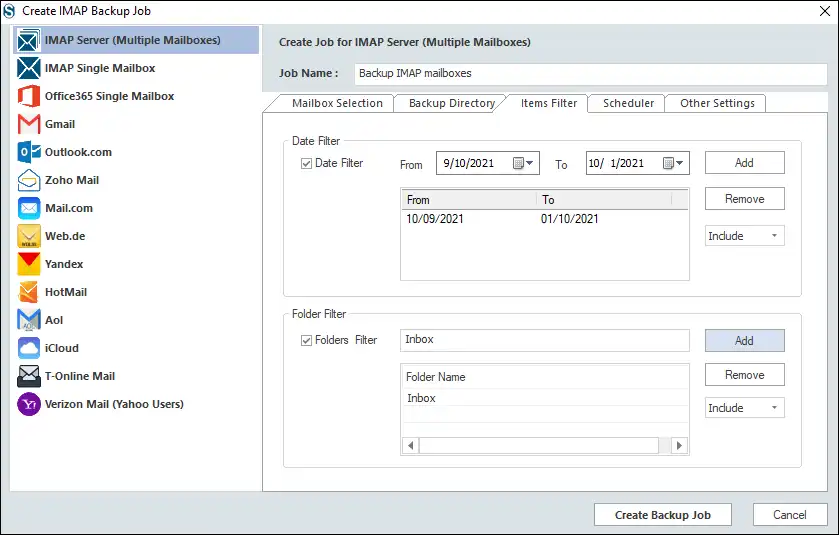
- In the filter section, apply the date filter and folder filter if needed.
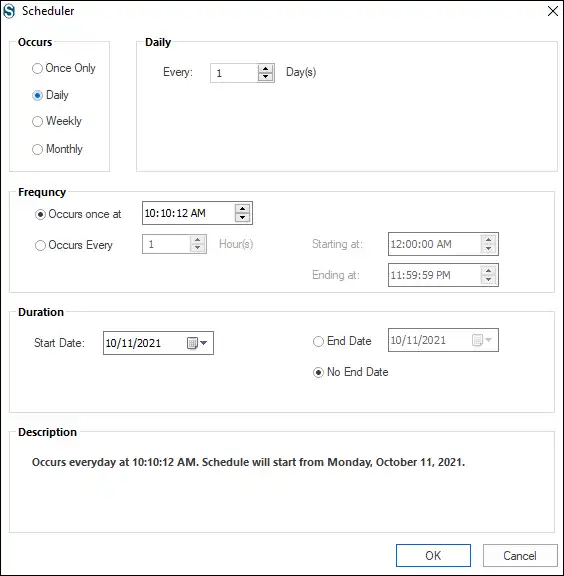
- Now, under the Scheduler tab, you can select if you want to schedule the backup job, immediately run or manually run.
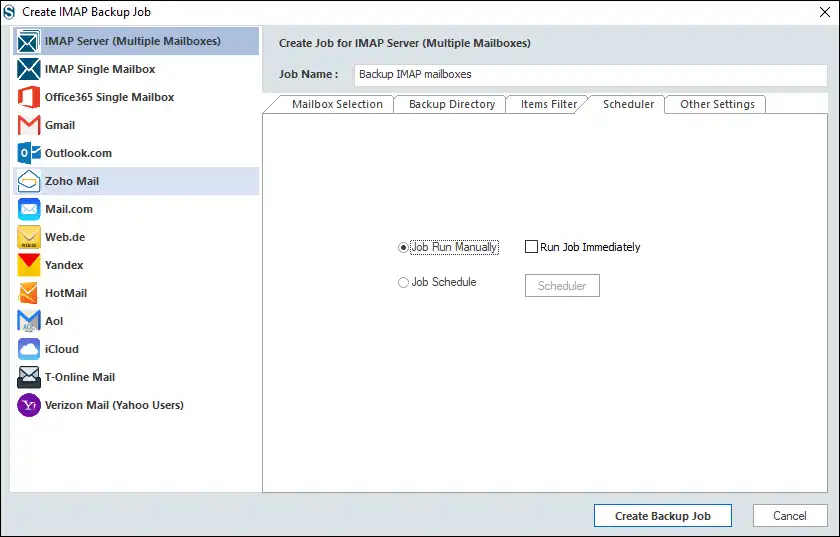
- If you schedule the backup job, then must prefer occurrence, frequency, and duration for the backup.
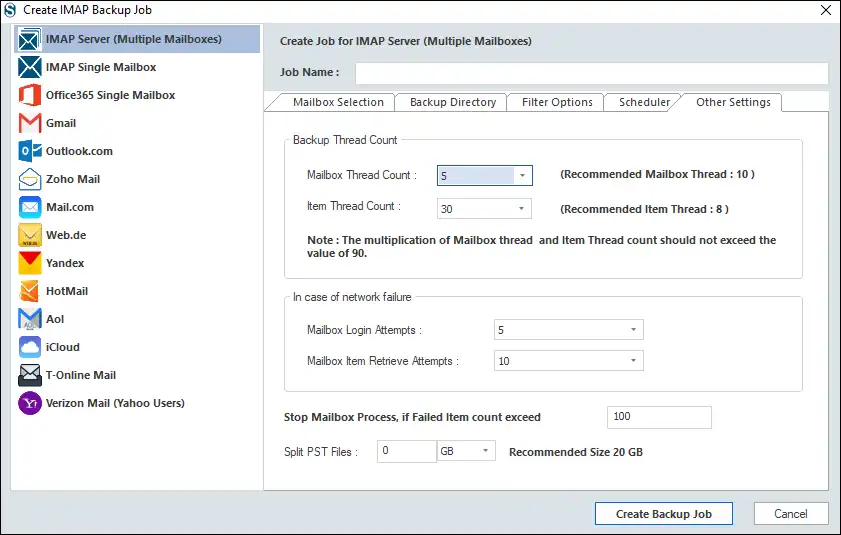
- Finally, under the Other Settings apply setting as per the requirement for the task. Also, here you can set the size for the resultant PST files using the Split PST. Click on the Create Backup Job.
- Now the backup job will start as per the option chosen. If you have selected the manual running, click on the start button to run the migration job. So, this how to back up Outlook emails.
Easy to Backup Emails from Outlook– A Recommended Way
- Step 1: Launch the Shoviv IMAP Backup and Restore Tool on Windows.
- Step 2: Select a destination backup path to Create backup directory.
- Step 3: Click Backup Job>>Provide Job Name>>Select Outlook mailbox.
- Step 4: Select PST as a backup file format from the Export type option.
- Step 5: Run Backup job to start taking email backup from MS Outlook.
Key Technical Checklist for Data Integrity
A successful backup is measured by its restorability, not just its completion. When archiving Outlook data in 2026, maintaining the forensic integrity of each item is critical for legal compliance, searchability, and seamless re-importing.
Preserving Metadata (Original Headers & Timestamps)
Metadata is the “digital DNA” of an email. Simple drag-and-drop actions or improper export methods can strip these vital attributes, rendering the backup useless for audits or chronological sorting.
To ensure a high-fidelity backup, your process must preserve:
- SMTP Headers: Full routing information, including originating IP addresses and server hops.
- Original Timestamps: The exact “Date Sent” and “Date Received” markers, rather than the date the backup was created.
- Participant Identity: Preserving the distinction between To, Cc, and Bcc fields to maintain the original communication context.
- Read/Unread Status: Ensuring the mailbox state is mirrored exactly in the archive.
Using professional tools like Shoviv ensures that these non-visual components remain embedded within the PST or MBOX file.
Handling Large PST Files (Split & Compact Strategy)
The stability of a PST file decreases as its size increases. While modern Outlook technically supports up to 50GB, performance issues and corruption risks escalate significantly once a file exceeds 20GB.
Implement a Split and Compact Strategy to maintain archive health:
- The Split Strategy: Divide large mailboxes into multiple smaller PST files (e.g., by year or by 5GB increments). Smaller files are faster to index and significantly less prone to header corruption.
- The Compact Strategy: Outlook does not automatically reclaim space when items are deleted. Use the “Compact Now” feature (found in Data File Properties) to remove “white space” and reduce the physical footprint of the backup file.
- Automated Truncation: Professional backup software automatically “split” the output during the export process based on a pre-defined size limit, ensuring no single file becomes a liability.
Managing file size is the most effective way to prevent the dreaded “PST is not a personal folders file” error during a restoration attempt.
Wrapping up:
To back up emails from Outlook, a lot of users search for a way, and in this blog we have explained two ways. A manual method as well as a professional third-party tool is explained in this tool. The professional tool by Shoviv Software provides a one-stop solution for the professional handling of Outlook email backup tasks. A free trial version of this software is also available to download.
Frequently Asked Questions:
While Outlook’s “Import/Export” wizard is useful for small, one-time tasks, it often struggles with large PST files, risks data corruption, and cannot be automated. Shoviv provides an enterprise-grade solution that ensures data integrity, supports incremental backups (skipping duplicates), and handles bulk migrations without crashing.
Yes. Using the Shoviv Office 365 Backup tool, you can connect directly to your cloud mailboxes via modern authentication. This allows you to secure your OWA data directly to local storage (PST, EML, or MSG) even if you don’t have the Outlook desktop application installed on your machine.
Not at all. The Shoviv tool works on a “read-only” basis during the backup phase, meaning it creates a secure copy of your data without altering or deleting the original items. Furthermore, its optimized core allows it to run in the background without slowing down your system’s performance.
The software is engineered with advanced mapping algorithms that preserve the original folder structure and metadata (To, Cc, Bcc, Date, etc.). It supports large-scale data processing, ensuring that even high-resolution attachments are backed up accurately without being stripped or corrupted.
An IMAP backup is a universal method for any email service (Gmail, Yahoo, etc.), while a dedicated Office 365 backup tool (like Shoviv) uses specialized APIs to back up not just emails, but also Archive Mailboxes, Public Folders, Shared Mailbox, and OneDrive providing a more comprehensive security blanket for Microsoft users.
As of 2026, the New Outlook for Windows has introduced support for PST Export, allowing users to save their mailbox data locally for backup. However, it is currently a “one-way” integration. While you can export data to a PST, the app does not yet support a native “Import” wizard to ingest external PST files back into your active mailbox