Currently, Outlook Web App (OWA) does not provide a native “Export to PST” option for downloading mailbox data in bulk. Users who want to save their emails locally must rely on alternative methods such as using the Privacy & Data Export tool (which can take up to four days to process), manually saving individual emails as PDF files, or using a professional backup tool that enables faster and automated bulk exporting.
Professional backup utilities Like Shoviv Office 365 backup offer the most reliable path for automated bulk exporting. This tool bypass the typical four-day wait time associated with Microsoft’s native settings. They provide a secure way to move entire folders into PST format without losing data integrity.
Outlook [OWA] Email Download Methods: At a Glance
| Method | Batch Support | Metadata Preservation | Difficulty Level |
|---|---|---|---|
| Manual (Settings / Native Options) | No – Usually exports one email at a time | Limited – Some properties like sender and date may not be preserved properly | Medium |
| Print to PDF | No – Requires printing emails individually | Poor – Metadata like folder structure, attachments, and headers may be lost | Easy |
| Using Outlook Desktop | Partial – Can export folders but requires manual configuration | Good – Preserves most metadata like sender, date, and attachments | Medium |
| Professional Tools (Shoviv O365 backup) | Yes – Supports bulk or batch conversion | Complete – Preserves metadata, folder hierarchy, and attachments | Easy |
In this write-up, we’ll dive deep into Limitations of native OWA Export feature and how to download all emails from Outlook online. So let’s not waste the time and start our topic.
The Limitations of Microsoft’s Native OWA Export
Outlook Web App (OWA), also known as Outlook on the Web, is designed primarily for email access and management through a browser, not for full mailbox data export. While it provides convenient access to emails, contacts, and calendars, it has several limitations when it comes to exporting mailbox data.
1. No Direct PST Export Feature
OWA does not include a built-in option to export mailboxes to PST files. Users cannot download their entire mailbox or folders in PST format directly from the web interface.
2. Limited to Individual Email Downloads
Users can only download individual emails (usually in .eml format) or save attachments. This makes it impractical for exporting large mailboxes or bulk email data.
3. No Bulk Mailbox Backup
OWA does not support bulk export or backup of mailbox data, which can be a major limitation for users who need to archive emails or migrate mailbox data.
4. Requires Additional Tools for PST Export
To export mailbox data to PST, users must rely on alternative methods such as:
- Microsoft Outlook desktop client
- Microsoft Purview eDiscovery export
- Exchange PowerShell commands
- Third-party backup or migration tools
5. Not Suitable for Migration Tasks
OWA is not designed for data migration or administrative exports, making it unsuitable for tasks like moving mailboxes between platforms or creating full mailbox backups.
In short: while OWA is excellent for accessing and managing emails through a browser, it lacks the capability to export mailboxes directly to PST, requiring other Microsoft tools or third-party solutions for complete mailbox exports.
Ways to Download emails from Outlook web?
There are several ways in which users can easily download emails from Outlook Web to their local drive. Below, we have mentioned a few ways that are easy to use and can export your Outlook emails easily. So, let’s start with the first one:
Method 1: Using the Microsoft Outlook Desktop Client
The Microsoft Outlook desktop client is one of the most reliable ways to download or export emails from an Outlook mailbox to your local system. If your mailbox is accessible through Outlook Web App (OWA), you can configure the same account in the Outlook desktop application and export mailbox data easily.
Steps to Download Emails Using Outlook Desktop App
1. Add Your Account to Outlook
Open Microsoft Outlook on your computer and sign in using the same email account that you access through OWA.
2. Allow Mailbox Synchronization
Once the account is added, Outlook will begin synchronizing all mailbox folders such as Inbox, Sent Items, Drafts, and others.
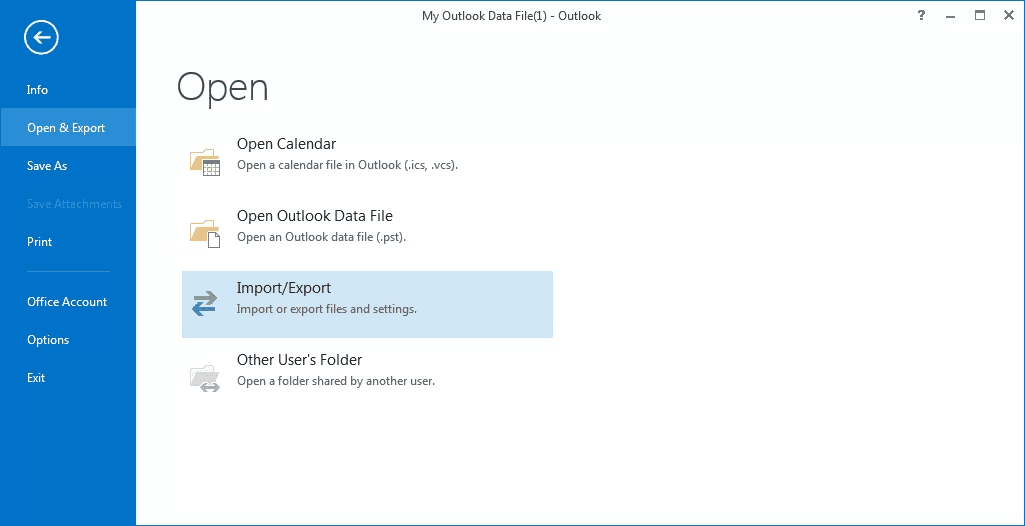
3. Open the Export Wizard
Go to the File tab in Outlook and select:
Open & Export → Import/Export
4. Choose Export Option
In the Import and Export Wizard, select:
Export to a file
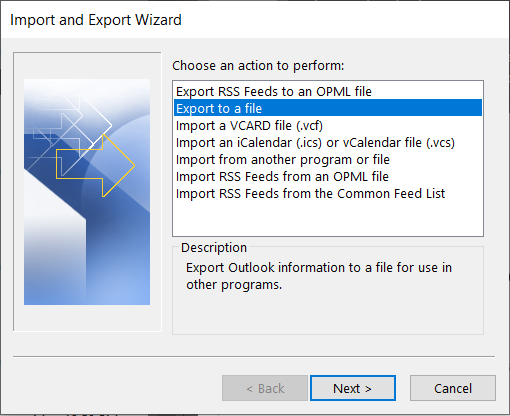
Then click Next.
5. Select File Type
Choose:
Outlook Data File (.pst)
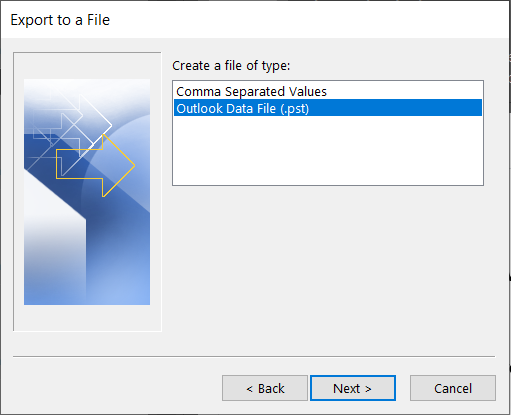
This format stores emails, attachments, contacts, and other mailbox data.
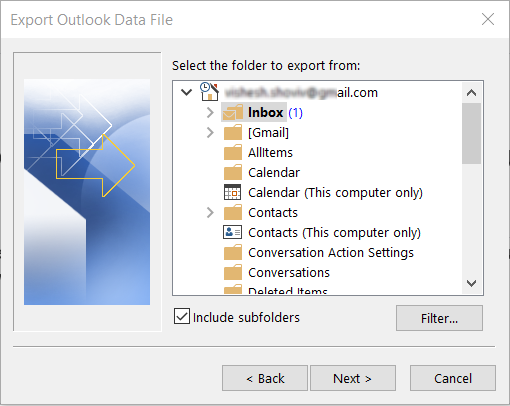
6. Select Mailbox or Folder
Choose the mailbox or specific folder you want to export.
You can also enable Include subfolders to export all emails.
7. Choose Destination Location
Browse and select the location on your computer where the PST file will be saved.
8. Complete the Export
Click Finish to start the export process. Outlook will create a PST file containing the selected emails.
Advantages of This Method
- Allows bulk email export
- Preserves email metadata and folder structure
- Saves emails in PST format, which is supported by Outlook
- Suitable for backup and migration purposes
Limitation
This method requires Microsoft Outlook installed on the system and configured with the mailbox account. Without the desktop client, exporting emails directly from OWA is not possible.
Note: using the Outlook desktop client provides a practical way to download or archive emails from an Outlook Web App mailbox by exporting them into a PST file.
Method 2: Using Microsoft Purview eDiscovery Export
Microsoft Purview eDiscovery is an administrative feature in Microsoft 365 that allows organizations to search, collect, and export mailbox data for legal, compliance, or backup purposes. Administrators can use this method to export emails from Outlook Web App (OWA) mailboxes and download them as PST files.
Steps to Export Emails Using Microsoft Purview eDiscovery
1. Open Microsoft Purview Compliance Portal
Sign in to the Microsoft Purview portal using an administrator account with the required permissions.
2. Navigate to eDiscovery
Go to:
Solutions → eDiscovery → Content Search
3. Create a New Content Search
Click New Search and provide a name for the search task.
4. Select Mailbox Location
Choose the mailbox or mailboxes you want to export.
You can search all mailboxes or specific users.
5. Define Search Conditions (Optional)
You can apply filters such as:
- Keywords
- Date range
- Sender or recipient
- Specific folders
If no filters are applied, the tool will export the entire mailbox.
6. Run the Search
Start the search and wait for Microsoft 365 to process the mailbox data.
7. Export the Search Results
After the search completes, click Export results and select the option to download the data as PST files.
8. Download the Export File
Microsoft will generate a download package containing the PST files and provide an export key to download the data using the eDiscovery Export Tool.
Advantages of This Method
- Supports bulk mailbox export
- Exports emails directly to PST format
- Allows advanced filtering and search
- Useful for compliance, legal discovery, and investigations
Limitations
- Requires Microsoft 365 administrator permissions
- The export process can be complex for non-technical users
- The export tool must be installed to download the PST package
Note: Microsoft Purview eDiscovery provides a powerful administrative method to export mailbox data from Microsoft 365 environments. However, due to its complexity and permission requirements, it is typically used by IT administrators or compliance teams rather than regular users.
Method 3: Using Exchange PowerShell Commands
Exchange PowerShell provides an administrative way to export mailbox data directly from Microsoft Exchange Server. IT administrators can use PowerShell commands to export mailbox content into a PST file, which can then be stored locally for backup, compliance, or migration purposes.
Steps to Export Mailbox to PST Using Exchange PowerShell
1. Open Exchange Management Shell
Log in to the Exchange Server with administrator privileges and open the Exchange Management Shell.
2. Assign Mailbox Export Role
Before exporting mailboxes, ensure the administrator account has the required permissions. Run the following command:
New-ManagementRoleAssignment –Role "Mailbox Import Export" –User Administrator3. Create a Shared Folder for PST Export
Create a shared network folder where the PST file will be saved, for example:
\\ServerName\PSTExportsMake sure the Exchange Trusted Subsystem has permission to access this folder.
4. Run the Mailbox Export Command
Use the following command to export a mailbox:
New-MailboxExportRequest -Mailbox user@domain.com -FilePath \\ServerName\PSTExports\user_mailbox.pst5. Monitor Export Status
You can check the export progress by running:
Get-MailboxExportRequest6. Complete the Export
Once the export process finishes, the PST file will be available in the specified shared folder.
Advantages of This Method
- Supports bulk mailbox export
- Exports directly to PST format
- Suitable for administrators managing Exchange environments
- Allows automation using scripts
Limitations
- Works only with Exchange Server (on-premises)
- Requires administrator permissions
- Requires technical knowledge of PowerShell
- Not available directly for Outlook Web App users
Note: Exchange PowerShell commands provide a powerful and flexible method for administrators to export mailbox data to PST files. However, due to the technical complexity and permission requirements, this method is primarily used by Exchange administrators in enterprise environments.
Method 4: Download Outlook Emails (Professional Software)
We suggest using an automated tool which is a backup and restore tool and it is developed by the Shoviv Software. The tool allows users to configure their Outlook web account in the software through the Office 365 credentials. Once you configure your Office 365 or Outlook web account into the software, you can easily download emails from them. Also, the tool has several user-centric features, making it a picture-perfect solution for downloading emails from the Outlook web. Below are some of its features:
- You can configure multiple Outlook web accounts in the software and download the emails easily.
- The software has a filter option so you can include or exclude the desired emails from the process without any hassle.
- The software displays a preview of Outlook emails so you can ensure you are downloading the right email.
- There are several other advanced features in a tool, such as email translation, folder mapping, etc.
- You can use the tool with any Outlook version and Windows operating system without glitches.
These are a few of the many features that the Shoviv Office 365 Backup and Restore Tool offers. We suggest you download and install the free version of the tool to check the software’s skills and compatibilities before investing in it.
Note: If you want to download Hotmail/Outlook.com emails then use this software:
Troubleshooting Common OWA Export Errors
Even when following the official steps, users often encounter technical hurdles. Below are the most common issues you might face when attempting to download emails from the Outlook Web App (OWA) and how to resolve them.
1. The “Export Mailbox” Button is Greyed Out
If you navigate to Settings > Privacy & Data and find the Export button disabled, it is likely due to administrative restrictions.
- The Cause – Your organization’s IT administrator may have disabled data export features to prevent data leaks.
- The Fix – Contact your Microsoft 365 admin to request “eDiscovery Export” permissions. If you are the admin, ensure the Export role is assigned in the Microsoft Purview compliance portal.
2. Export Link Not Received After 4 Days
Microsoft technically allows up to four days to prepare your download link, but sometimes it never arrives.
- The Cause – Large mailbox sizes (over 50GB) or server-side “throttling” can stall the process.
- The Fix – Clear your browser cache and check the Privacy & Data tab again; sometimes the link appears there before the notification email arrives. If it still fails, a professional migration tool is the only way to bypass these server limits.
3. “Print to PDF” Missing Attachments
A common frustration occurs when users save an individual email as a PDF only to find the attachments are gone.
- The Cause – The “Print” function in OWA creates a visual snapshot of the text only. It cannot “embed” actual files (like Excel or Word docs) into the PDF.
- The Fix – You must download attachments separately before saving the email body. For bulk attachment preservation, use the IMAP Sync method or a specialized backup utility.
4. “Network Error” During Large Downloads
If your connection blips during the download of a 20GB .pst file, the browser often cancels the entire task.
- The Cause – Browsers like Chrome or Edge are not optimized for multi-gigabyte data streams from OWA.
- The Fix – Use a download manager or, ideally, a backup tool that supports “Incremental Resumption.” This allows the process to pick up exactly where it left off without starting over.
5. Corrupt PST Files After Export
Sometimes the exported file refuses to open in the Outlook Desktop App.
- The Cause – High server load during the Microsoft “Privacy & Data” packaging process can lead to bit-level corruption.
- The Fix – Try the export again during off-peak hours (weekends). If the file remains unreadable, use a PST Repair tool or a direct-to-PST backup solution to ensure a clean file structure.
Conclusion:
Undoubtedly, Outlook is one of the most prominent email clients, and its advanced features make it a perfect fit for modern-day organizational needs. However, downloading Outlook emails to the local drive is a good move as it comes in handy in several scenarios. In this write-up, we’ve discussed why users need to download emails from Outlook Web and how one can do the task effortlessly. There are manual methods too, but they are not recommended for businesspeople. Shoviv Office 365 Backup and Restore tool is a perfect option for the task, and you can check the tool’s performance and compatibilities for free by downloading the free version of the software.
Frequently Asked Questions:
No. Unlike the Outlook desktop application, the web version (OWA) does not feature a built-in “Export to PST” tool for bulk downloads. While Microsoft provides a “Privacy & Data” export option in the settings, it is often slow and generates a massive, unstructured file.
While “Print to PDF” is a reliable way to save individual emails for quick reference, it is not a secure “backup” strategy for sensitive data. It strips away critical email metadata (like headers and routing info) and doesn’t encrypt the resulting file.
OWA is primarily designed for online use, so it lacks a “Bulk Download” feature for multiple messages. To do this manually, you would need to configure your account in a desktop client (via IMAP) and then export. However, this sync process often fails with large mailboxes.
It depends on the method. If you use “Save As” for an individual email (saving it as an .eml or .msg file), the attachments are generally preserved. However, if you use the “Print to PDF” method, attachments are often lost or only listed as text at the bottom.
Microsoft limits (throttles) the speed at which data can be exported from web accounts to prevent server strain. If you have a mailbox over 10GB, a manual export can take days and often times out. Professionals bypass this by using software that utilizes Multi-threading technology.