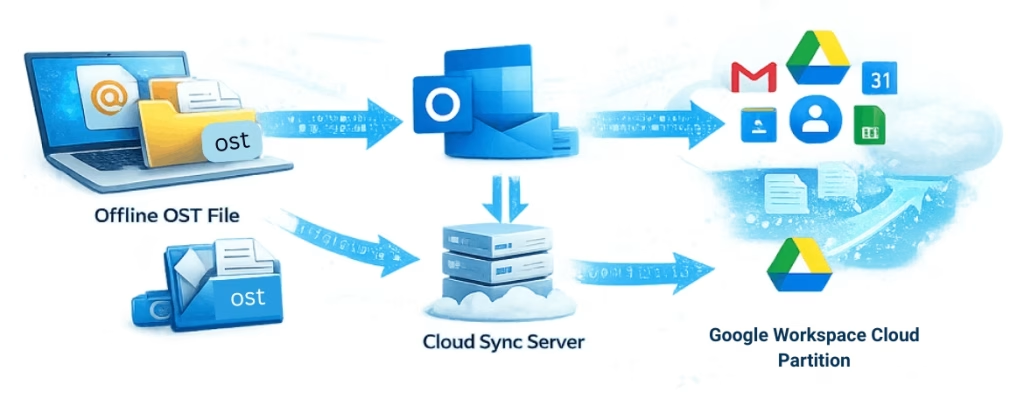
Executive Summary: Gmail does not natively support the proprietary Microsoft OST (Offline Storage Table) format. To import data, you must either convert the OST to a portable PST file using Outlook Classic and upload it via the GWMMO (Google Workspace Migration for Microsoft Outlook) tool, or use a Professional Gmail Backup and Restore tool to bypass the Outlook dependency entirely.
Key Migration Methods & Technical Constraints
- The Manual Method (Two-Stage) – Requires an active Outlook profile to export data to a PST. This is the free standard but is limited by a 25MB attachment cap and cannot process orphaned or corrupted OST files.
- The Direct Migration Path (Shoviv) – Uses high-speed API connectivity to push data directly from the offline OST to Gmail. This method is preferred for enterprise-scale transitions as it preserves metadata (headers, timestamps) and maps Outlook folders to Gmail labels automatically.
- Security Requirements – Modern migrations require OAuth 2.0 authentication or Google App Passwords. Traditional “Less Secure Apps” access is obsolete; all transfers must now comply with Google’s Zero-Trust security framework.
Why This Matters for Data Mobility
As organizations move toward cloud-only environments, the ability to extract legacy data from orphaned Microsoft caches is a critical IT requirement. Using specialized tool like the Shoviv Gmail Backup and Restore, which reduces the risk of MAPI-related errors and ensures a 100% data recovery rate without requiring a functional Outlook installation.
Want to migrate emails from OST file to Gmail? Use Shoviv Gmail Backup and Restore Tool and import your personal emails with attachments easily and safely.
Need to Import Outlook OST file to Gmail business account? Use Shoviv Google Workspace Backup and Restore. Effortlessly import from OST, OLM, PST, MBOX and some other file formats to Google Workspace account. Ensure data integrity, prevent accidental loss, and maintain full control.
Manually Way to Import OST Files to Gmail Account
The manual approach to importing an OST file into Gmail is not straightforward because Gmail doesn’t support .ost files directly. Instead, you must convert the OST into PST format and import it using the G-Suite Migration for Microsoft Outlook (GSMMO) tool. The process involves three primary stages, explained below.
If your OST file is still accessible through Outlook, you can convert it into .pst format and then migrate the PST into Gmail using Google’s GSMMO tool. To manually import OST to Gmail, you need to implement the following three stages:
- Locate/Extract the OST file
- Export OST to PST
- Import PST to Gmail via the GSMMO tool
Step 1: Locate/Extract the OST File
- Launch MS Outlook and press on the File
- Select Account Settings > and go to Account Settings
- Under the Data Files tab, choose your desired OST file.
- After that, click the Open File Location
- At last, copy or note down the OST file path.
Note – The default OST file location is usually: (C:\Users\user\AppData\Local\Microsoft\Outlook). However, it may differ depending on where the user saved the file.
Once you have located the OST file, export it into PST format.
Step 1: Converting OST to PST via Outlook Classic
- Now, in MS Outlook, go to File > Open & Export > Import/Export.
- From the wizard, pick Export to a File and click Next.
- Then choose Outlook Data File (.pst) and proceed.
- Select the email account or folders you wish to export.
Note: Users can also check Include subfolders.
- After that, click Browse to choose the destination location to save the PST file.
- Hit the Finish button to complete the conversion/export.
Your OST file has been converted into PST format and is ready for migration into Gmail.
Stage 3: Using Google Workspace Migration for Microsoft Outlook (GWMMO)
The GMMO (G Suite Migration for Microsoft Outlook) is a free tool from Google that helps to import PST files into Gmail accounts. Follow these steps:
- Firstly, download and install the GSMMO tool from Google.
Note – The GSMMO tool can only be accessed through the Outlook application; it will not function without it.
- Launch the tool and sign in with your Gmail Account Credentials.
- When prompted, click Allow to provide GSMMO access to your account.
- In the wizard, select From the .pst file(s)
- Browse or paste the location of the PST file you created earlier.
- Then adjust migration preferences (email, contact, calendar, or date filters).
- After that, click on Migrate to start the import process.
- Lastly, wait for confirmation of successful conversion, then check your Gmail.
Once the process is complete, log in to your Gmail account. The imported Outlook data will now be visible in the left pane of your mailbox.
Limitations of the Manual Method
While this method works, it comes with some limitations. The following are listed below:
- Manual dragging for extensive data is slow, time-consuming and error-prone.
- Google Drive and Gmail have a strict 25MB limit for individual messages (including attachments). If your OST contains high-resolution reports or large media files, GWMMO will skip these items and record a
0x80041066error in the log. - Requires access to the original Outlook profile/account. It works only if the OST file is linked to Outlook.
- Does not support orphaned or corrupt OST
- Some items, like contacts, calendar entries, or encrypted emails, may not import correctly.
- GSMMO doesn’t support older systems such as Windows XP or Server 2003.
- Gmail’s label system has a character limit (225 characters for the full path). Deeply nested Outlook folders (e.g., Inbox > Projects > 2026 > Client A > Final Reports) may fail to migrate or have their labels truncated.
- Requires technical knowledge to configure correctly.
The manual method to import OST to Gmail involves locating the OST file, exporting it into PST, and migrating it using GSMMO. It is a reliable but lengthy process, best suited for smaller OST files or users who are comfortable with Outlook and Google migration tools. For large or corrupted OST files, a trustworthy professional solution is often recommended for faster and more efficient importation.
Best Way to Import OST Files to Gmail Using a Professional Method
Importing OST files to Gmail is essential for users who want cloud-based accessibility, data security, and long-term availability. While the manual approach using Outlook’s PST export and GSMMO works, it has several limitations—especially with large, orphaned, or corrupted OST files. It is where professional utilities offer a more seamless, reliable, and advanced solution.
Among the most recommended tools are the Shoviv Gmail Backup & Restore and Google Workspace Backup & Restore, which make the process simpler, faster, and more reliable. With features such as direct OST-to-Gmail import, advanced filtering, and incremental backups, these utilities ensure smooth and error-free migration. Professional solutions are the best way forward for anyone prioritising data integrity and efficiency. Together, these tools provide a comprehensive approach to importing OST files into Gmail with minimal hassle.
Note: Use Shoviv Gmail Backup & Restore for the personal Gmail account and Google Workspace Backup & Restore for Business Gmail (Google Workspace) account.
Key Features of Shoviv Tools for Importing OST to Gmail:
- Direct import and migration of OST files into Gmail or Google Workspace mailboxes.
- Maintains original folder hierarchy, email formatting, and metadata during backup or restoring files.
- Supports incremental backup and restore to avoid data duplication.
- Provides advanced filters for selective export based on date, folder, or item type.
- Ensures secure conversion with end-to-end encryption.
- Offers scheduling options for automated backup and restore tasks.
- Generates detailed reports for tracking and auditing importation activities.
- The user-friendly interface of both tools is ideal for technical or non-technical users.
- It works on the job-based processing that allows users to add multiple mailboxes in a single job.
Steps to Import OST to Gmail Using Shoviv Tools
- Install and launch the Shoviv tool (IMAP Email Backup & Restore / Google Workspace Backup & Restore).
- Go for the Restore job task and add or select the OST file you want to import.
- Create a Job and Configure and authenticate your Gmail or Google Workspace account using credentials.
- Apply advanced filters to import only the required data (by date, folder, or item type).
- Check the created job settings, and if all is okay, then click on the Create Job.
- Start the restore process and monitor the progress in real time.
- Once completed, review the detailed log report and verify the OST emails in your Gmail account.
Security & Authentication
Now email security has largely moved to a Zero-Trust architecture. The era of “Less Secure Apps” (LSAs) ended in late 2024, meaning traditional basic authentication (username and password) is no longer an option for syncing OST data to Google. To migrate successfully today, you must navigate the dual paths of OAuth 2.0 and App Passwords, ensuring your connection meets Google’s hardened security protocols.
Setting up Google App Passwords vs. OAuth 2.0
Choosing between these two depends on whether your migration tool is a “Modern App” (supporting OAuth) or a “Legacy/Scripted Tool” (requiring App Passwords).
| Feature | OAuth 2.0 (Recommended) | Google App Passwords (Fallback) |
| Security Level | High: Uses token-based access; never sees your password. | Medium: Uses a 16-digit code; bypasses 2FA for that specific app. |
| Setup Complexity | Requires API Console configuration or one-click “Sign in with Google.” | Requires 2-Step Verification (2SV) to be active. |
| Best For | Professional migration software and enterprise-grade tools. | Custom Python scripts, legacy IMAP tools, or scanners. |
| Revocation | Can revoke specific app “tokens” via Security settings. | Can delete the 16-digit code to immediately cut access. |
How to Configure Each
- OAuth 2.0 – When prompted by your migration tool, select “Sign in with Google.” This opens a secure Google-hosted window. Once you authorize the requested scopes (usually https://mail.google.com/), an encrypted token is issued to the tool.
- App Passwords – If your tool does not support OAuth, navigate to your Google Account > Security > 2-Step Verification. Scroll to the bottom to find App Passwords. Generate a unique 16-character code specifically for your migration tool.
Preserving Read/Unread Status and Metadata (Ensuring Data Integrity)
A common pitfall in OST-to-Gmail migration is losing the “context” of the email. Data integrity isn’t just about the body text; it’s about preserving the digital paper trail required for legal compliance and searchability.
- Preserving IMAP Flags – Ensure your migration tool supports the \Seen flag. Without this, every single email imported from your OST will appear as “Unread” in Gmail, creating a massive cleanup task for the end user.
- Metadata & Headers – Critical headers like Message-ID, In-Reply-To, and References must remain intact. If these are stripped, Gmail cannot correctly group emails into Conversations (Threads), breaking the user’s existing workflow.
- Gmail-Specific Identifiers – High-end tools now preserve X-GM-THRID (Thread ID) and X-GM-MSGID. This ensures that even after the move, the relationship between emails stays consistent with how they were viewed in Outlook.
- Timestamp Accuracy – Modern migration protocols distinguish between the Internal Date (when the message was originally received) and the Import Date. Ensure your tool maps the Date: header to the Gmail “Received” time to maintain chronological order in the inbox.
Expert Note: Before starting a bulk migration, run a “Header Check” on a test batch of 10 emails. Verify that the “Sent” date in Gmail matches the original Outlook timestamp exactly, not the time of the migration.
Gist of the Blog
This blog has explained two methodologies to export OST data to the Gmail account. We have covered manual as well as professional methods. The manual method is not suitable for professional data migration, and using a third-party tool is the best practice. Shoviv Software has developed an advanced utility for the OST migration to Gmail. Use Shoviv Gmail Backup and Restore Tool if you are exporting to the personal Gmail account( Free Gmail). To migrate in the Google Workspace Gmail account, use Shoviv Google Workspace Backup and Restore Tool. Users can also test these utilities before purchasing.
Frequently Asked Questions:-
No. Gmail does not support OST files directly. You must convert OST to PST and use GSMMO or a professional tool that supports direct OST-to-Gmail importation.
GSMMO works only with PST files, so you must first convert OST into PST. It’s suitable for small and healthy OST files, but not ideal for orphaned, corrupted, or large files.
Professional utilities like Shoviv offer incremental backup/restore, which avoids data duplication and saves time during repeated imports.
No. Outlook installation is not mandatory.
Yes. This tool supports all Windows OS versions, like XP, Vista, 7, 8, 10, 11, and all Windows Servers.