AWS WorkMail users now have an important decision to make. Planning the migration early can help avoid unnecessary challenges and ensure a smoother transition. Whether you’re migrating a few mailboxes or multiple user accounts, choosing the right migration method can save time, reduce manual effort and secure your email data. This guide covers the available methods to transfer emails from Amazon WorkMail to Zoho Mail, their limitations, and the steps to complete the migration successfully.
Reasons to Migrate Amazon WorkMail to Zoho Mail
- Amazon WorkMail has announced its end of life, which is one of the main reasons to migrate.
- To keep business communication running smoothly without interruptions during the transition.
- Manage emails, contacts, and calendars from a single platform.
- Improve team collaboration with built-in tools such as Mail, Calendar, Tasks, and Notes.
- Simplify mailbox management with an easy-to-use admin console and user management features.
- Scale your email environment as your business grows without making major changes.
- Protect business data with security features like encryption, spam protection, and multi-factor authentication.
Manual Methods to Migrate WorkMail to Zoho Mail
There are different manual methods available to migrate Amazon WorkMail to Zoho Mail. The right option depends on the amount of data you want to transfer and the migration process you prefer.
Method 1: Email Forwarding
Email forwarding is suitable if you only want to receive new emails in your Zoho Mail account. However, it does not transfer your existing mailbox data.
Steps:
- Sign in to your AWS WorkMail account.
- Open the email forwarding settings.
- Enter your Zoho Mail email address.
- Save the changes and verify that new emails are being forwarded.
Method 2: IMAP-Based Migration
An IMAP email client can be used to transfer existing mailbox data from AWS WorkMail to Zoho Mail. This method is suitable for small migrations.
Steps:
- Configure your AWS WorkMail account in an IMAP email client.
- Add your Zoho Mail account to the same email client.
- Select the required folders or emails.
- Copy or move the data to the Zoho Mail mailbox.
- Wait for the migration to complete.
Method 3: Zoho Native Migration
Zoho Mail includes a built-in migration tool that supports IMAP migration, allowing you to move mailbox data directly into your Zoho account.
Steps:
- Sign in to the Zoho Mail Admin Console.
- Open the Data Migration section.
- Choose IMAP as the migration source.
- Enter the required AWS WorkMail server details and account credentials.
- Start the migration and monitor its progress.
Limitations of Manually Transferring Emails from Amazon WorkMail to Zoho Mail
- Time-consuming when migrating multiple mailboxes.
- No bulk migration support for large-scale WorkMail to Zoho Mail migrations.
- Higher risk of missing data if the migration is not monitored carefully.
- Limited filtering options to migrate only specific mailbox data.
- No scheduling feature, so the migration must be performed manually.
- Requires more manual effort to manage and monitor the entire process.
If you’re migrating multiple mailboxes or need more control over the migration process, using a professional migration solution can help simplify the task.
Migrate AWS WorkMail to Zoho Mail Using a Professional Solution
If manual methods don’t meet your migration requirements, you can use the Shoviv Amazon WorkMail to IMAP Migration Tool. It provides a simple way to transfer emails from AWS WorkMail to Zoho Mail through IMAP. The software supports bulk mailbox migration, delta migration, scheduling, filtering, and parallel processing, making it suitable for both small and large migration projects.
Working Steps to Transfer Emails from AWS WorkMail to Zoho Mail
Step 1: Install and Launch the Software
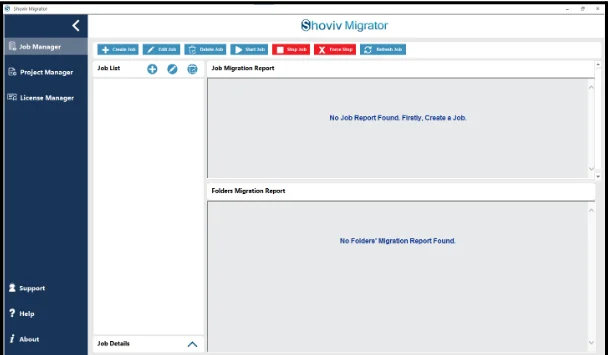
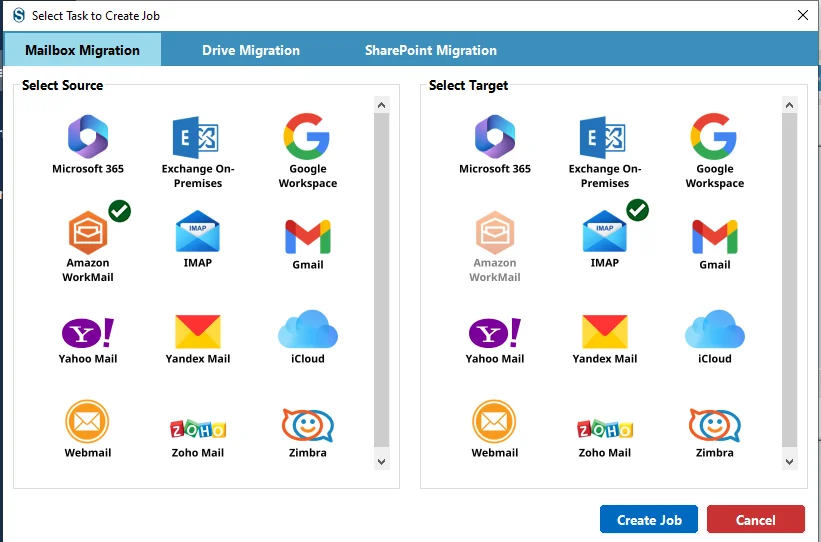
- Download, install, and launch the Shoviv Amazon WorkMail to IMAP Migrator AKA Shoviv Migrator, on your system. From the Job Manager, click Create Job, choose Mailbox Migration, select Amazon WorkMail as the source and IMAP as the target, then click Create Job.
Step 2: Configure the Source and Target Projects
- Enter a job name and create a source project by connecting your Amazon WorkMail account. Select the required mailboxes or import them using a CSV file. Then, configure or select the target IMAP project for your Zoho Mail account and continue.
Step-3: Map the Mailboxes
- Map each source mailbox to its corresponding Zoho Mail mailbox. You can map mailboxes manually or using a CSV file to complete bulk mailbox mapping. However, initially the software maps automatically.
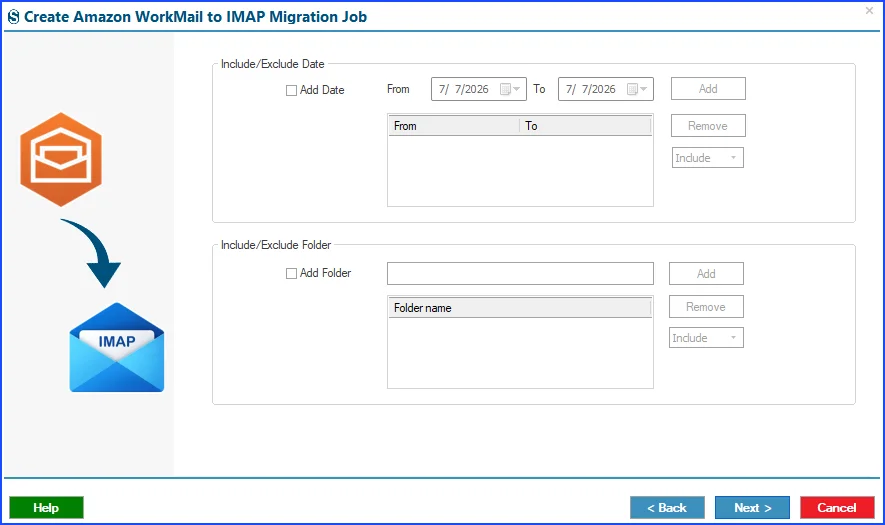
Step 4: Apply Migration Filters
- Choose the data you want to migrate by applying filters such as Include/Exclude Date and Include/Exclude Folder. This helps migrate only the required mailbox data.
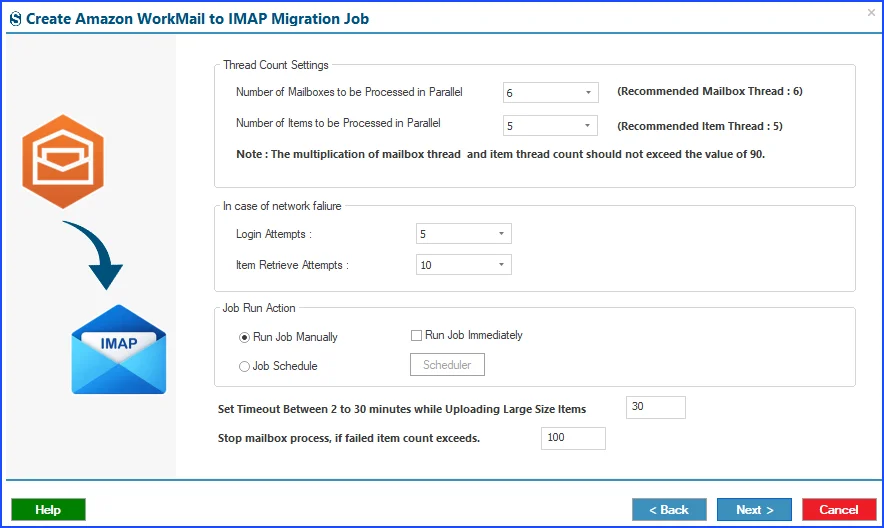
Step 5: Configure the Migration Settings
- Adjust the migration settings based on your requirements. You can set the number of mailboxes and items to process simultaneously, configure login retry attempts, define the timeout for large items, set the bad item count limit, and choose whether to run the job immediately, manually, or on a schedule.
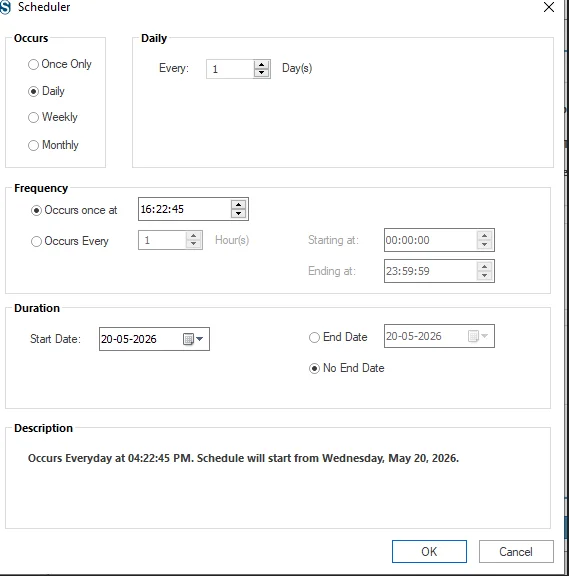
Step-6: Set Up the Job Scheduler (Optional)
- If you want to automate the migration, configure the scheduler by selecting the migration frequency, execution time, start and end dates, and other scheduling preferences. This section is under the job-run-action.
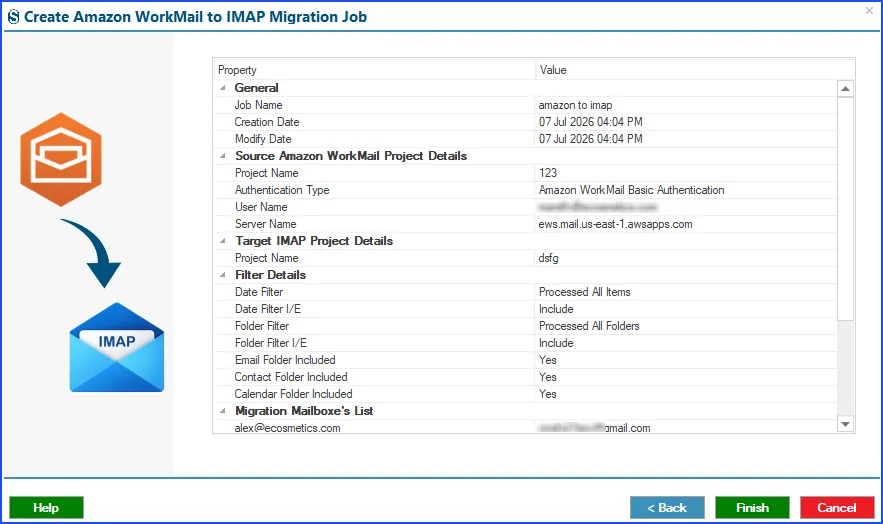
Step 7: Review the Job Configuration
- Review all the selected settings, mailbox mappings, and migration options. If any changes are required, use the Back button to update the configuration before proceeding.
Step 8: Finish the Job Setup
- Click Finish to save the migration job. If you have selected Run Job Immediately, the migration will start automatically using the configured settings.
Step-9: Start and Monitor the Migration
- If you chose Run Manually, click Start Job to begin the migration. Monitor the job progress and verify that all selected mailbox data has been migrated successfully. If you have scheduled the migration job, it will run as scheduled.
Conclusion:
The process to transfer emails from Amazon WorkMail to Zoho Mail can be simple when you choose the right migration method. While manual methods may be suitable for small migrations, they often require more time and effort, especially when dealing with multiple mailboxes. For larger or more complex migrations, a professional solution can help simplify the process and reduce manual work.
By following the steps covered in this guide, you can complete the AWS WorkMail to Zoho Mail migration with minimal disruption and ensure your mailbox data is transferred successfully. Before completing the migration, verify the migrated data and update your email settings to start using your new Zoho Mail account without any issues.
Frequently Asked Questions:-
Depending on the migration method you choose, you can migrate emails, folders, contacts, and calendars. Always verify the supported data before starting the migration.
Yes. You can transfer using methods such as email forwarding, using an IMAP email client, or Zoho Mail’s native IMAP migration. However, manual methods are generally better suited to small migrations.
Yes. Bulk mailbox migration is possible with a professional migration tool like Shoviv’s Amazon WorkMail to IMAP Migrator, making it easier to migrate multiple user accounts in a single job.
Yes. Zoho Mail supports IMAP migration, allowing you to transfer mailbox data from compatible email services, including AWS WorkMail.
Yes. If your migration method supports filtering, you can migrate specific emails by selecting folders or applying date-based filters instead of transferring the entire mailbox.
After the migration, verify that your emails and other mailbox data have been transferred successfully. You should also update your email settings and test your Zoho Mail account before using it for daily communication. IF migrating using the professional tool, then check the migration report.