Mozilla Thunderbird is a free email system launched in 2003 that allows users to add multiple accounts and manage their emails. Despite many advanced settings, many users want to migrate Thunderbird to Gmail service. However, nobody changes their emailing system without thinking about the future consequence. Gmail is something that millions of users want to take advantage of it. It offers multiple services to users that help them to collaborate with others easily and quickly.
If you have finally planned to migrate from your existing email client, this article will appraise a solution that will help you manage the migration easily. However, before you look at the solution, kindly check out some common reasons behind migration.
Why does the User think to migrate from Mozilla Thunderbird to Gmail?
Gmail is relatively modern compared to Thunderbird, reflecting its UI and functions. Gmail is a straight winner as compared to Thunderbird. However, we have shared the reasons why users migrate Thunderbird to Gmail.
- Thunderbird suits the user who uses Windows, Linux, and Mac operating systems. It is a free desktop-based email client that accesses the data from the mail server and saves the user data locally. However, Gmail is emailing service offered by Google that gives universal access to data which most users like.
- Gmail provides a large amount of storage to its users, making storing their data on the cloud easier.
- Users will get better security for their data in Gmail as it’s saved on the cloud, which altogether keeps your data safer from multiple external disturbances.
- The UI of Gmail is intuitive in nature, which ultimately makes it easier for all users to navigate to its function quite comfortably.
Approach to Export Thunderbird Data into Gmail
Manually, users can export Thunderbird to Gmail using two methods. The first user will be required to enable the IMAP settings in Gmail and then add a Gmail account to Thunderbird. Alternatively, another manual solution we have described here is synchronizing the user’s Thunderbird account with Gmail. It depends upon the user to choose anyone, but we will guide how to make the most of it.
Add Gmail Account in Thunderbird:
Enable IMAP in Gmail
- The first step is to sign in with the credentials, such as email id and password. Make your way toward the upper right and click on the Setting Icon.
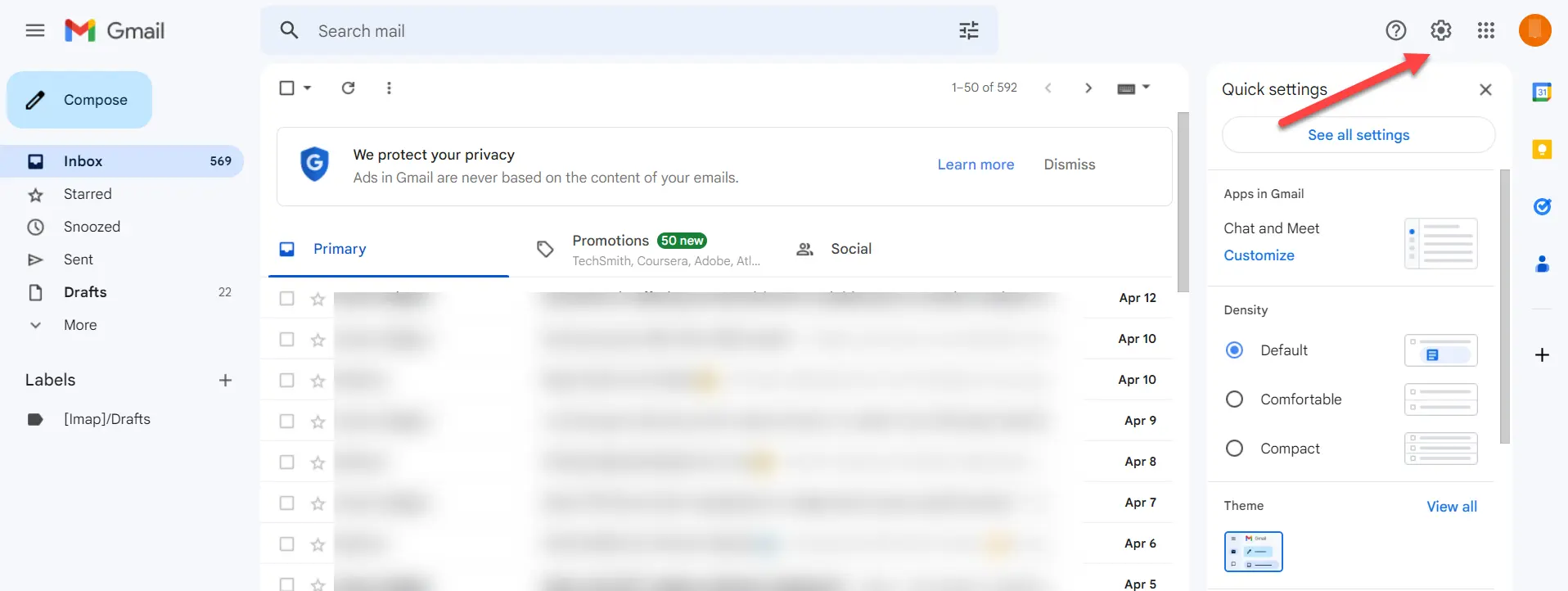
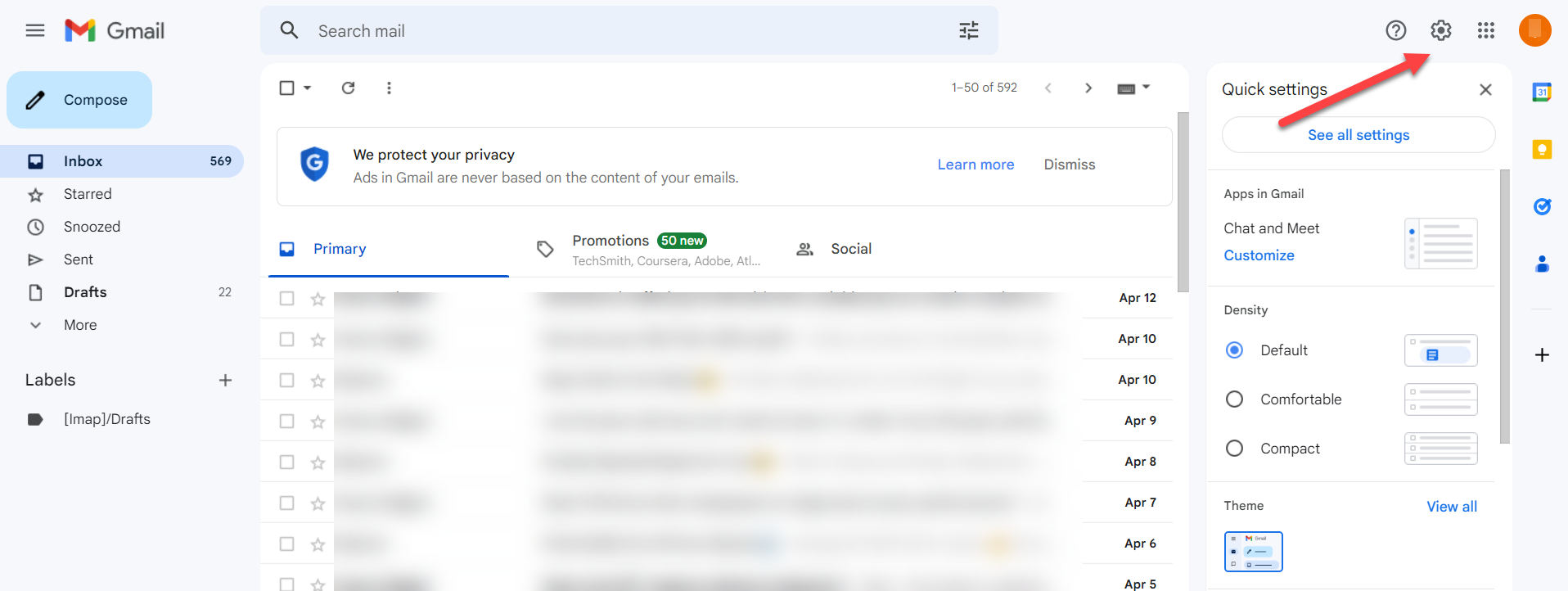
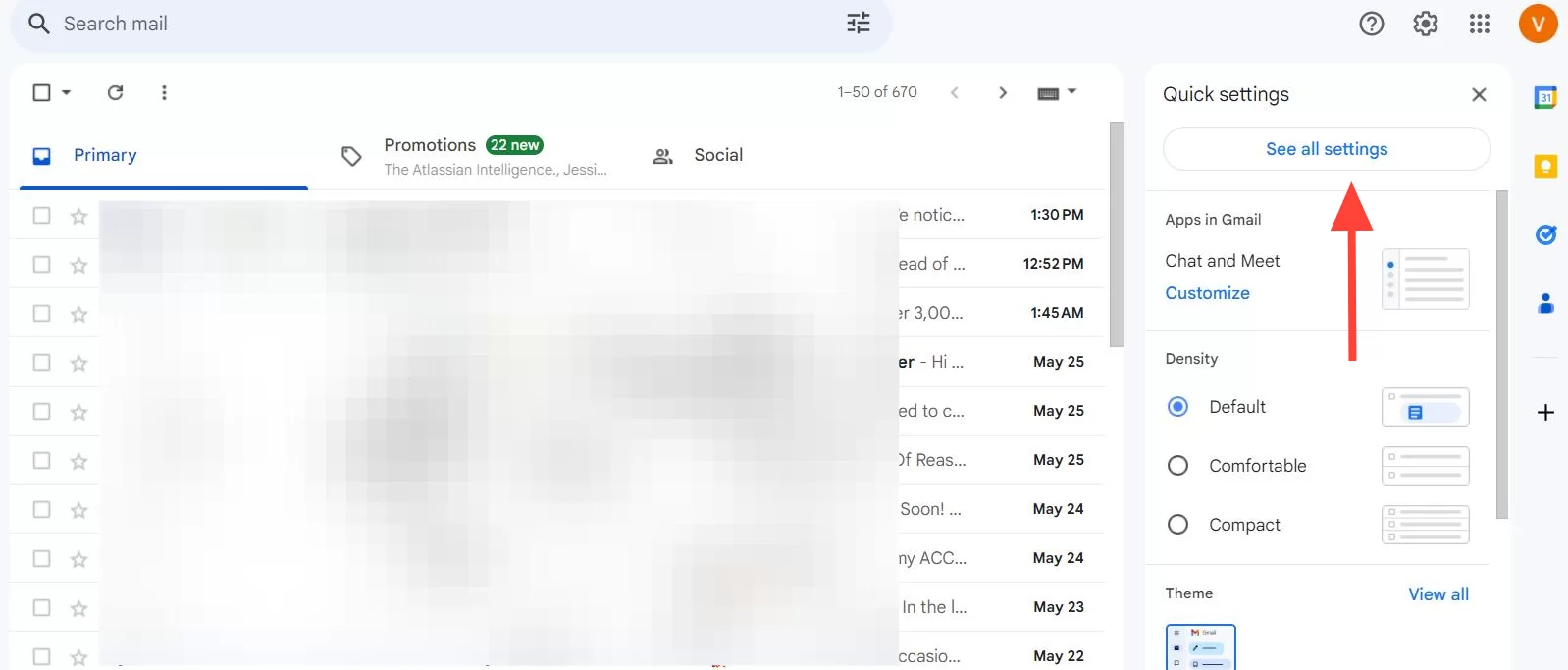
- Once you click on the setting gear icon, press on See all Settings.
- On the Setting page, click Forwarding and POP/IMAP, and then enable IMAP.
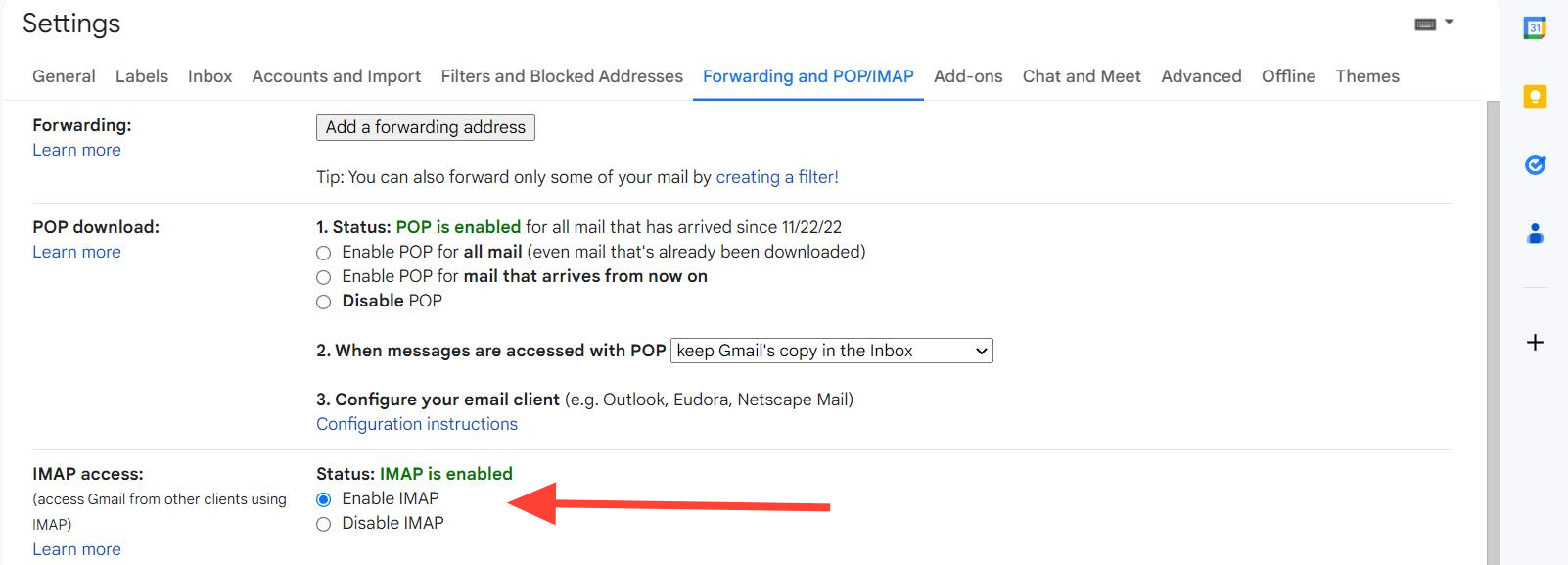
This is the completion of the 1st phase to migrate Thunderbird to Gmail, and now we look at how you configure your Gmail account into Mozilla Thunderbird.
Configure Gmail Account in Thunderbird
- Go to the Thunderbird after logging in with the required details. Now, click on the Setting icon and then Account Settings.
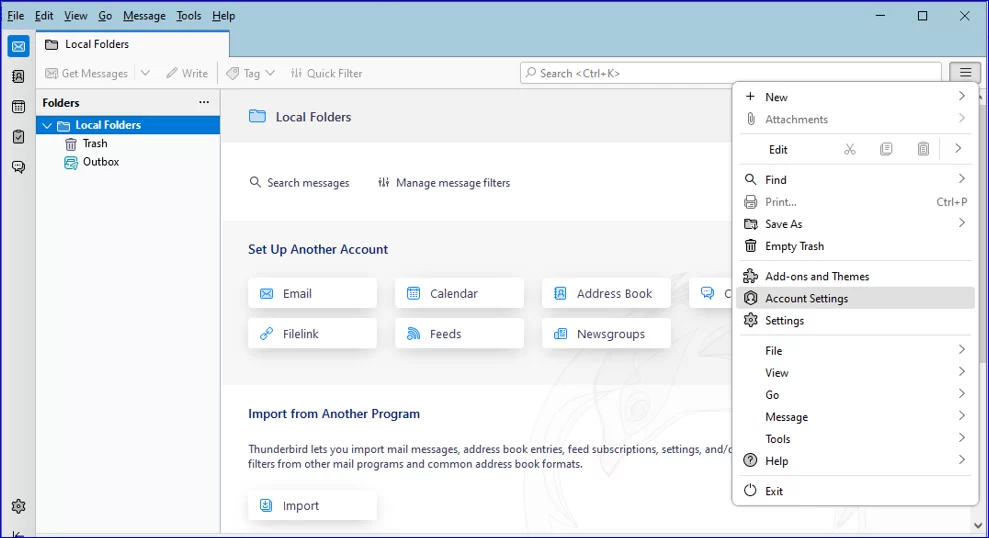
- Here, kindly click on Account Action, which will open up a few options, and where you must click on Add Mail Account.
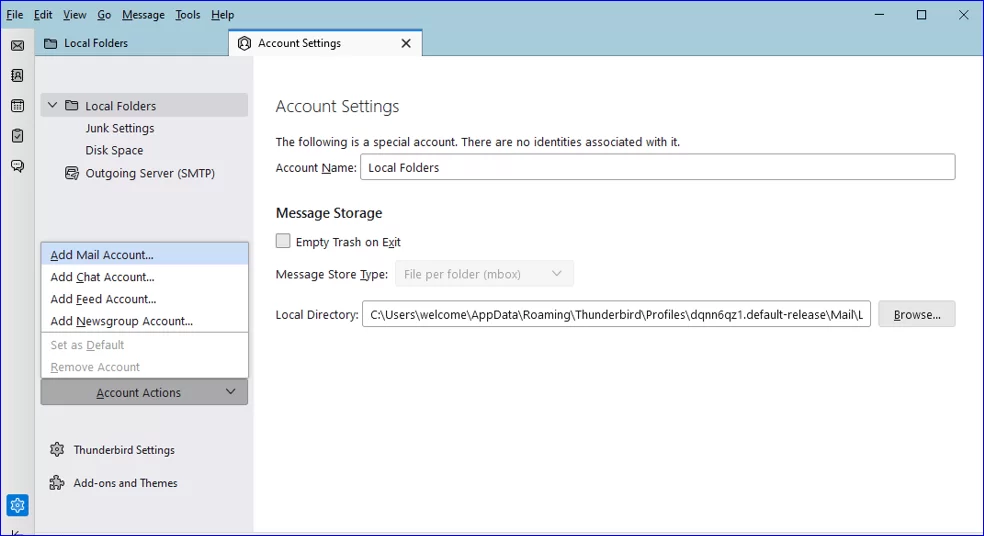
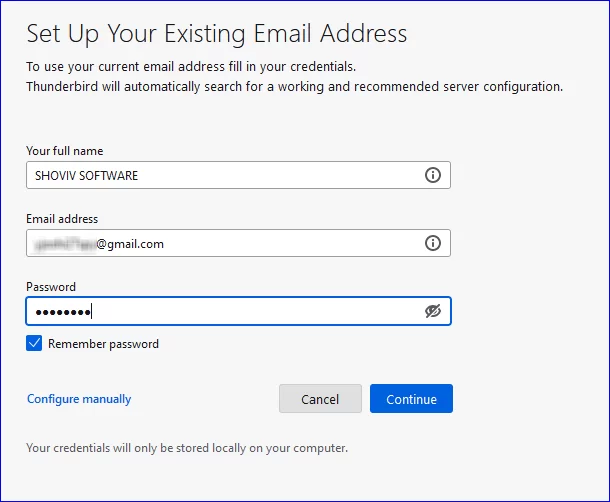
- Users will be redirected to the new window to add a Gmail account. After entering details such as full name, email id, and password, press continue.
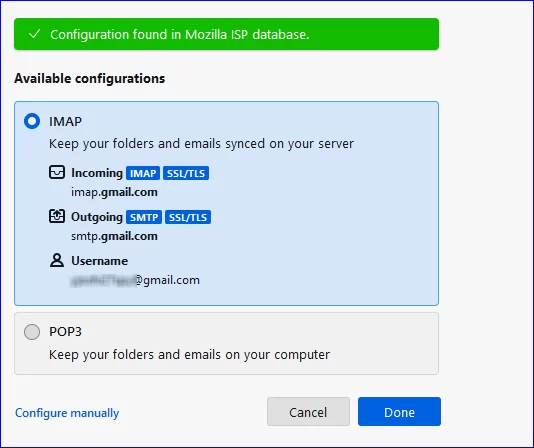
- Click on the IMAP option to sync emails on the server, and then on done.
- After that, login page of Gmail will open; kindly enter the required login details. Once done, kindly click on the Finish button.
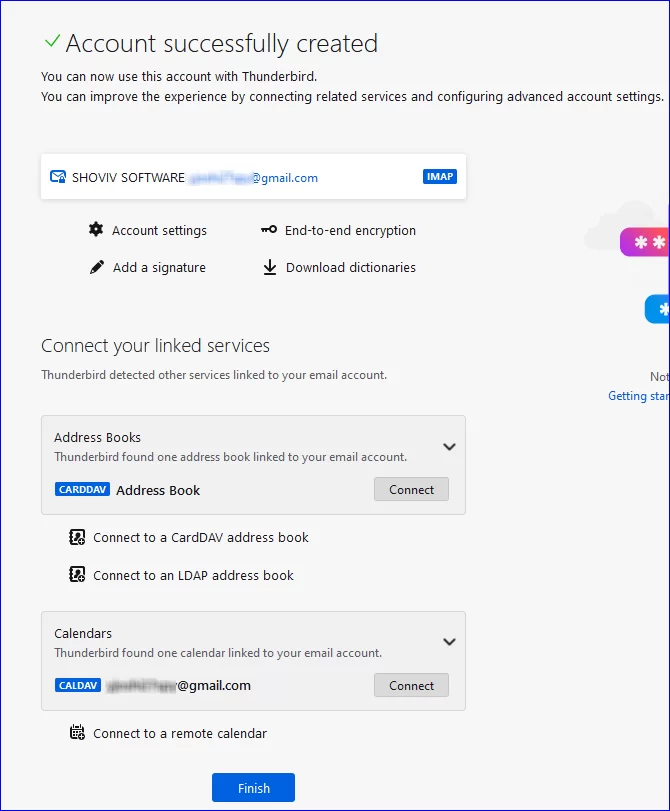
Once done with it, kindly access your Gmail emails in Thunderbird.
Synchronization of Thunderbird within Gmail
- Complete the sign-in process to open your Gmail account.
- Click on Settings, which will open up a further menu where you should click on See all settings.
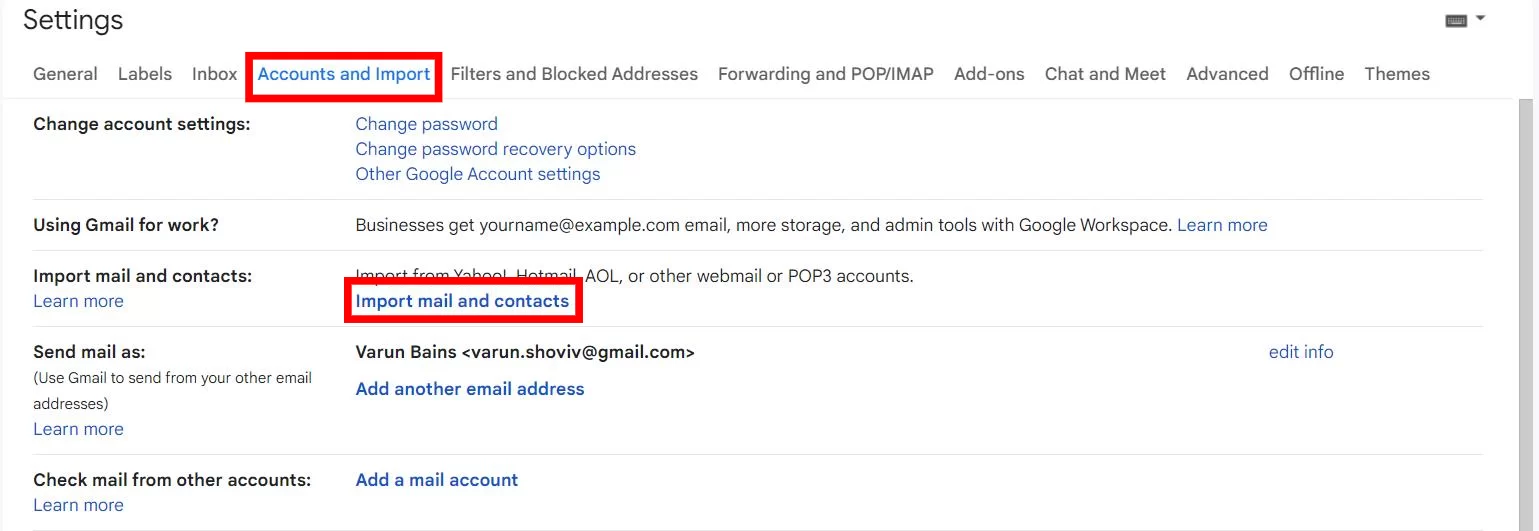
- On the Settings page, after selecting Account & Import, kindly click on Import mail and contacts.
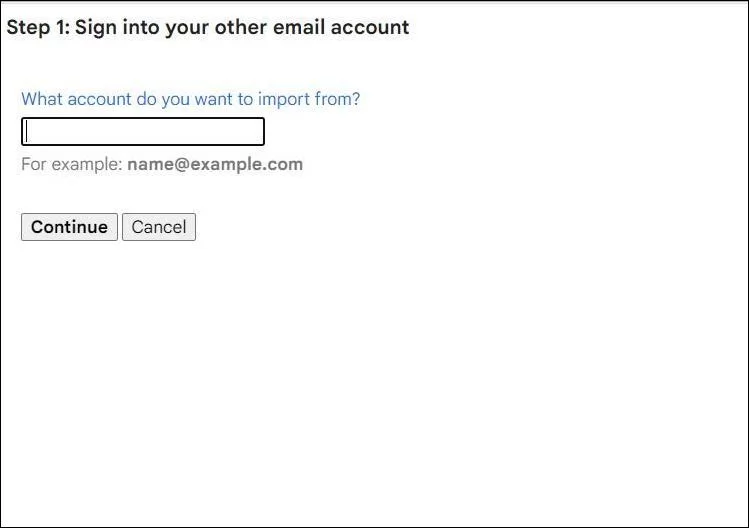
- Here, make sure to log in with the Thunderbird credential. To go ahead, click on the Continue button.
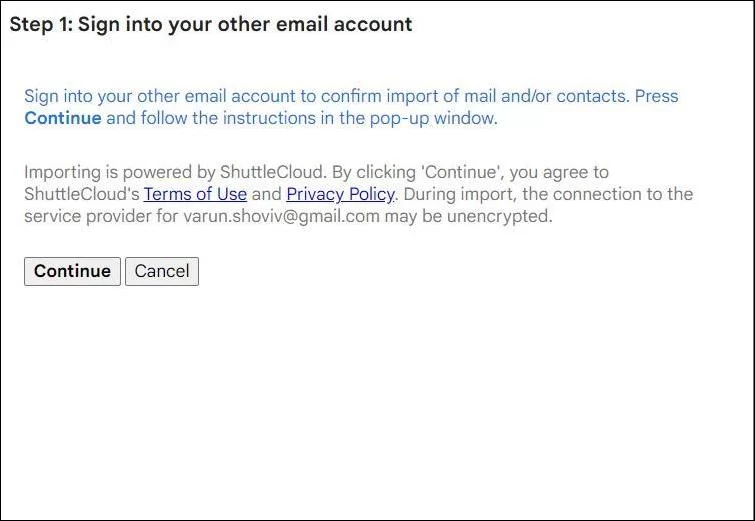
- Now the user will require to again click on the Continue button
- Kindly click on Continue to provide access to Gmail in order to check Thunderbird emails.
- Now, check the Import option and then hit the Start Import button.
- Click on Ok after finishing the task.
After successfully processing the required migration procedure, user data will move from Thunderbird to Gmail, but they may consume more time. If you find issues while using them, you can choose any other alternative solution.
Hassle-Free Solution to Migrate Thunderbird into Gmail
Shoviv IMAP Backup and Restore tool is one such solution that keeps user data safer while migrating Thunderbird to Gmail account. Not only does this software offers multiple advanced functionality, but it also possesses an effective GUI. Users can quickly add up multiple Thunderbird mailboxes, and even the software allows them to import them without causing any structural changes in the data.
It offers a backup scheduling facility that lets users decide and automate the export in time frames like daily, weekly, and monthly.
Also, the tool got one of the most favorable features for any migration, which is incremental export. Due to this, any halted migration when resumed, and then the software will make sure to process the left data.
In addition, users can also customize the process means they can use its data filter option to import their preferred data. It is all-in-all software for users who want to restore Thunderbird mailbox data to IMAP-based email servers like Gmail and Outlook. To ensure the software’s functioning, users can try its free trial version.
Quick Procedure to migrate Mozilla Thunderbird to Gmail
If you have exported or backed up your Thunderbird mailbox data and now want to restore it into your Gmail account, the Shoviv IMAP Backup and Restore Tool offers a direct and efficient solution. Follow the steps below to perform this process safely and accurately.
Step 1: Install and Launch the Software
- Download and install the Shoviv IMAP Backup and Restore Tool on your system.
- Launch the software to open its main dashboard.
Step 2: Add Source (MBOX File)
- Go to the Restore Job section.
- Click on Add File and browse to select the Thunderbird MBOX file you wish to restore.
- After adding the file, the software will load all mailbox folders for preview.
Step 3: Add Target Gmail Account
- Now, click on Add Target and choose Gmail as your target IMAP account.
- Enter your Gmail email address, app password, and IMAP server details (for Gmail: imap.gmail.com, port 993, SSL enabled).
Step 4: Create Restore Job
- Click on Create Job and select the added MBOX file as the source.
- Choose the Gmail mailbox as the destination.
- You can map folders (e.g., Inbox → Inbox, Sent → Sent Items) for precise restoration.
Step 5: Apply Data Filters (Optional)
- Use the filter option to restore only specific emails — for example, based on date range, subject, or folder name.
- This helps save time and ensures only relevant data is transferred.
Step 6: Start the Restore Process
- Click on Finish or Start Restore to begin transferring the Thunderbird MBOX data into your Gmail account.
- The tool will securely restore all selected emails while maintaining the folder hierarchy and metadata.
Final Result: All your Thunderbird MBOX mailbox data will now appear in your Gmail account under the respective folders, ensuring a safe and complete restoration.
Sum Up
We hope that you will be able to understand the procedure involved in the migration easily. Both Thunderbird- and Gmail have their advantage, but if you have your own reasons to export Thunderbird to Gmail, you can take help from the solution we discussed here. However, to clarify their performance, we suggest you try the demo version of the above-listed software.