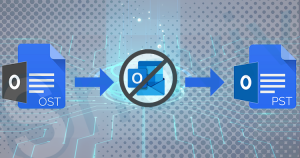
MS Outlook has the Offline storage file which makes it possible to work with this email client even in the absence of an Exchange server and synchronize them later. Apart from this Outlook has loaded with plenty of features that turn the simple task of sending and receiving emails into an interesting one. Despite having the great features and user-friendly features few aspects might hamper the user experience. Stuck Offline Mode issue in Outlook is a common concern faced by Outlook users
Generally, three things that might hamper the functioning of MS Outlook that is connectivity issues, configuration issues, and unexpectedly enabling Work Offline mode. However, you can see your status in Outlook. If you are a novice user, stuck in offline mode, and want to know how to switch offline mode to online mode, this blog is for you. Keep reading it to get the complete solution.
Download a trial version of Shoviv OST to PST Converter to know in a better way.
Table of Content
Reasons why Outlook stuck in offline Mode?
Sometimes outlook gets stuck in offline mode due to following know errors.
Configuration Issue
If you are not able to transfer emails and confronting disconnection issues try to check the configuration settings of your account.
Issue with Mail Server
The user confronts this issue when there is an issue with the mail server. If you want to check, log in to your account. Check whether you can send/receive emails. If you are not getting it then the mails server might be responsible try to contact the administrator.
Internet Connectivity Issue
Outlook might display an Offline working mode or ‘Disconnected’ if the issue arises with internet connectivity. The Outlook may be offline for a while. Outlook could remain in disconnected mode until the connection is back online.
Issue with working Outlook profile
A corrupt or damaged Outlook profile can prevent Outlook from authorizing and connecting to the mail server. Due to this, we get an error usually called Outlook stuck in offline mode.
Resetting the Work Offline Status: Choose Work Offline and check your status.
Checking Updates: Open any Office app then go to File >> Account and click on Office Updates under the Product Info.
Create a New Profile: There may be a risk of corruption in your Outlook profile; hence you are suggested to create a new one. To do so, go to File, Account Settings, Account Settings and pick the profile that you want to remove and tap on Remove button
For adding an account head to the File section, click on Add Account button and follow the on-screen instructions.
Check If Stuck in Offline Mode
Open Microsoft Outlook on your device.
Go to the Send / Receive tab and click on Work Offline to reconnect.
Note: If the work offline button has in the shaded background, it indicates the user does not have an active internet connection.
Similarly, Check the Outlook icon at the Taskbar. If you see the cross button means that Outlook is working in Offline mode.
Check OST file
Even after following the above process, if the issue of offline still present, and OST corruption might be the actual cause. As we all know the OST file of Outlook is vulnerable to technical blunders. It may get corrupt due to several reasons. Hence, if OST file corruption is the root cause, you need to fix it as soon as possible.
Moreover, there are many ways to cope up with this issue but using third-party tools would be the best bet. If you are going to search for the best converter to convert OST files into PST files, the Shoviv Converter stands the best among others. It is an incredible tool that can even convert corrupt OST files to PST that too keeping the data integrity.
Features and functionality
The Tool is a specialized Software that is designed and developed to convert the OST file to the PST format. Also, it works excellently to recover inaccessible .ost files.
From emails, calendars, attachments, journals, appointments, and other data, this tool can recuperate every ounce of data without touching its original quality. Using this strong tool is a game of few clicks, and consequently dealing with it is a cakewalk for novices as well as professionals. The easiness, as well as the user-friendly approach of this tool, can be considered as the main attraction of it.
The intuitive interface of this tool is very smooth and easy to navigate. Also, it includes technically advanced features that make this tool perfect to deal with events of Exchange server bangs or failure, sudden deletion of account from the Exchange server, synchronization problems, and more. Furthermore, there is no need to install any of the additional software to use this tool.
Shoviv OST to PST Converter tool is highly compatible and can be used for any version of MS Outlook as well as Windows. Apart from this, Shoviv provides free conversion of the first 50 emails from each mailbox folder in its trial version; this is the cherry on the cake for the users who first want to be sure about the performance before purchasing the premium version.
Some key features of this tool:
This tool effortlessly converts OST files created by all versions of Microsoft Exchange Server into PST format
It can also convert password-protected OST files
It can crack the encryption and then recover the data from the OST file.
The Converter Tool includes only a three-step conversion process which makes it perfect for novice users.
Jenniffer is a Microsoft-certified professional and has helped thousands of clients with their Outlook and Office 365 problems. She loves to write about email clients and data recovery. She always remains enthusiastic about providing all the latest information, solutions, and advancements to readers.