Are you also facing Error 400: admin policy enforced in Google Workspace while accessing or connecting third-party applications? This blog is useful for such users and explains fixes to resolve the issue and restore access.
What is Error 400: Admin Policy Enforced in Google Workspace?
Users encounter Error 400: Admin Policy Enforced in Google Workspace when access to third-party applications or services is blocked due to administrator-level security policies. It prevents users from signing in or authorizing external apps, even when the application itself is working correctly.
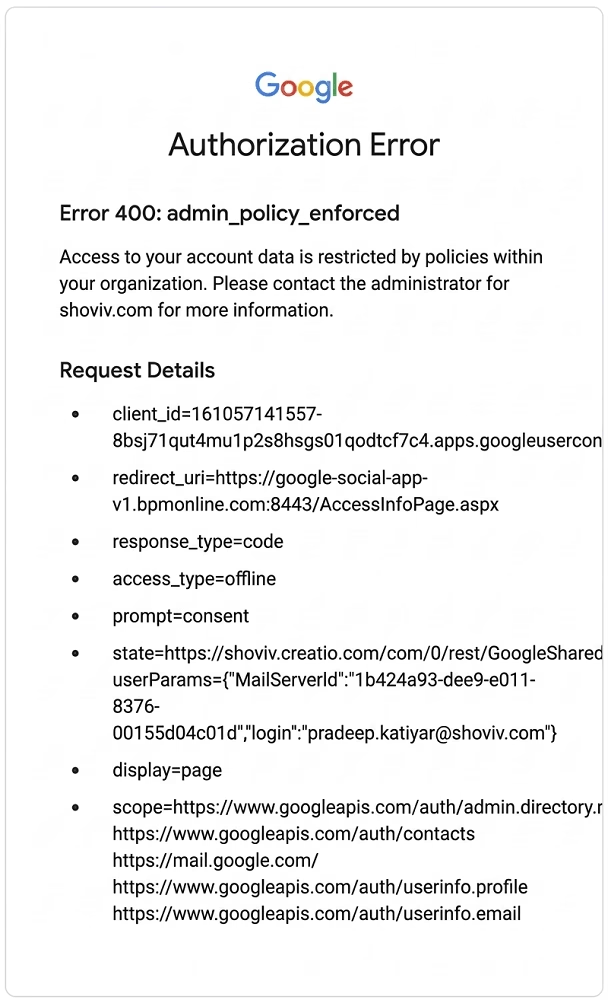
Reasons Behind Error 400: Access Not Configured in Google Workspace
1. Admin-Level App Restriction
The Google Workspace administrator often applies security policies that restrict or block third-party applications. When an app tries to access organizational data without permission, it gets blocked and triggers this error.
2. Untrusted Applications
To protect organizational data from unknown services, Google automatically blocks access requests from applications that administrators have not added to the trusted list in the Admin Console.
3. OAuth Scope Limitations
Many apps request access to sensitive Google data, such as Gmail, Drive, or Calendar. If admin settings restrict these OAuth scopes, the authorization fails.
4. Disabled Google APIs
When Google administrators disable services or APIs that third-party applications need, they block proper integration and trigger this error.
5. Organizational Unit (OU) Restrictions
Admins can assign different access levels to different user groups. If a user belongs to a restricted OU, they may not be allowed to use certain external applications.
6. Global Third-Party App Restrictions
In some organizations, third-party access is restricted for the entire domain by default, which blocks all external integrations unless explicitly allowed.
7. App Consent or Permission Mismatch
Google Workspace blocks the request and displays this error when an app requests permissions that violate the organization’s policies.
Fixes for Error 400: Admin Policy Enforced in Google Workspace
1. Adjust Admin Policy Restrictions
Follow these steps carefully:
- Sign in to Google Admin Console.
- Click on Security from the dashboard.
- Go to API Controls.
- Select App access control.
- Review the list of third-party applications.
- Identify the blocked or restricted app.
- Change policy settings to allow or approve the required application.
- Save the changes.
2. Trust the Application in Admin Console
To mark the app as trusted:
- Open Google Admin Console.
- Go to Security > API Controls.
- Click on Manage Third-Party App Access.
- Search for the required application.
- Click on the app name.
- Open the app name.
- Select Trusted.
- Confirm and save the configuration.
3. Configure OAuth Scope Permissions
To fix permission-related blocking:
- Open Google Admin Console.
- Navigate to the affected application settings.
- Go to OAuth consent/scope settings.
- Review all requested permissions.
- Check the scope, like Drive, Gmail, and Calendar access.
- Remove unnecessary restricted scopes.
- Allow only required permissions.
- Save changes.
4. Enable Required Google APIs
If APIs are disabled, follow these steps:
- Open Google Admin Console.
- Go to Apps / API Services.
- Click on Enabled APIs & Services.
- Google Drive API
- Gmail API
- Google Calendar API
- If any API is disabled, click Enable.
- Save settings.
5. Update Organizational Unit (OU) Access
To fix OU-level registration:
- Open Google Admin Console.
- Go to Users.
- Select Organizational Units.
- Click on the affected user’s OU.
- Review app access permissions.
- If access is restricted, either:
- Update permissions for that OU, OR.
- Move users to a less restricted OU.
- Save changes.
6. Review Domain-Wide App Access Settings
For global restrictions:
- Go to Security > API Controls.
- Open App access control.
- Check global third-party app restrictions.
- Find blocked or unapproved apps.
- Change the access level to allow trusted apps.
- Apply and save changes.
7. Re-Authorize the Application
To refresh authentication:
- Remove existing app permissions from Admin Console.
- Ask users to log out of their Google account.
- Reopen the third-party application.
- Sign in again using Google.
- Grant all required permissions.
- Complete authorisation process.
Conclusion:
The Error 400: Admin Policy Enforced in Google Workspace is mainly caused by admin-level security policies that restrict third-party application access. While this helps protect organizational data, it can also interrupt important workflows when required apps are blocked.
By applying the fixes explained in this blog, such as updating admin policies, managing app access, configuring OAuth scopes, and adjusting organizational settings, users can resolve the issue and restore normal access. However, it is always recommended to have a backup of the Google Workspace email account. With Shoviv Google Workspace Backup Tool, users can automate the Google Workspace email backup.
Frequently Asked Question
It is an authorization error that appears when Google Workspace admin policies block third-party applications from accessing user data.
No, only the Google Workspace administrator can usually resolve this error through the Admin Console.
No, it is not a bug. Administrators use this security enforcement mechanism to safeguard organizational data.
Clearing the cache may help in some cases, but the main issue is usually related to admin-level restrictions, not browser settings.
OAuth controls what data an app can access. If OAuth scopes are restricted, the app cannot complete authorization and triggers this error.
Yes, if a user is moved to a restricted PO, adjusting OU-level permissions can restore access to required applications.
Yes, enforcing domain-wide restrictions may prevent users from accessing multiple or all external applications.