Summary: To recover a deleted Exchange mailbox, you can utilize three primary methods tailored to your specific scenario. Within the Exchange Admin Center (EAC), simply navigate to Recipients > Mailboxes, select More (…), and use the Connect a Mailbox option to relink the deleted item to a user. For a more technical approach, the Exchange Management Shell (EMS) allows for a quick restoration using the $Connect-Mailbox$ command with the appropriate identity and database parameters. However, if the standard 30-day retention period has already expired or the database is corrupted, the most effortless solution is using Shoviv Exchange Recovery Manager to scan EDB files and restore data directly to Live Exchange, Office 365, or PST.
Microsoft Exchange Server doesn’t need any introduction; it is one of the most prominent server platforms used all over the globe. Exchange Server is a mail and calendaring server that was initially released in April 1996, and since then, it has witnessed various updates. For mailing and other purposes, many organizations use it, but the problem starts when an Exchange mailbox gets deleted, and there is an utmost need to recover deleted Exchange mailbox. Be with the blog if you have the same need and are searching for a way to restore Exchange deleted mailbox.
A Brief about Exchange Server Retention Policy:
- There is a default retention period from Microsoft that is 14 days for deleted emails and items.
- For the Exchange mailbox, it is 30- days.
- Alter deletion for the period mentioned above, the data remains in the Exchange Database, and after this, it completely disappears for manual recovery.
- Users can also extend the retention period limit by following the below-given steps:
- Go to the Exchange Admin Centre.
- At the bottom of the left pane, select
- Now, make a selection for the database that the Exchange Server is using and click Edit.
- Limits>> “Keep deleted mailboxes for (days)”
Here, you can edit and set the retention period for any period you want.
How to Restore Deleted Mailbox to an Existing Mailbox in Exchange?
Use the New-MailboxRestoreRequest:
- Run the following cmdlet to get the mailbox Globally Unique Identifier:
Get-MailboxStatistics
- Now select the target mailbox for restoring:
New-MailboxRestoreRequest- SourceStoreMailbox.
- To check the status, follow:
Get-MailboxRestoreRequest.
Now, check that the deleted mailbox has been restored in the new Exchange mailbox. But, these all will work if you are within the retention period.
What to do if the Mailbox isn’t showing in the Disconnected list?
It can be frustrating when you delete a mailbox and immediately check the “Connect a Mailbox” list in the EAC, only to find it empty. This usually happens because the Information Store hasn’t updated its state or synced with Active Directory yet.
If your mailbox is missing from the disconnected list, follow these troubleshooting steps:
1. Run the “Update-StoreMailboxState” Command
By default, Exchange runs a maintenance task to update mailbox states, but it doesn’t happen instantly. You can force Exchange to recognize the disconnected mailbox immediately using the Exchange Management Shell (EMS):
Update-StoreMailboxState -Database “YourDatabaseName” -Identity “MailboxGUID”
Note: If you don’t have the GUID, you can run the command for the entire database to refresh all mailbox statuses.
2. Check the Retention Policy
Verify that the mailbox wasn’t “Permanently Deleted” (Purged). If the Keep deleted mailboxes for (days) setting in your Mailbox Database limits was set to $0$, or if the retention period has already passed, the mailbox will not appear in the disconnected list because it has been hard-deleted from the database.
3. Verify Active Directory Sync
In some hybrid environments, there may be a delay in Active Directory reflecting that the user object is disconnected from the mailbox. Ensure the AD user account is either disabled or deleted properly to trigger the “Disconnected” status.
4. The “Effortless” Alternative: Direct EDB Scanning
If the mailbox refuses to show up in the Exchange Admin Center due to database corruption or sync errors, don’t waste hours troubleshooting Shell commands. A professional tool can bypass the Exchange interface entirely. By scanning the EDB file directly, it can find “hidden” or “purged” mailboxes that the system no longer displays, allowing you to restore them to PST or Office 365 instantly.
Why Use Shoviv for Restoring Deleted Exchange Mailboxes:
Apart from Microsoft Exchange mailbox recovery manually within the retention period, there are professional software to recover deleted and corrupted Exchange Database. For the same, Shoviv Software has developed an advanced utility called Shoviv Exchange Recovery Manager. This utility comes with multiple advanced features that provide a one-stop solution for Exchange users. Some of its highlighted features are:
- This utility can recover deleted o365 mailbox as well as corrupted items within the Exchange Database (EDB) files.
- It provides multiple targets: Live Exchange, Office 365, Outlook PST, EML, and MSG like prominent ones.
- The tool has an incremental export facility that resumes the process from the last point. It also prevents the duplicity in the target.
- Filter facility based on the message class and date filter is also available within the tool.
- Users can add multiple EDB files regardless of EDB file size.
- If you choose the PST file as the target, you can also set the size to prevent oversized PST files.
- A free demo version of this utility is also available to allow you to check before purchasing the license.
Steps to Recover / Restore Exchange Deleted Mailbox:
- Install and launch the Shoviv Tool.
- Click on the Add Source button to add EDB files.
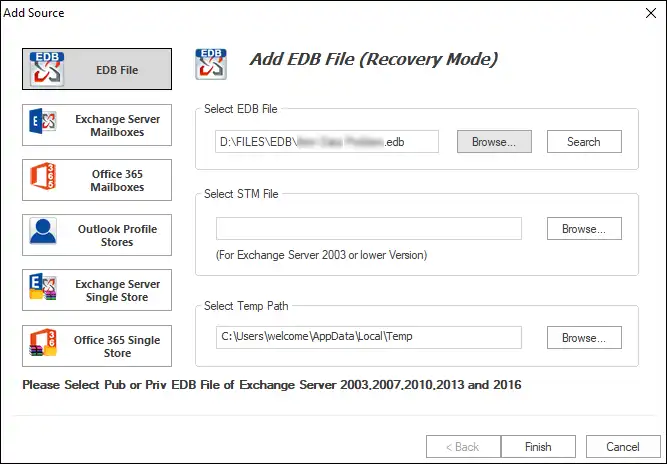
- After adding the EDB file, the software will preview the EDB file folders and items within it. Here, users can see the recovered items and confirm them.

- Now select the target where you want to save the recovered Exchange mailbox items from the EDB file. Here, we are using the Outlook PST file as the target.

- Check/uncheck subfolders and click Next.

- Now provide the settings for the PST files and click on Next.

- Here, you are prompted to the filter page, where you can apply the filter based on your needs. Using the advanced option, you can also apply other settings. Click Ok.

- The process to save the Exchange EDB file items in PST format will start, and you will recover the Exchange database mailbox within the EDB.

Also Read: Restore Inactive Mailbox in Exchange On-Premises and Online
Wrapping up:
No need to worry if you have corrupted EDB (Exchange Database) files or deleted items in the EDB files. Shoviv Exchange Recovery Manager is an advanced utility developed for Exchange Database issues. Along with the recovery, it also facilitates the migration to the Live Exchange and Office 365. A free trial version of this utility is also available, using which you can see the Exchange Database’s recovered items. If you need any kind of assistance to recover the deleted Exchange mailbox, then feel free to contact our support executives.
Frequently Asked Questions:
By default, Exchange Server retains a deleted mailbox for 30 days. During this window, the mailbox is in a “Soft-Deleted” state and can be reconnected via the Exchange Admin Center (EAC). If you need more time for compliance, you can manually increase this limit in the Mailbox Database settings under Limits > Keep deleted mailboxes for (days).
Soft-Deleted: The mailbox is disconnected from the user account but still exists in the database. It is visible in the “Disconnected” list and easily recoverable.
Hard-Deleted (Purged): Hard-deleted mailboxes are purged via PowerShell or expired retention. Recovery requires backups or professional EDB tools, as they are permanently removed from the active Exchange database.
Yes, Recover deleted mailboxes by restoring the AD user via the Recycle Bin or by using PowerShell’s Connect-Mailbox command to link the disconnected mailbox to a new user account.
Exchange sync delays often hide deleted mailboxes. Force a refresh using the Update-StoreMailboxState PowerShell command. If it remains missing, the mailbox may be permanently purged or the database dismounted.
Natively, no—Exchange purges the data once the retention timer hits zero. However, if you have the EDB (Exchange Database) file, you can use a professional utility like Shoviv Exchange Recovery Manager. It can scan the offline EDB file, extract “hidden” or purged mailboxes, and export them directly to a new Live Exchange environment or Office 365.