Summary: If you are looking to enable and use OneDrive (KFM), this guide will help you understand its importance, and explains how to enable or use it using manual solutions, and why a professional solution can be a better alternative for efficient and secure management.
What is Microsoft OneDrive?
Microsoft OneDrive is a cloud-based storage platform that allows users to store, sync, and access their files from anywhere. Individuals and organizations widely use it to ensure data availability and collaboration across multiple devices.
What Do You Mean by OneDrive Known Folder Move (KFM)?
Known Folder Move (KFM) is a OneDrive that automatically redirects your system’s default folders—such as Desktop, Documents, and Pictures–to OneDrive.
It means:
- Files are saved in the same folders as usual.
- But they are also synced to the cloud automatically.
So, users don’t need to change their habits while their data stays secure.
Why Need to Enable OneDrive Known Folder Move (KFM)?
Here are the main reasons why enabling the OneDrive KFM is important:
- Protection Against Data Loss – Most users store files locally. If the system crashes or gets corrupted, data is lost. KFM ensures automatic cloud backup.
- No Need for Manual Backup – Without KFM, users must manually upload files; KFM eliminates this effort by syncing files automatically.
- Retrieve Files Anytime, Anywhere – You can access your Desktop, Documents, and Pictures from any device once they are synced to OneDrive.
- Seamless User Experience – Users continue saving files in familiar folders without changing workflows.
- Easy Data Migration – KFM helps organizations move user data to the cloud without complex migration tools.
How to Verify if KFM is Working?
After enabling KFM, you can confirm it using these methods:
- Check OneDrive Settings
- Go to Backup settings.
- Ensure folders show as ‘Protected.’
- Check Folder Location
- Right-click Desktop/Documents > Properties.
- Confirm the path points to OneDrive.
- Registry Check (Advanced)
- Verify KFM-related entries exist in the system registry.
Manual Method to Enable & Use OneDrive KFM
Method 1: Enable KFM Using OneDrive Settings
This method is ideal for individual users or small environments.
Steps:
- Open the OneDrive application on your system.
- Click on the OneDrive cloud icon in the system tray.
- Go to Settings > Sync and Backup / AutoSave.
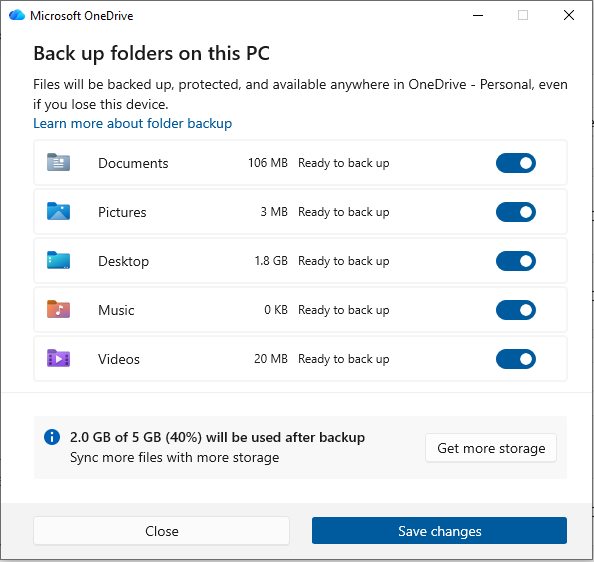
- Click on Manage Backup or Update.
- Select folders:
- Desktop
- Documents
- Pictures
- Click Start Backup.
Method 2: Enable KFM Using Intune / Group Policy
IT administrators use this method to deploy KFM across multiple systems.
Steps:
- Open Microsoft Endpoint Manager (Intune) or Group Policy Editor.
- Navigate to:
- Computer Configuration > Administrative Templates > OneDrive.
- Enable silently moving the Windows known folder to OneDrive.
- Enter the Tenant ID.
- Select folders:
- Desktop
- Documents
- Pictures
- Configure additional options (notification, restrictions).
- Deploy the policy to users/devices.
Drawbacks of Manual Methods
- Complex configuration for admin-level deployment.
- Requires technical expertise.
- Limited monitoring and reporting.
- Troubleshooting issues can be difficult.
- Dependency on the Microsoft environment.
- Subscription requirement for advanced deployment.
Professional Method for Advanced OneDrive Data Management
Although Microsoft OneDrive Known Folder Move (KFM) is effective for basic folder backup, the manual methods come with several limitations, such as complex configuration, a lack of monitoring, and limited control over large-scale data.
To overcome these challenges, users can opt for a professional solution like Shoviv OneDrive Backup Tool, which provides enhanced control, automation, and efficient data handling.
This tool is especially beneficial for organizations and users who need to manage large volumes of data, multiple accounts, and require better reporting and scheduling capabilities.
Quick Steps to efficiently manage and export OneDrive data:
- Install and launch the Shoviv OneDrive Backup Tool.
- Add the Source and Destination location.
- Create a Backup job.
- Select the folders or files you want to export or manage.
- Apply filters such as date range or file size if required.
- Choose scheduling options (immediate or periodic).
- Start the backup process.
- Monitor the progress using the dashboard and reports.
Why is it better than manual solutions?
- Manual methods require technical expertise, whereas the tool offers a simple and user-friendly interface.
- No built-in monitoring in manual methods, but the tool provides live tracking and detailed reports.
- Manual configuration is time-consuming, while the tool enables automated and scheduled operations.
- Limited flexibility in KFM, whereas the tool supports bulk data handling and selective migration.
- Troubleshooting is difficult manually, but the tool ensures smooth and error-free processing.
Final Thought
In this blog, we explained how to enable and use OneDrive Known Folder Move (KFM) using different methods. While manual approaches are suitable for individual users and basic usage, they come with certain limitations in terms of scalability, control, and monitoring. For users or organizations looking for more advanced data management capabilities, using a professional solution like Shoviv OneDrive Backup Tool can be a more efficient and reliable choice.
Frequently Asked Questions:-
KFM is a feature that automatically redirects important folders like Desktop, Documents, and Pictures to OneDrive for backup and access.
Desktop, Documents, and Pictures are the primary folders supported by KFM.
Yes, basic KFM can be used with OneDrive, but advanced deployment methods may require a Microsoft 365 subscription.
Yes, using OneDrive settings, individual users can enable KFM easily.
Yes, it requires administrative access and technical understanding of policies.
It offers better automation, ease of use, and advanced control compared to manual configurations.
Yes, it supports bulk data migration and efficient management of OneDrive data.