Looking for a reliable way to migrate AWS S3 to Dropbox or vice versa? If yes is your answer, then you have landed on the right post. This guide is for users who want to transfer their cloud data securely and efficiently. It covers both manual and professional migration methods, helping you choose the most suitable approach for a smooth and hassle-free migration.
What Initiates Users to Migrate AWS S3 to Dropbox or Vice Versa?
Users migrate data between Amazon S3 and Dropbox for various storage, collaboration, and business needs. Some common reasons include:
- Changing Business Requirements – Organizations migrate to a platform that better supports their current business goals and workflows.
- Improved Collaboration – Migrating to a platform with better collaboration and file-sharing capabilities helps teams work more efficiently.
- Easier File Access – Users may switch platforms to access and manage files more conveniently across multiple devices.
- Cost Optimization – Migration helps organizations choose a cloud storage solution that better fits their budget and storage requirements.
- Centralized Data Management – Storing files on a single cloud platform simplifies data organization and administration.
- Simplified File Sharing – Using a platform with secure file-sharing capabilities makes it easier to share files and folders with internal and external users.
- Better Workflow Integration – Organizations often migrate to a platform that integrates more effectively with their existing applications and business workflows.
- Data Consolidation – Migration helps combine files from multiple storage locations into a single platform for easier management.
Manual Method to Migrate Amazon S3 to Dropbox or Vice Versa
You can manually migrate data between Amazon S3 and Dropbox by downloading files from the source platform and uploading them to the destination platform. The same approach can be followed for both migration directions.
1. For AWS S3 to Dropbox
Step 1: Sign in to Both Accounts
- Log in to your Amazon S3 and Dropbox accounts using valid credentials.
Step 2: Download Files from Amazon S3
- Open the required Amazon S3 bucket, select the files or folders you want to migrate, and download them to your local computer.
Step-3: Open Dropbox
- Sign in to Dropbox through the web browser or desktop application and navigate to the destination folder.
Step 4: Upload Files to Dropbox
- Upload the downloaded files to Dropbox and verify that all files have been transferred successfully.
2. For Dropbox to S3
Step 1: Sign In to Both Accounts
- Log in to your Dropbox and Amazon S3 accounts using valid credentials.
Step 2: Download Files from Dropbox
- Select the required files or folders from Dropbox and download them to your local computer.
Step-3: Open Amazon S3
- Sign in to the AWS Management Console, open Amazon S3, and select the destination bucket.
Step 4: Upload Files to Amazon S3
- Upload the downloaded files to the selected Amazon S3 bucket and verify that the migration has completed successfully.
Drawbacks and Shortcomings of the Manual Method
Although the manual method can be used for data migration between Amazon S3 and Dropbox, it has several limitations:
- Time-consuming for large volumes of files and folders.
- Requires downloading and re-uploading data manually.
- Increases the risk of missing or incomplete file transfers.
- May not preserve file metadata and folder hierarchy accurately.
- Requires continuous user involvement throughout the migration.
- Not suitable for organisations handling large-scale cloud data.
Professional Method to Migrate Amazon S3 to Dropbox or Vice Versa
Migrating cloud data doesn’t have to involve downloading, uploading, or managing files one by one. Shoviv Cloud Drive Migrator offers a direct and efficient way to migrate AWS S3 to Dropbox while preserving the original folder hierarchy and ensuring a reliable transfer experience.
Besides this, users planning a Dropbox to S3 migration can also use Shoviv Cloud Drive Migrator to securely transfer their data while maintaining data integrity and essential file properties.
Advanced Features of Shoviv Cloud Drive Migrator
- Incremental Migration: Migrates only new or modified data to avoid duplicate transfer.
- Custom Filters: Allows users to migrate specific files based on date, size, type, or extension.
- Data Integrity: Maintains the original folder hierarchy and essential file properties during migration.
- Scheduler: Automate migration jobs according to the preferred schedule.
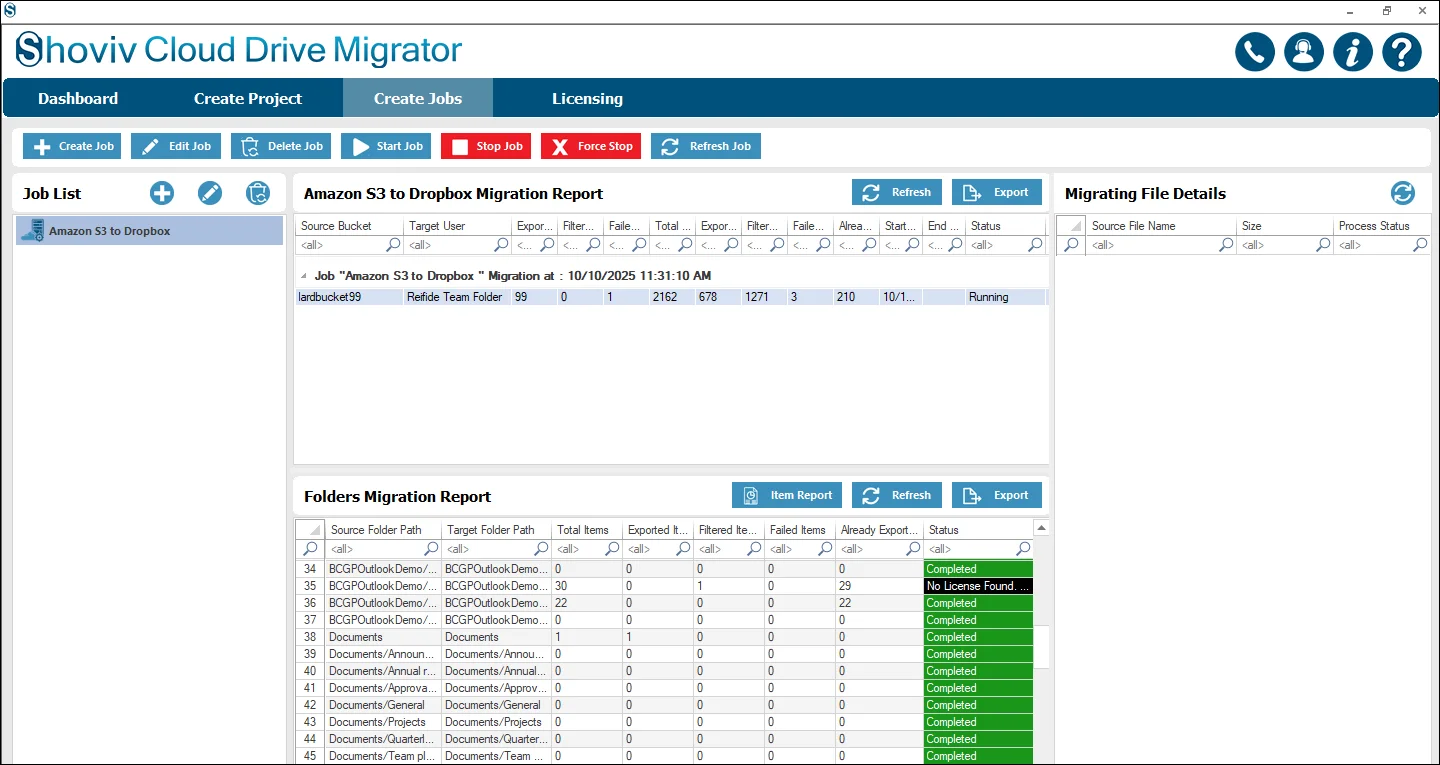
- Detailed Reports: Generates reports of migrated, skipped, and failed items for easy tracking.
Simple Steps to Migrate AWS S3 to Dropbox / Dropbox to S3
Step 1: Download and install Shoviv Cloud Drive Migrator on your system. Launch the software to begin the migration process.
Step 2: Select Amazon S3 or Dropbox as the source platform and choose the other platform as the destination based on your migration requirements.
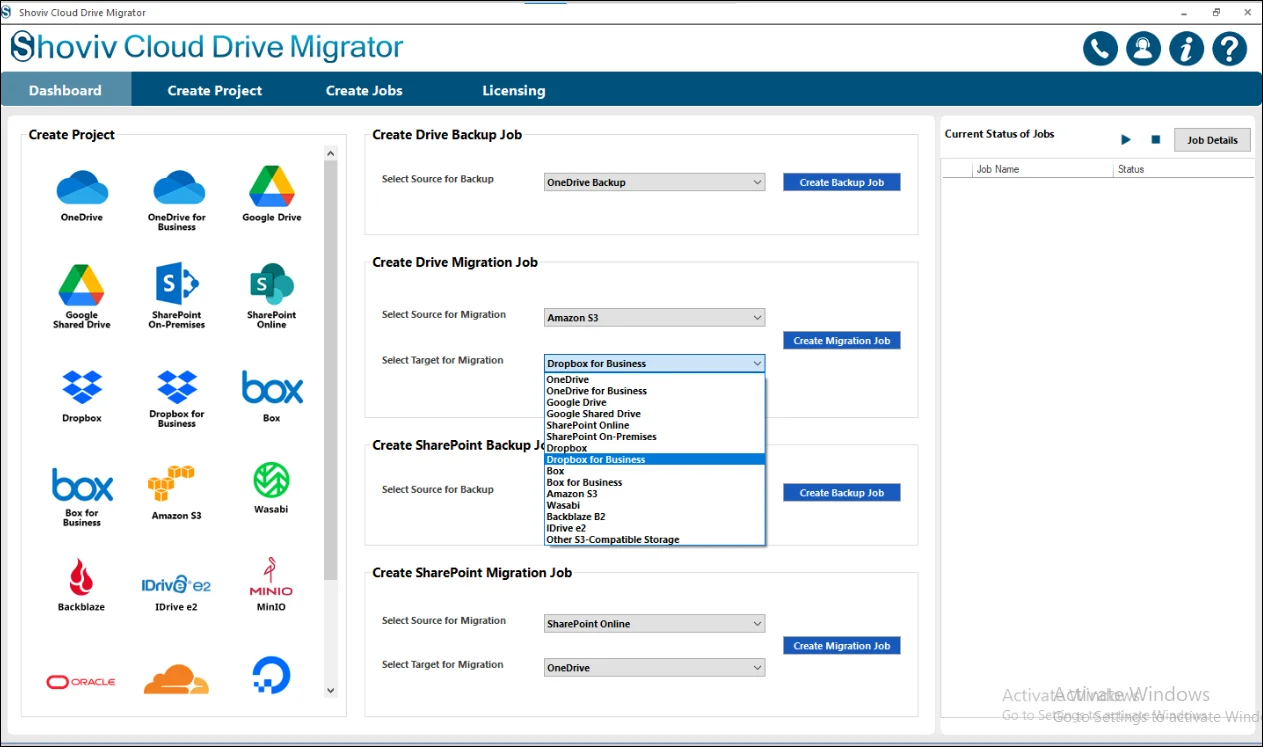
Step-3: Enter a job name, connect both the source and target accounts and create a project using the required credentials. Moreover, check the required drives/buckets.
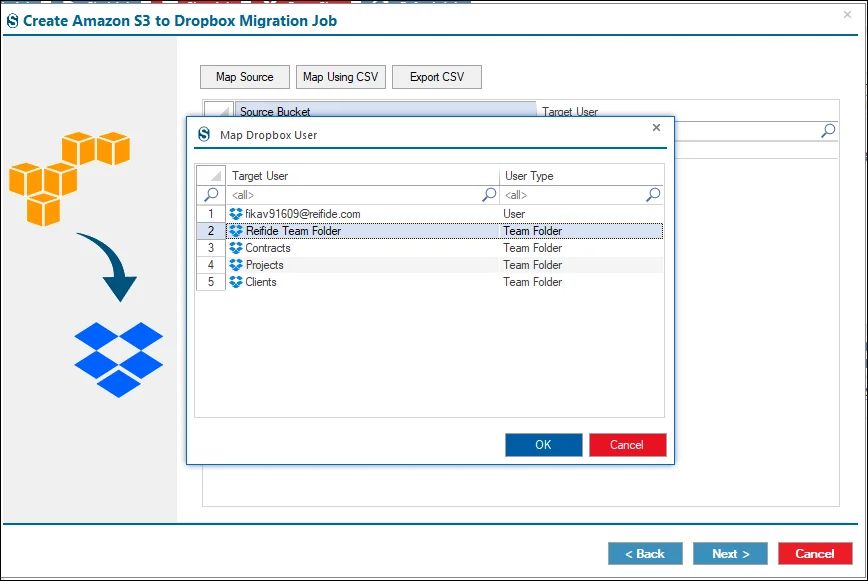
Step 4: Map the source and destination locations to ensure the data is migrated to the correct destination folder or bucket.
Step 5: Configure the required filters and migration settings according to your requirements, then review the job configuration before starting the migration.
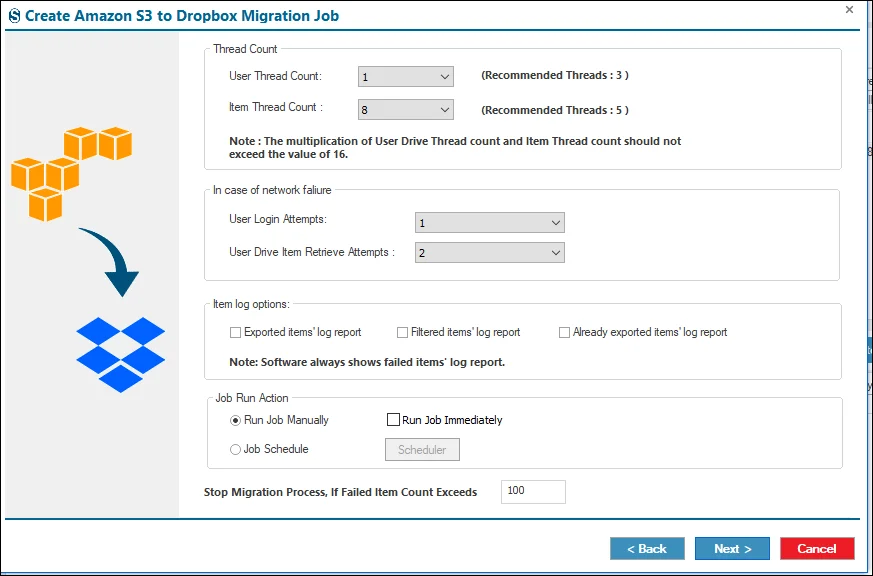
Step-6: Verify the migration summary and click on Finish. The software will start the migration process as per the job-run action. The software will transfer your data and generate a detailed report after completion.
Conclusion
Migration between Amazon S3 and Dropbox can be performed using either a manual or professional approach, depending on your data transfer requirements. While the manual method is suitable for small migrations, Shoviv Cloud Drive Migrator provides a more efficient solution for users who want to simplify the process and manage cloud data effectively. The tool supports both migration directions while preserving Data integrity and maintaining the original folder structure.
Frequently Asked Questions:-
Yes, you can download files from Amazon S3 and upload them to Dropbox manually, but it also has a lot of drawbacks.
No. The manual method is time-consuming and requires downloading and uploading files individually, making it unsuitable for large migrations.
Yes, you can migrate specific files and folders using the available filter options.
With the manual method, you will not get the facility to schedule your migration. However, the advanced tool like Shoviv Cloud Drive Migrator allows you to automate migration jobs according to your preferred schedule.