If you are planning a Box to SharePoint migration and looking for the best way to move your data securely, this guide can help. It explains the available migration options, key considerations, and practical methods to migrate Box to SharePoint Online. We will also discuss a professional approach using the Shoviv Box Migration Tool to simplify the migration process and reduce manual effort.
Some Common Reasons to Migrate Box to SharePoint
Many organizations choose to migrate data from Box to SharePoint because SharePoint offers a broader collaboration and content management environment within Microsoft 365. Some common reasons include:
- Seamless Microsoft 365 Integration – SharePoint works natively with Microsoft Teams, Outlook, OneDrive, and other Microsoft applications, helping users collaborate more efficiently.
- Improved Content Management – It provides centralized document storage, making it easier to organize, access, and manage business data.
- Better Workflow Automation – SharePoint integrates with Power Automate, allowing organizations to automate repetitive tasks and business processes.
- Enhanced Governance and Security – Organizations can manage permissions, retention policies, and compliance requirements more effectively.
- Scalable Collaboration Platform – SharePoint supports the growing needs of businesses by offering advanced collaboration and document management capabilities.
Also Read: Box vs. SharePoint: A Comprehensive Comparison
Best Options for Box to SharePoint Migration
There are several ways to perform a box-to-SharePoint migration. The right method depends on the amount of data, migration requirements, and the level of automation needed. Below are some commonly used options:
1. Manual Migration
This method involves downloading files from Box and uploading them to SharePoint Online. It is suitable for small amounts of data, but can become time-consuming for larger migrations.
Steps:
- Sign in to your Box account.
- Download the required files and folders to your local system.
- Log in to SharePoint Online.
- Open the target document library.
- Upload the downloaded files and folders.
Limitations:
- Time-consuming for large data volumes.
- Requires sufficient local storage.
- Does not migrate permissions automatically.
- Increases the risk of human error.
- File versions and metadata may not be preserved.
2. Power Automate
Power Automate provides workflows that can copy files between Box and SharePoint. It is useful for specific automation scenarios but may require additional configuration.
Steps:
- Sign in to Power Automate.
- Select the appropriate Box-to-SharePoint template.
- Connect your Box and SharePoint accounts.
- Configure source and destination locations.
- Save and run the workflow.
Limitations:
- Initial setup can be complex.
- Better suited for file copying than complete migration projects.
- May not handle complex folder structures efficiently.
- Requires familiarity with Power Automate workflows.
- Large migrations can become difficult to manage.
3. Microsoft Mover
Microsoft Mover is a migration service that helps organizations transfer content from supported cloud storage platforms to Microsoft 365 services.
Steps:
- Sign in to Microsoft Mover.
- Connect Box as the source platform.
- Connect to SharePoint Online as the destination.
- Map the source and destination locations.
- Start and monitor the migration process.
Limitations:
- Limited customisation options.
- May not meet advanced migration requirements.
- Less control over migration configurations.
- Large and complex migrations may require additional planning.
4. Third-Party Migration Tool
Professional migration tools offer a more streamlined approach by automating the migration process and reducing manual effort. These solutions are often preferred when organizations need to migrate large amounts of data while maintaining accuracy and efficiency in a few simple steps.
Box to SharePoint Migration: Follow the Expert Solution
Manual migration is suitable only for small migrations and requires significant manual effort. Power Automate can help automate file transfers, but it often requires additional configuration. It is not designed for large-scale migration projects. Microsoft Mover is a useful migration service, but organizations may require greater flexibility and control for complex migrations.
In such cases, the Shoviv Box Migration Tool can be a suitable choice. It supports direct migration from Box to SharePoint (Online and On-Premises), offers job-based processing and filtering options, and allows users to migrate multiple drives or users simultaneously while maintaining the data structure.
Simple Steps to Migrate Data from Box to SharePoint
- Download and install the Shoviv Box Migrator on your device.
- Add the Box account as the source platform.
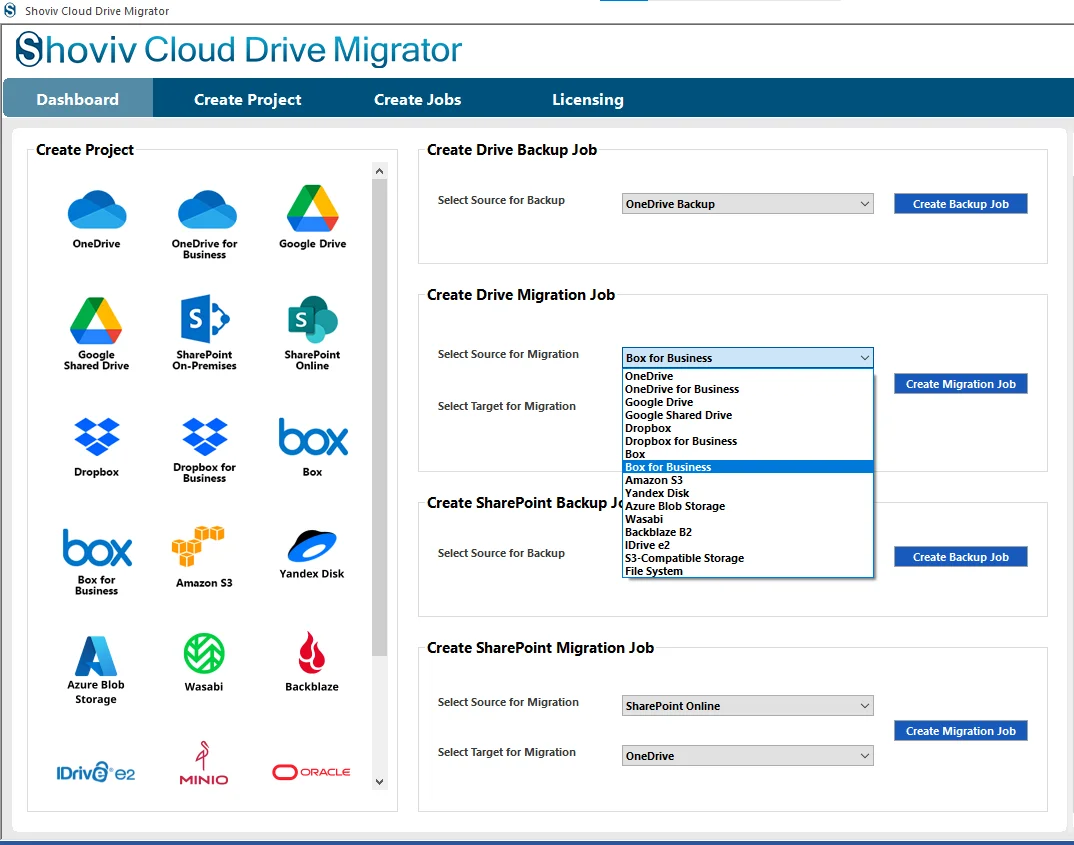
- Connect to SharePoint Online or SharePoint On-Premises as the target.
- Map the source and destination locations.
- Configure migration settings and apply filters if required.
- Review the migration job and review the settings. Click on Finish.
- The migration process will start as per the job-run action and monitor its progress.
- Verify the migrated data after completion.
Conclusion:
Box-to-SharePoint migration can help organizations manage their data and collaboration needs more effectively within the SharePoint environment. In this blog, we discussed different methods to migrate Box to SharePoint, including Manual Migration, Power Automate, Microsoft Mover, and a professional migration solution.
While manual and built-in methods can be suitable for certain scenarios, they may require additional effort and planning when handling large amounts of data. For organizations seeking a more streamlined migration process, the Shoviv Box Migration Tool is a suitable option for migrating data from Box to SharePoint Online and SharePoint On-Premises.
Frequently Asked Common Questions
Organizations often migrate Box to SharePoint Online to take advantage of SharePoint’s document management, collaboration, workflow automation, and integration with Microsoft 365 applications.
Yes, You can migrate Box data manually by downloading files from Box and uploading them to a SharePoint document library. However, this method is generally suitable for small amounts of data.
Manual migration primarily transfers files and folders. Permissions, metadata, and version history may require additional configuration or may not be transferred automatically.
Power Automate can help automate file transfers between Box and SharePoint. However, it may require additional setup and is generally more suitable for specific automation scenarios than large migration projects.
Before starting the migration, review your data structure, permissions, storage requirements, and backup strategy. It is also important to identify unnecessary files and organize data before migration.
Yes, The Shoviv Box Migrator supports migration from Box to SharePoint Online and SharePoint On-Premises. It also supports migration to other platforms, including OneDrive, Google Drive, and Amazon S3.