Summary: Many users plan to migrate from Greatmail to Gmail to take advantage of better security, accessibility, and collaboration features. However, finding a reliable method for Greatmail to Gmail migration can be challenging without proper guidance. This blog explains effective ways to migrate Greatmail to Gmail, including a manual approach and a professional solution using the IMAP to IMAP Migration Tool, helping users perform a secure and smooth migration.
Email communication plays a vital role in both personal and professional environments, making the choice of an email platform very important.
Greatmail is a well-known email hosting provider that offers services such as business email, SMTP hosting, and secure communication solutions. It supports various email clients and works with standard protocols like IMAP and POP3, allowing users to manage their emails efficiently.
On the other hand, Gmail is a widely used email service that provides a user-friendly interface along with powerful features for managing emails. It allows users to access their mailboxes from any device with an internet connection and integrates smoothly with other services. Due to its simplicity and modern interface, Gmail has become a preferred choice for many users who want better email management and accessibility.
Reasons to Migrate from Greatmail to Gmail
- Better Accessibility Across Devices – Gmail allows users to access their emails seamlessly from desktops, laptops, tablets, and smartphones without any compatibility issues.
- Integration with Multiple Services – Gmail connects smoothly with tools like Google Drive, Docs, and Calendar, enabling users to manage emails and productivity tasks in one place.
- Improved Storage Capacity – Gmail offers 15 GB of free storage, which helps users store and manage emails more efficiently over time.
- Advanced Security Features – Gmail provides strong security measures such as two-step verification, spam filtering, and threat detection to protect sensitive data.
- Easy Email Management– With features like labels, filters, and categories, Gmail makes it easier to organize and manage large volumes of emails.
- Powerful Search Functionality – Gmail’s advanced search options allow users to quickly find specific emails based on keywords, sender, date, or attachments.
- User-Friendly Interface – Gmail offers a simple and intuitive interface, making it easy for both technical and non-technical users to manage their emails.
Manual Methods to Transfer Emails from Gratemail to Gmail Account
Method 1: Import Greatmail to Gmail Using POP3
This method uses Gmail’s built-in feature to fetch emails from your Greatmail account.
- Log in to your Gmail account.
- Click on the Settings (gear icon) and select See all settings.
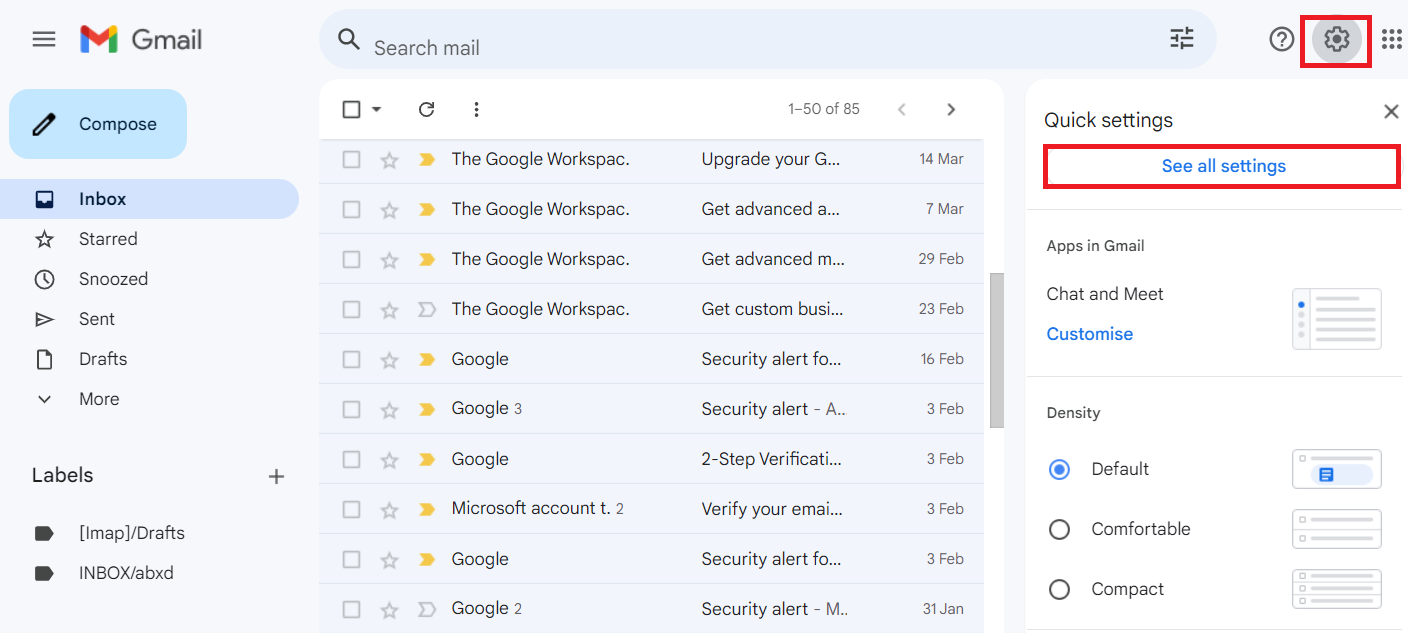
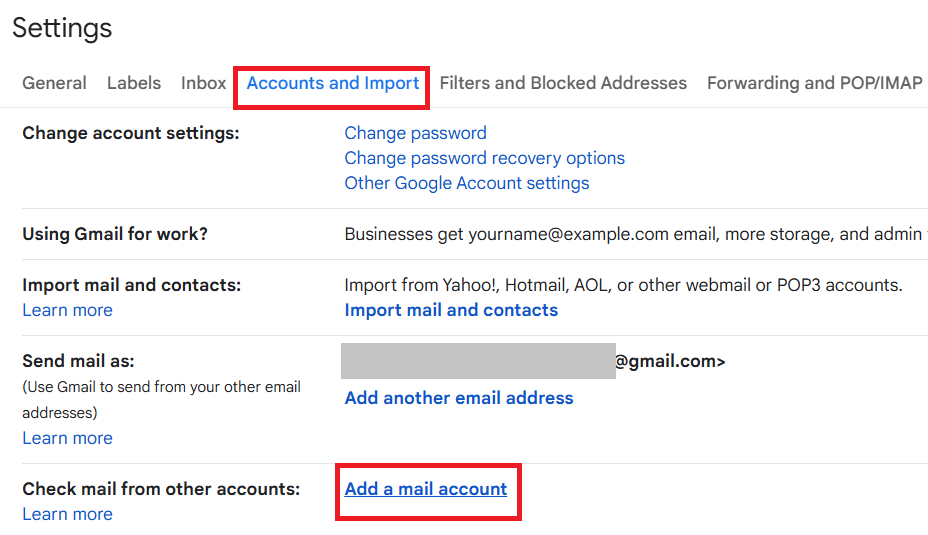
- Go to the Account and Import tab.
- Click on Add a mail account under ‘Check mail from other accounts.’
- Enter your Greatmail email address and click Next.
- Select Import emails from my other account (POP3) and click Next.
- Enter your Greatmail login credentials.
- Provide the POP server details (e.g., secure.greatmail.com, Port 995).
- Always use a secure connection (SSL).
- Click Add Account to begin importing emails.
Method 2: Migrate Greatmail to Gmail Using IMAP (Email Client Method)
This method uses an email client like Outlook or Thunderbird to transfer emails between accounts.
- Install and open an email client such as Outlook or Thunderbird.
- Add your Greatmail account using IMAP configuration.
- Add your Gmail account using IMAP settings.
- Allow both accounts to sync completely.
- Open the Greatmail mailbox and select the required emails or folders.
- Drag and drop the selected data into your Gmail mailbox folders.
- Wait for the synchronization to complete.
Drawbacks of the Manual Methods
- It may not transfer all mailbox data properly, especially folder structure and labels.
- The process can take a lot of time, particularly when dealing with large mailboxes.
- There is always a chance of missing or incomplete data during the migration.
- Users need to configure server settings, which can be difficult for non-technical users.
- It is not suitable for migrating multiple mailboxes at once.
- There are very limited options to migrate only specific emails or folders.
Migrate Emails from Greatmail to Gmail Account Professionally
When users need a more structured and dependable way to migrate Greatmail to Gmail, using a specialized solution becomes a practical choice. The Shoviv IMAP to IMAP Migration Tool provides a streamlined process to transfer emails between IMAP accounts without unnecessary complications.
This software supports the migration of complete mailbox data, including emails, attachments, and folder hierarchy, ensuring that nothing is left behind during the Greatmail to Gmail migration. It is suitable for both individual users and organizations handling multiple mailboxes.
The tool works on a job-based mechanism, allowing users to create and manage multiple migration tasks at the same time. It also includes an incremental migration feature, which helps resume the process from the last completed point and prevents duplicate data transfer.
Steps to Migrate Greatmail to Gmail
- Download and install the Shoviv IMAP to IMAP Migration Tool on your system, then open it.
- Click on the Source Connection option and enter your Greatmail server details, email address, and password to establish the connection.

- Now, go to Target Connection and add your Gmail account credentials to set it as the destination.

- Navigate to the Migration Job section and create a new job by selecting the source and target connections.

- Match the Greatmail mailbox with the corresponding Gmail mailbox to define where the data will be transferred.
- Use Filter options to migrate specific emails based on date range or folders, if required.
- Adjust settings like thread count or scheduling as per your requirements.

- Review the job details and click Finish to begin migrating Greatmail to Gmail as per the job.

- Track the migration progress directly from the dashboard until the process completes.
Conclusion
In this blog, we have explained how to migrate Greatmail to Gmail using both manual and professional methods. While manual approaches can work for basic migration needs, they involve multiple steps. They may not always deliver accurate results, especially when dealing with large or multiple mailboxes.
Manual methods may work for small migrations, but they often become slow and unreliable when handling larger or multiple mailboxes. For a smoother and more dependable Greatmail to Gmail migration, the professional method offers a practical solution, ensuring accurate data transfer without unnecessary complexity.
Frequently Asked Questions:-
Yes, manual methods like POP3 or email clients can be used, but they are better suited for small migrations. Moreover, Gmail has changed the rules for the POP.
Attachments can be migrated, but accuracy and formatting are not always guaranteed.
For better accuracy and a smoother process, the professional method is the preferred option.
Yes, manual methods may lead to data loss if not performed correctly.
Manual methods are limited, while the professional method supports bulk migration.
Manual methods offer limited control, whereas the professional method allows selective migration.