Summary: You can recover permanently deleted data from OneDrive, but it mainly depends on timing and retention limits. In most cases, OneDrive keeps deleted files for 30–93 days. During this period, you can restore them from the Recycle Bin or Version History.
However, once this time passes, built-in recovery no longer works. Therefore, you should use a backup solution to avoid permanent data loss.
Why Do Files Get Permanently Deleted in OneDrive?
Users often delete files permanently for several reasons. For example, they may:
- Empty the Recycle Bin without checking files.
- Let the retention period expire.
- Face sync errors that remove files.
- Delete files in bulk by mistake.
- Follow admin policies in business accounts.
As a result, important data can disappear quickly. In other words, without a backup, recovery becomes difficult.
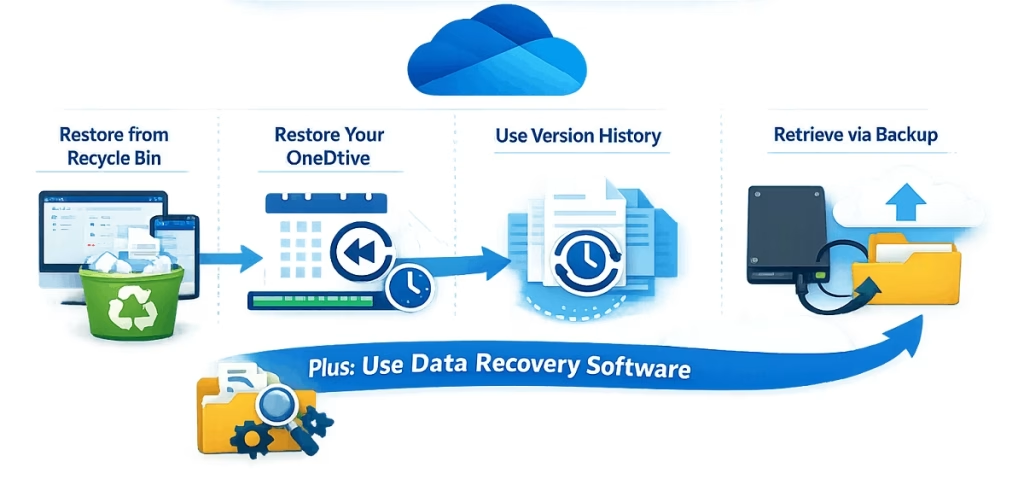
Manual Ways to Recover Permanently Deleted OneDrive Files
First, try the built-in recovery options. However, these methods only work within the retention period. Also, you must act quickly for better results.
Way 1: Restore Delete Files from Recycle Bin
To begin with, check the Recycle Bin. It is the easiest recovery option.
Steps:
- Open your OneDrive account.
- Go to the Recycle Bin.
- Find your file.
- Click Restore.
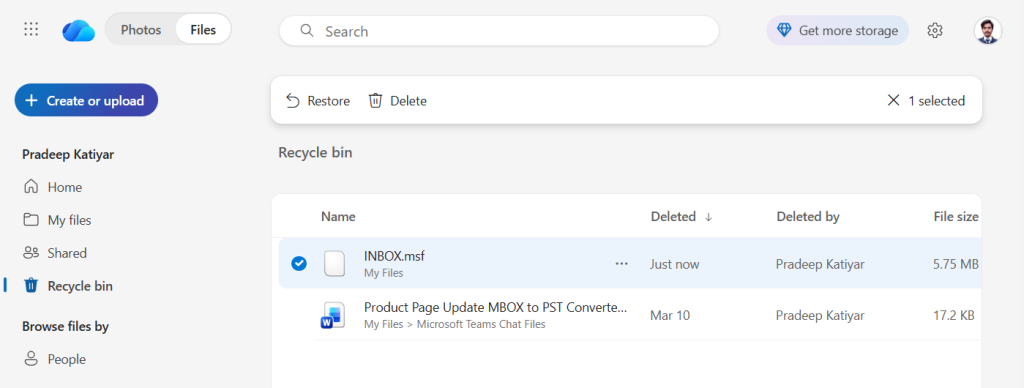
Then, OneDrive returns the file to its original location. Thus, this method works well for recently deleted folder and files.
Way 2: Check the Second-Stage Recycle Bin
Next, check the second-stage Recycle Bin if you cannot find your file. This option provides an extra recovery layer.
Steps:
- Open the Recycle Bin.
- Scroll down.
- Click the Second-stage Recycle Bin.
- Select the file and restore it.
By doing this, you improve your recovery chances. Therefore, always check this section.
Way 3: Use Version History
Alternatively, use Version History if someone overwrote your file.
Steps:
- Right-click the file.
- Select Version History.
- Choose an older version.
- Click Restore.
As a result, you can recover earlier versions. This way, you save data even after changes.
Limitations of Manual Methods
Although these methods help, they have limits. For instance:
- They work only for a short time.
- Cannot recover permanently deleted files.
- May fail in some cases.
- Take time for large data.
- May miss important files.
Because of this, manual recovery is not always reliable. Therefore, you should not depend on it alone.
Better Solution: Use a Backup Tool
Instead, use a backup tool for better protection. In fact, backups keep your data safe even after deletion.
Shoviv OneDrive Backup Tool
The Shoviv OneDrive Backup tool helps users back up OneDrive data to local storage. As a result, users can recover files even after permanent deletion.
Moreover, the tool has a simple interface. So, both beginners and experts can use it easily.
Why Is This Approach Better?
Not only does it improve safety, but it also saves time. For example:
- Backup multiple drives at once.
- Support all file types.
- Use filters (date, size, type, folders).
- Adjust performance settings.
- Handle errors efficiently.
- Schedule automatic backups.
- Works on all Windows systems.
Steps to Use Shoviv OneDrive Backup Tool
To get started, follow these steps:
- Install and open the tool.
- Create a backup job.
- Add your OneDrive account.
- Choose a backup location.
- Apply filters and settings if needed.
- Click Start Backup.
Meanwhile, track progress on the dashboard.
Conclusion:
In conclusion, restoring deleted files from OneDrive depends on quick action. While built-in tools help, they only work for a limited time. Therefore, you should use a backup tool for better safety. With this approach, you can protect your data from permanent loss. Ultimately, tools like the Shoviv OneDrive Backup Tool give you full control and peace of mind.