Many users look for ways to export Oi Mail to Google Workspace or Gmail to access better features, improved security, and easier email management. However, finding a reliable method for Oi Mail to Google Workspace migration can be confusing without proper guidance. This blog covers effective ways to export Oi Mail to Google Workspace / Gmail, including manual methods and a professional solution, helping users complete the migration quickly and securely.
Reason to Export Oi Mail to Google Workspace
There are several practical reasons why users choose to export Oi Mail to Google Workspace or Gmail. The shift helps improve email handling, security, and overall productivity.
- Users get better storage options, making it easier to manage emails without worrying about mailbox limits.
- Google Workspace provides stronger security features, such as advanced spam filtering and account protection.
- Emails and data can be accessed from any device with an internet connection, offering greater flexibility.
- Integration with tools like Google Drive, Docs, and Meet helps users manage work from a single platform.
- Gmail offers a cleaner interface with better organization features like labels and filters.
- Searching emails becomes faster and more accurate with Google’s advanced search capabilities.
- Regular updates and improvements ensure a more reliable and modern email experience.
Manual Method to Export Oi Mail to Google Workspace / Gmail
Users can export Oi Mail to Google Workspace or Gmail using manual approaches like POP3 or IMAP configuration. These methods require setting up accounts correctly and may take time depending on the mailbox size.
Method 1: Export Oi Mail to Gmail Using POP3
This method uses Gmail’s built-in features to fetch emails from your Oi Mail account.
- Login to your Gmail account.
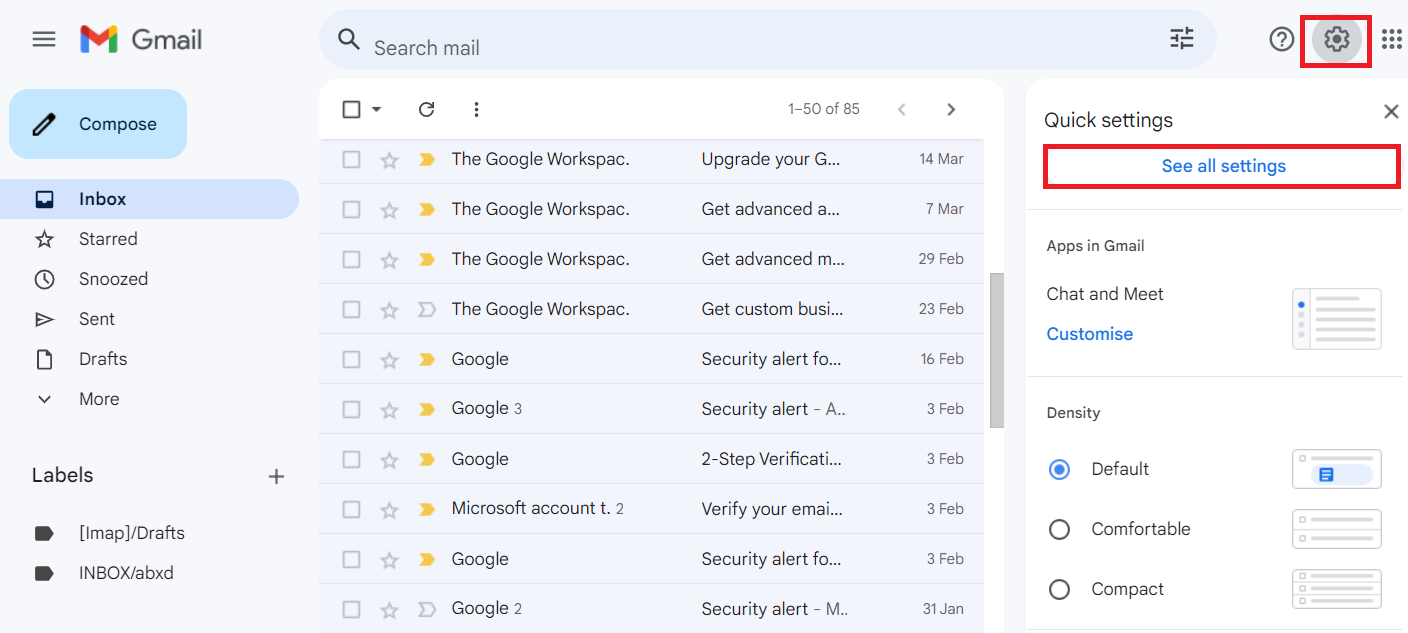
- Click on the Settings icon and select See all settings.
- Go to the Accounts and Import tab.
- Click on Add a mail account under ‘Check mail from other accounts.’
- Enter your Oi Mail email address and click Next.
- Select Import emails from my other account (POP3) and click Next.
- Enter your Oi Mail login credentials.
- Provide the POP server details (e.g., pop3.oi.com.br, Port 995 with SSL).
- Click Add Account to start importing emails.
Method 2: Export Oi Mail Using IMAP (Email Client Method)
This method uses an email application like Outlook or Thunderbird to transfer emails.
- Install and open an email client such as Outlook or Thunderbird.
- Add your Oi Mail account using IMAP settings.
- Add your Gmail or Google Workspace account using IMAP.
- Allow both accounts to sync completely.
- Select emails or folders from Oi Mail.
- Drag and drop them into your Gmail or Google Workspace mailbox.
- Wait for the synchronization to complete.
Professional Method to Export Oi Mail to Google Workspace
For users looking for a more streamlined way to export Oi Mail to Google Workspace, using a dedicated solution can make the process much easier. The Shoviv IMAP to Google Workspace Migration Tool is designed to transfer emails directly from IMAP-based accounts like Oi Mail to Google Workspace without complicated configurations.
It allows users to migrate complete mailbox data, including email and attachments, while keeping the original structure intact. The tool also supports multiple mailbox migrations and provides options to control and manage the migration process more efficiently.
If users are also planning to migrate Oi Mail to Gmail instead, the Shoviv IMAP to IMAP Migration Tool can be used, as Gmail also supports IMAP connectivity. It helps users to perform smooth and secure migrations.
Steps to Export Oi Mail to Google Workspace in a Few Clicks
- Download and install the Shoviv IMAP to Google Workspace Migration Tool on your system to begin the process of exporting Oi Mail to Google Workspace.
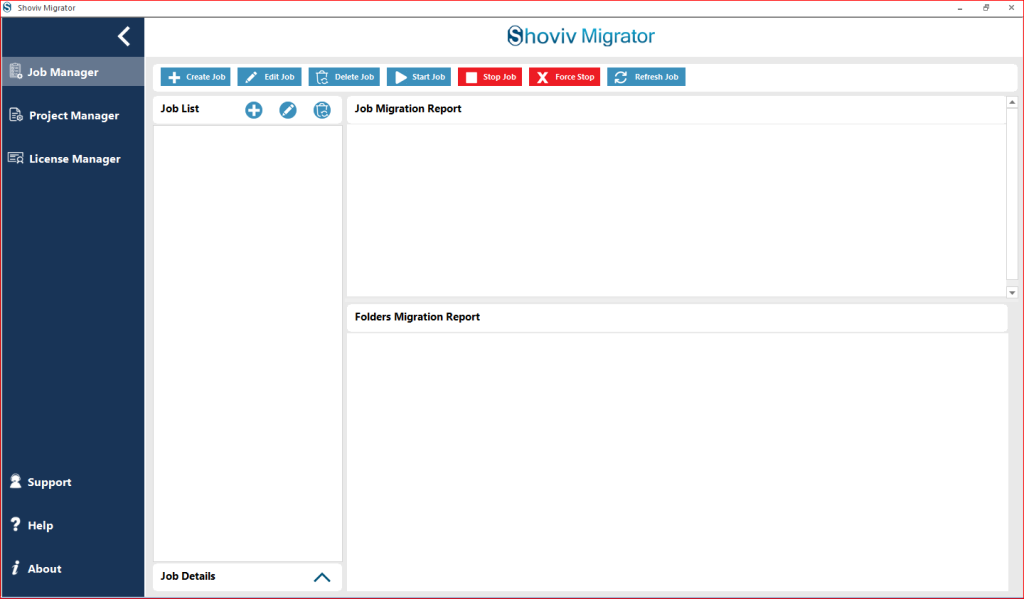
- Launch the tool and open the dashboard to start configuring the Oi Mail to Google Workspace migration.
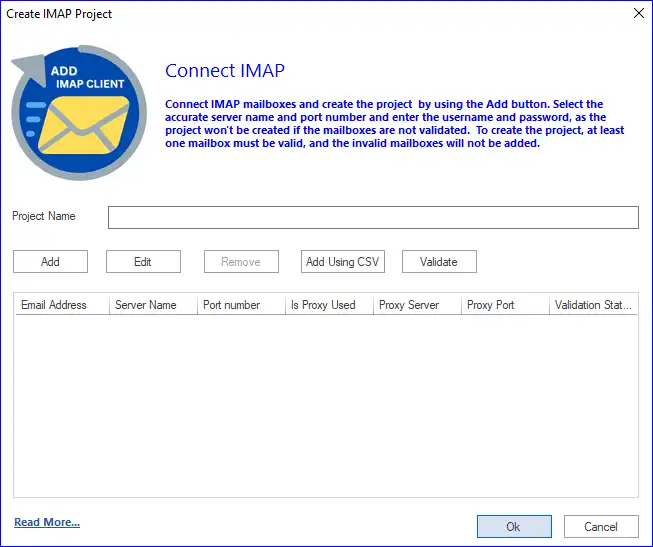
- Click on the Source Connection option to add your Oi Mail account using IMAP credentials.
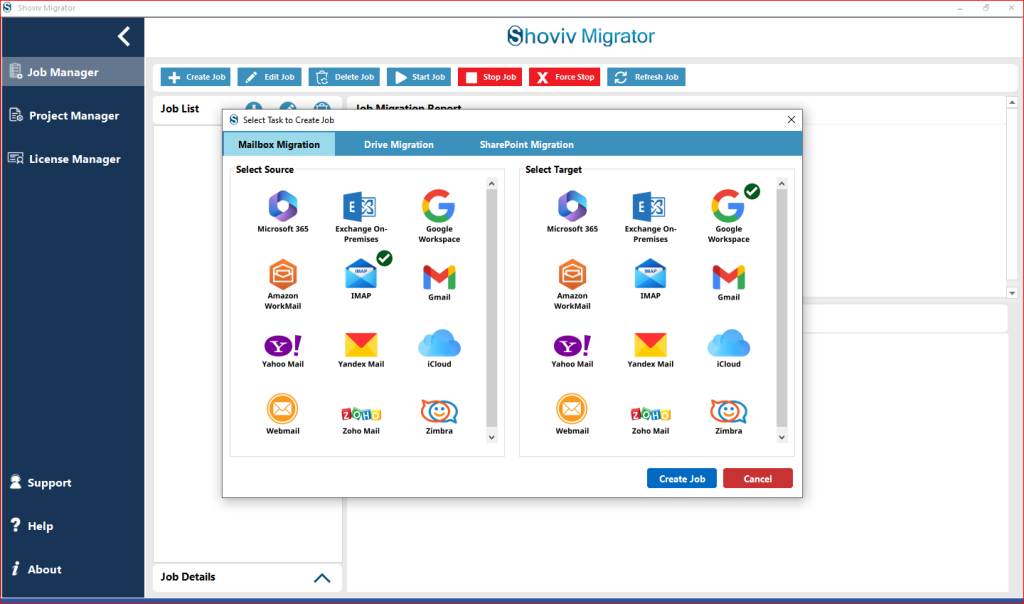
- Enter the required details such as server address, email ID, and password for connecting to Oi Mail.
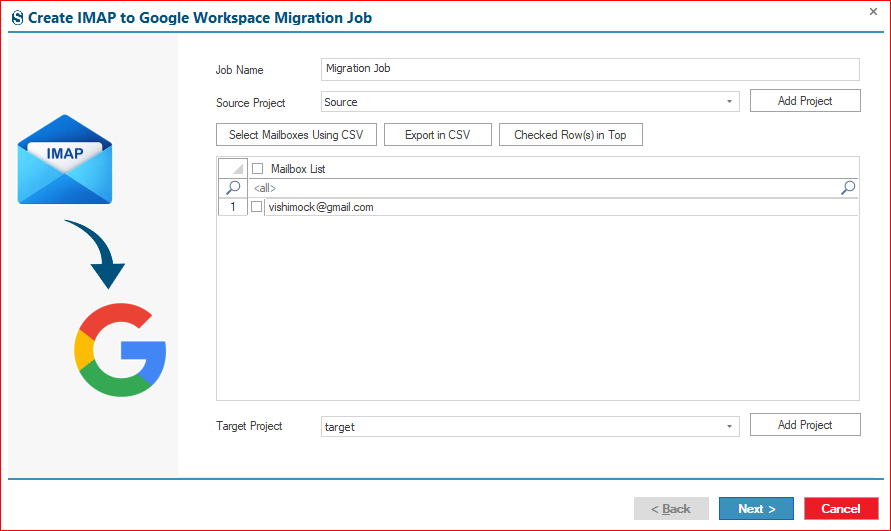
- Verify the connection to ensure your Oi Mail account is ready for export to Google Workspace.
- Now, go to the Target Connection section to set up your Google Workspace account.
- Enter your Google Workspace (admin or user) credentials to connect it as the destination.
- After a successful connection, navigate to the Create Job option to initiate the Oi Mail to Google Workspace migration process.
- Provide a job name and select the source (Oi Mail) and target (Google Workspace) mailboxes.
- Map the Oi Mail mailboxes with the corresponding Google Workspace mailboxes for accurate data transfer.
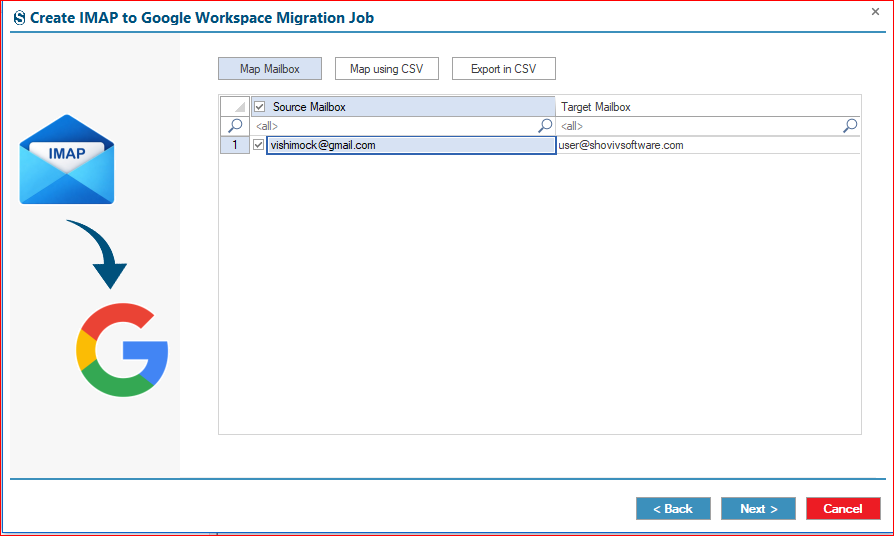
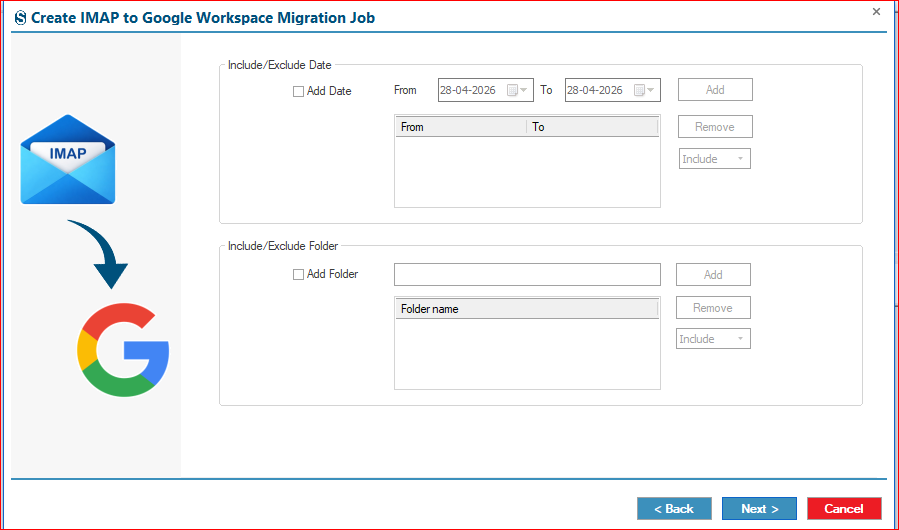
- Apply filters if you want to export specific emails from Oi Mail to Google Workspace based on date or folders.
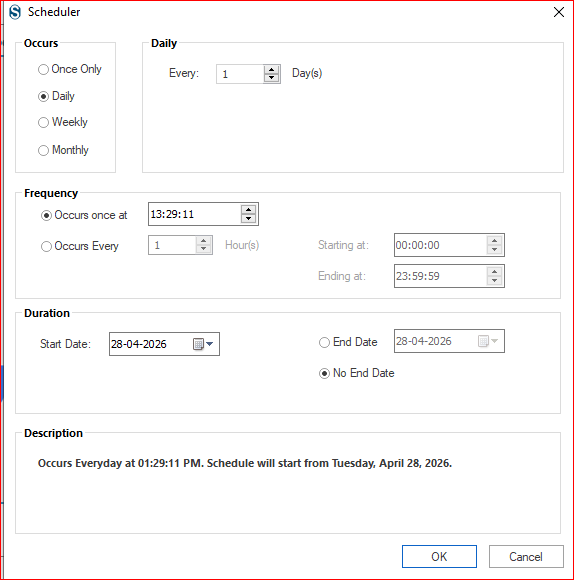
- Configure additional settings, such as scheduling or immediate execution, as per your requirement.
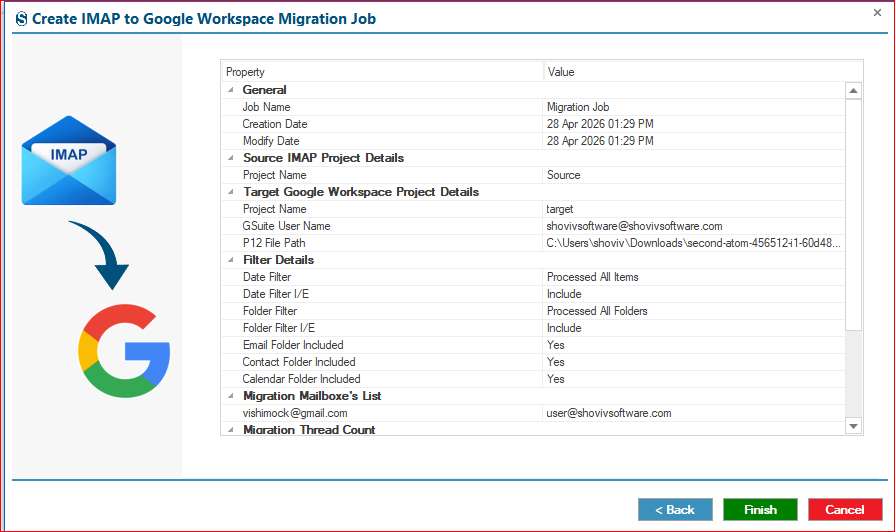
- Start the process to export Oi Mail to Google Workspace and monitor the migration until completion.
Conclusion
In this blog, we explored how to export Oi Mail to Google Workspace using both manual and professional methods. While manual approaches can be used for basic migration, they often require time and careful configuration.
For a smoother and more reliable experience, the professional method provides a more efficient way to handle Oi Mail to Google Workspace migration. It simplifies the process and helps ensure accurate data transfer without unnecessary communications.
Frequently Asked Questions:
Yes, manual methods like POP3 or IMAP can be used, but they are suitable only for small migrations.
Yes, but manual methods may not always guarantee complete accuracy.
For smooth and reliable migration, a professional tool like the Shoviv IMAP to Google Workspace Migration Tool is recommended.
Yes, manual methods carry some risk, especially if not configured properly.
Manual methods are limited, while professional tools support multiple mailbox migrations.
Yes, selective migration is possible using a professional tool, while manual methods offer limited control.
Yes, if you want to migrate Oi Mail to Gmail in a simple way, you can use the Shoviv IMAP to IMAP Migration Tool.