Summary: Accessing OneDrive files directly from File Explorer can significantly streamline workflow, save local storage, and provide seamless file management. Mapping OneDrive as a network drive enables users to work with cloud-stored files like local files. This guide explains why mapping is useful, covers manual mapping steps along with its drawbacks, and introduces a professional solution using an advanced OneDrive Backup Software.
Fundamental Overview
What is OneDrive?
OneDrive is Microsoft’s cloud storage service that allows you to store files online and access them from any device. It provides backup, secure file sharing, and easy retrieval of files from anywhere.
What is a Network Drive?
A Network Drive is a storage location on a network that appears as a local drive on your computer. Mapping OneDrive as a Network Drive users to access their cloud files directly from File Explorer, just like files on a local hard drive.
What do you mean by File Explorer?
File Explorer is Windows’ built-in interface for managing files and folders. Once OneDrive is mapped as a Network Drive, users can browse, copy, move, or rename files seamlessly, enhancing productivity and familiarity.
Reasons for Mapping OneDrive as a Network Drive to File Explorer
Mapping OneDrive as a Network Drive offers several key benefits:
- Streamlined Access – Access OneDrive files directly from File Explorer without navigating the web interface.
- Efficient File Management – Easily copy, move, rename, or organize files as if stored locally.
- Storage Optimization – Online-only files appear in File Explorer without consuming local disk space.
- Offline Work Capability – Files downloaded can be worked on offline and sync automatically when back online.
- Enhanced Collaboration – Shared files are accessible directly from File Explorer, simplifying teamwork.
- Backup Layer – Mapping acts as an extra layer of backup by making cloud files available locally if needed.
Mapping ensures productivity, flexibility, and an organized workflow across devices, especially when storage space is limited.
Understanding Windows Placeholder Removal Before Manual Mapping
Previously, Windows 8.x featured placeholders in OneDrive. These were tiny dummy files on local drives representing cloud-stored data. Users can browse files without downloading them, saving local storage and allowing fast access to thousands of files.
What changed in Windows 10/11?
- Microsoft removed placeholders due to user confusion: placeholders weren’t actual files and required an internet connection to open.
- Replaced with Selective Sync, which downloads only selected folders locally. While safer, this method prevents browsing all files from File Explorer without manual downloads.
Impact on Manual Mapping:
- Manual mapping recreates the placeholder-like functionality by linking OneDrive to a Network Drive.
- Users can see all files in File Explorer, but online-only files need to be double-clicked to download.
- Understanding placeholder removal is crucial before mapping, as it explains why manual mapping is needed for full file visibility.
How to Map OneDrive to File Explorer Manually?
Follow these steps to map OneDrive as a Network Drive manually:
Step 1: Sign in and Copy CID
- Log in to OneDrive in a web browser.
- Navigate to your files and copy the CID number from the URL after cid=
Step 2: Map Network Drive in File Explorer
- Open File Explorer > go to This PC.
- Click Computer > select Map Network Drive.
- Choose an available drive letter.
- Enter the folder path: https://d.docs.live.net/Your-CID.
Replace YOUR-CID with your copied CID.
- Check Reconnect at sign-in and Connect using different credentials.
- Click Finish.
Step 3: Enter Credentials
- Enter your Microsoft account email and password (or App Password if two-factor authentication is enabled).
- Your OneDrive appears as a mapped drive.
Step 4: Access Files
- Browse, copy, rename, or move files like local files.
- Online-only files require a double-click to download before editing.
Drawbacks of Manual Mapping
- OneDrive letter per account, limiting multi-account use.
- Online-only files require manual download.
- Advanced backup or automation features are unavailable.
- Slow performance if the network is busy.
Manual mapping works for basic access, but users seeking efficiency and multiple account support may face limitations.
Map OneDrive as a Network Drive in File Explorer Professionally
While manual mapping works for basic file access, professionals and frequent users often face limitations such as handling multiple OneDrive accounts, managing large datasets, or needing automated backups. That is where Shoviv OneDrive Backup Tool comes in as a comprehensive solution.
Shoviv provides a robust and user-friendly platform that allows you to back up, manage, and secure all your OneDrive files efficiently. It supports every file type, from documents and spreadsheets to videos and photos, ensuring no data is left behind. Unlike manual methods, it can handle multiple accounts simultaneously, making it perfect for business environments or users with extensive personal and professional data.
Additionally, Shoviv software offers advanced features such as selective backups, scheduling, and filtering options. which means you can automate routine backups, save time, and ensure your important data is always secure without having to manually manage each file or folder. The software is designed to work like a web disk, avoiding unnecessary local storage usage while still keeping files accessible and organized.
Whether you are a professional managing multiple clients, a team leader ensuring your shared OneDrive data is protected, or a personal user with large volumes of files, Shoviv transforms the way you interact with cloud storage. It eliminates the hassle of manual downloads, repetitive mapping, and limited offline accessibility, providing a seamless and reliable cloud backup experience.
Simple Steps to Map and Back Up OneDrive Data:
- Install the software and move forward with creating a backup job; enter the Job Name.
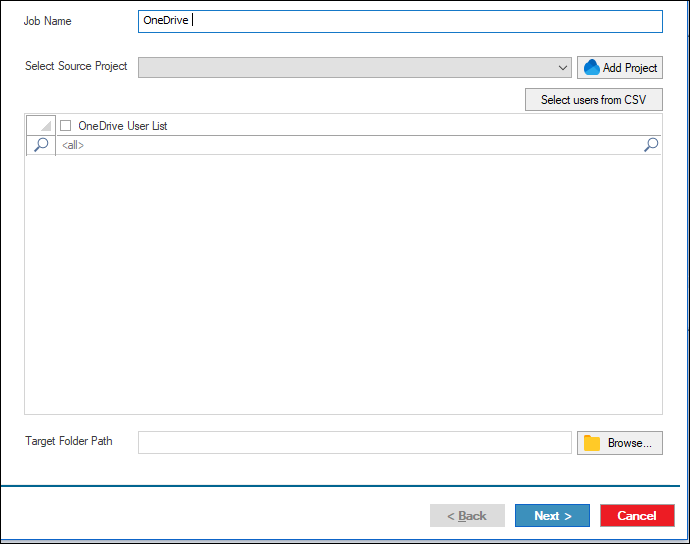
- Connect with the Source Project.
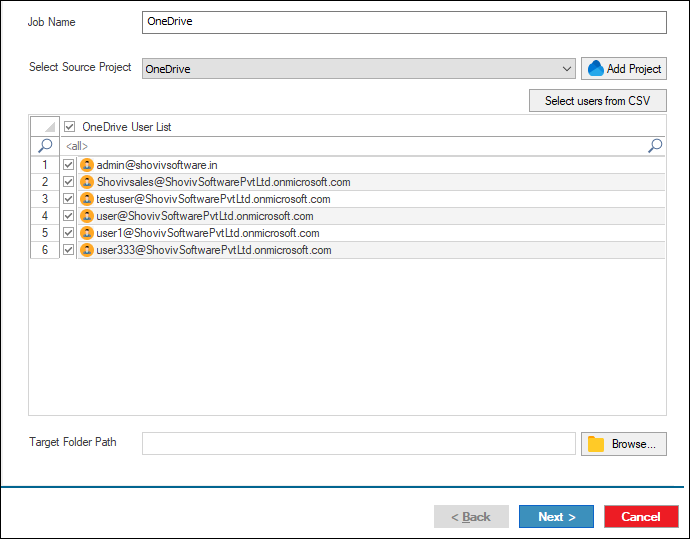
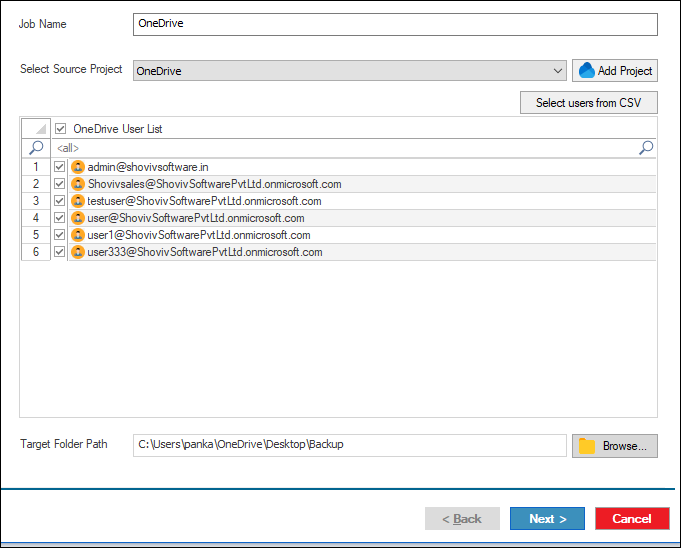
- Next, click on the Browse option to map the location for the Backup.
- Pick the Filter you want.
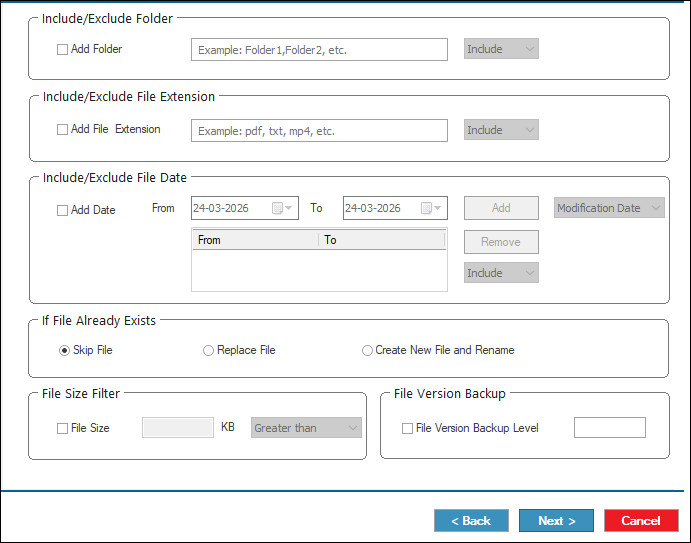
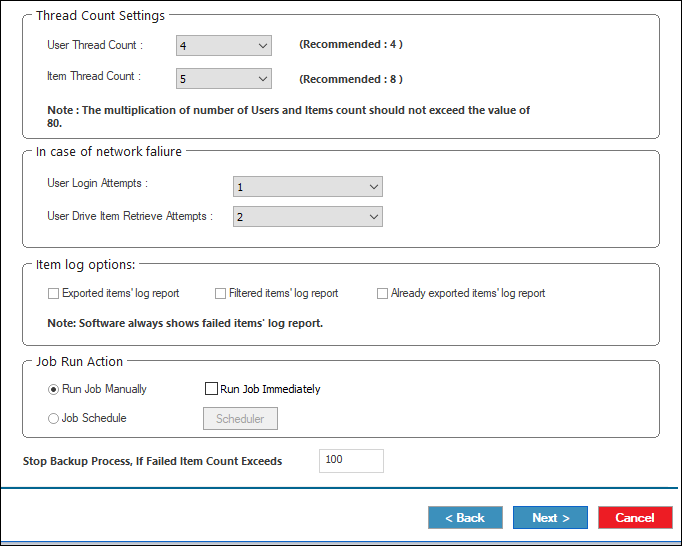
- Then, select the Advanced Settings to refine your Migration Process.
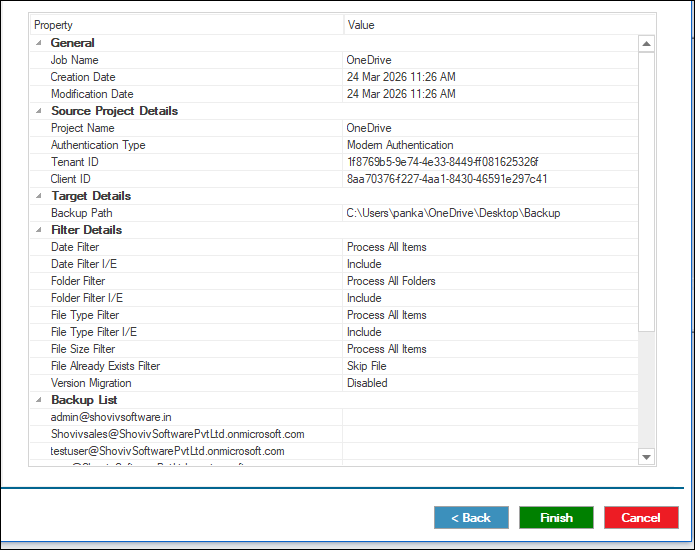
- Review the Job Details, and then click on the Finish button. The job will run according to the options you have chosen.
Conclusion:
Mapping OneDrive as a Network Drive improves file access, saves local storage, and enhances workflow. The manual method is free and sufficient for single accounts. At the same time, Shoviv OneDrive Backup Software is recommended for multi-account users, automation, and professional backup needs.
By following this guide, users can efficiently manage OneDrive files, whether for personal or business purposes, without worrying about limited local storage or online-only file visibility.
Frequently Asked Questions
Only downloaded files use local storage—online-only files appear without taking up space.
Right-click the drive in File Explorer> Select Disconnect.
Yes, an internet connection is required to access files stored online. Offline files can be edited and will sync automatically when you reconnect.
Yes, the process is similar: labels may differ (Computer instead of This PC).
Yes, you can map multiple accounts manually, but each account needs a separate drive letter. Using professional tools simplifies multi-account management.
Yes, you can map both OneDrive Personal and OneDrive for Business accounts as Network Drives on Windows 10 and 11 using File Explorer, following the CID-based mapping process.
Shoviv allows you to back up multiple OneDrive accounts simultaneously, provides selective backup and scheduling options, and eliminates the manual effort of logging into each account.
Yes, Shoviv bypasses the placeholder limitations by providing direct cloud-to-local backup and access, ensuring all files are available without relying on placeholders or selective sync.
Absolutely. Shoviv ensures the transfer and storage of your files, protecting your data while providing a seamless and reliable cloud backup experience.