Summary – Outlook OST files are essential for users who manage their data using Microsoft Outlook. However, exporting this data can be challenging, especially when Outlook or Exchange is inaccessible. In this guide, we will discuss both manual and professional solutions to export emails, calendars, contacts and more from OST files.
Understanding OST Files
OST (Offline Storage Table) files store mailbox data such as Emails, Calendars, Contacts, and more on your local system, allowing Outlook users to work offline and sync changes once connected to the Exchange server. However, when the Exchange profile becomes corrupted, deleted, or inaccessible, reporting this data becomes difficult.
In such cases, users often need to export emails, calendars, contacts and more from OST files into a portable PST format. It helps during migration, backup, or recovery from a damaged system. Understanding how to export OST data properly ensures uninterrupted access to your crucial Outlook information.
Common Issues with OST Files
OST files may become inaccessible due to several factors:
- Synchronization errors between Outlook and Exchange Server.
- File corruption caused by failure, malware, or system crash.
- Exchange Server downtime or hardware failure.
- Software conflicts or Outlook crashes.
- OST files are becoming orphaned after profile deletion or reinstallation.
Why is it Important for Users to Export Data from OST Files?
- Backup data to prevent loss in cases of file corruption, accidental deletion, or unexpected system crashes, ensuring your crucial Outlook information always remains safe and recoverable.
- Retrieve data from an inaccessible or orphaned OST file when the associated Outlook profile or Microsoft Exchange account becomes unavailable, allowing continued access to your emails, calendars, contacts, and more.
- Migrate to another email platform smoothly by exporting all mailbox data from OST to EML or other compatible formats without losing folder structure or integrity.
- Access specific mailbox items, such as Calendars or Contacts, across different devices or applications, making it easier to share or import data wherever needed.
- Create a secure long-term storage archive of important Outlook data to maintain compliance, keep historical records, or safeguard your information for future reference.
Also Read: How to Find Outlook OST File Location in Microsoft Windows?
How to Export Emails, Calendars, Contacts and More from OST Files?
You can export data from OST files manually (when Outlook and Exchange are functional) or using a professional tool (for inaccessible or orphaned files). Below are both methods explained in detail.
Export Emails, Calendars, Contacts and More from OST Files by Manually
If Outlook and the Exchange Server are still accessible, you can manually export OST data using Outlook’s Import/Export feature:
- Open Microsoft Outlook and go to File > Open & Export > Import/Export.
- Choose Export to a File and click Next.
- Select Outlook Data File (.pst) or other format depending on your need.
- Choose the folders you want to export — Inbox, Calendar, Contacts, etc.
- Browse a destination folder and click Finish to save your data.
It allows you to export data from an OST file into a .pst file that can be imported later into any Outlook profile.
Drawbacks of the Manual Method
While the above steps work in basic scenarios, there are several drawbacks:
- Requires a working Outlook profile connected to Exchange Server.
- Cannot be used for orphaned or corrupted OST files.
- Time-consuming and complex for large mailboxes.
- Risks of partial data export or data inconsistency.
- Not suitable for non-technical or first-time users.
Export Emails, Calendars, and Contacts from OST Files Using a Professional Method
When Outlook becomes inaccessible or an OST file gets corrupted, the Shoviv OST to PST Converter offers a professional, reliable and efficient solution to export data from the OST files. This powerful utility enables users to export complete mailbox data, including emails, contacts, calendars, notes, tasks, and attachments, ensuring that no information is left behind. It supports multiple export formats such as PST, MSG, EML, HTML, and vCard, giving users flexibility according to their needs.
The tool is designed to handle large OST files smoothly without any data loss. It includes advanced filtering options to selectively export specific folders or data within a particular date range. Additionally, users can preview all mailbox items before initiating the conversion process, ensuring complete accuracy and control. The tool also supports direct migration to Office 365 and Exchange Server, making it a versatile solution for both professionals and enterprises managing bulk OST data exports.
Steps to Convert an OST file to PST Using a Professional Tool
Follow these simple steps to export OST data efficiently:
- Install and launch the Software.
- Click on the Add OST File button in the ribbon bar.
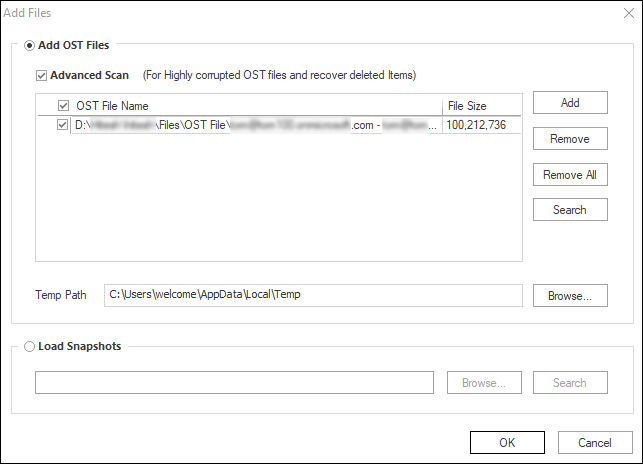
- Add or search the OST files(s) you want to export, browse the storage path, and click OK.
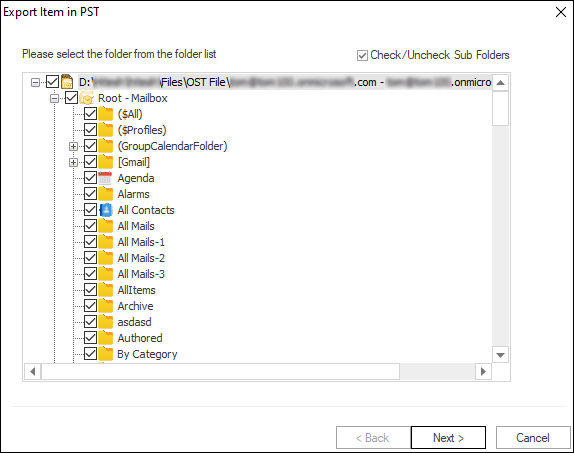
- In the next window, check or Uncheck subfolders as needed, then click Next.
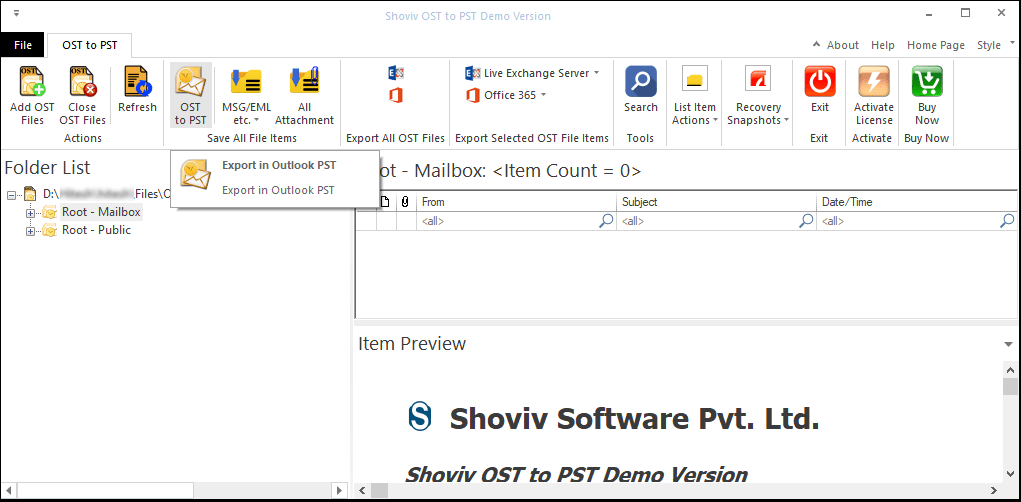
- Once the OST contents appear, select the required files and choose the “Save All Files in Outlook PST” option.
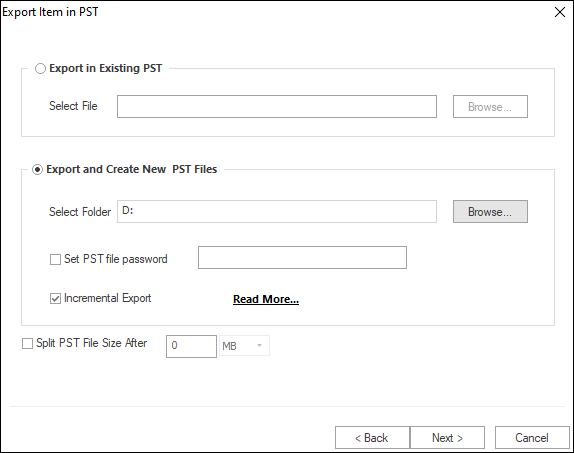
- Choose whether to export to an existing PST file or create a new PST file to manage size. Moreover, browse the resultant PST file location.
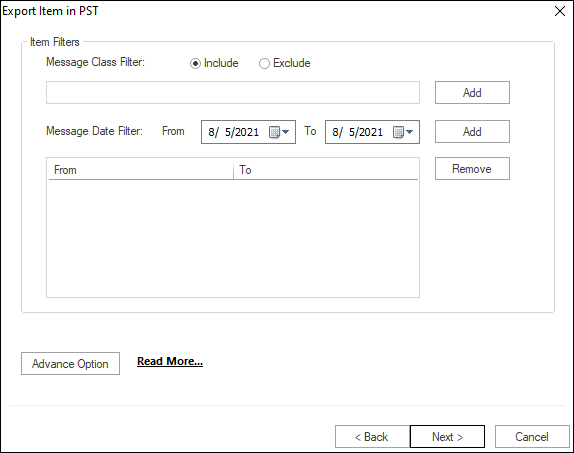
- Apply filters based on Message Class or Item Date to include only relevant data.
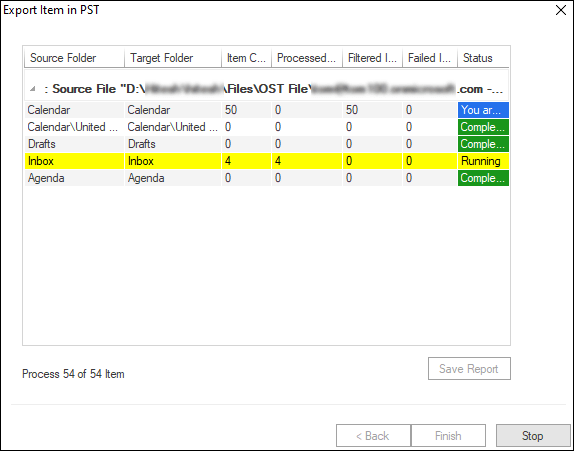
- Click Next to begin the export process. Once completed, you can save the detailed report for reference.
Conclusion
Exporting emails, calendars, contacts, and more from OST files manually can be time-consuming and limited by several restrictions. If Outlook or Exchange is unavailable, manual methods fail. The Tool eliminates these challenges by providing a seamless, secure, and automated way to extract your entire mailbox. Whether for data recovery, migration, or backup, Shoviv ensures your Outlook data remains safe, complete, and accessible anytime you need it.
Frequently Asked Questions:-
No, the manual method only works with healthy OST files connected to an active Outlook profile.
Yes, both manual and professional methods allow selective export, but Shoviv provides more flexible and reliable filtering options.
You can export Emails, Calendars, Contacts, Notes, Tasks, Attachments, and more using the professional Shoviv Tool.
Yes, an automated tool like Shoviv allows exporting OST data without requiring Outlook.
You can save data in PST, MSG, EML, HTML, and vCard formats with Shoviv’s to