Google Drive makes storing, sharing, and collaborating on files incredibly easy. But when it comes to protecting important business documents, client data, or personal memories, relying on a single cloud platform isn’t always enough. Accidental deletions, ransomware attacks, unexpected outages, or even account suspension can put your files at risk in seconds. That’s why having a secure backup outside of Google’s ecosystem is no longer optional — it’s essential.
In this practical, expert-reviewed guide, you’ll learn the safest and most reliable ways to back up your Google Drive files. Whether you want a simple one-time download, a synced local backup on your computer, or a fully automated enterprise-grade solution, we’ll walk you through the exact methods to keep your data protected, accessible, and completely under your control.
Quick Summary: How to Backup Google Drive
- Best for Individual File Backups: Use Google Takeout to export files and folders into a downloadable ZIP archive.
- Best for Continuous Local Backup: Install Google Drive for Desktop to automatically mirror or stream files to your computer or external drive.
- Best for Automated & Enterprise Protection: Use a dedicated cloud backup solution like Shoviv Google Drive Backup to create secure, scheduled, and encrypted backups without manual effort.
Why You Need to Backup Google Drive (The Risks of Cloud Reliance)
One of the biggest myths about cloud storage is that it automatically counts as a secure backup. In reality, it doesn’t. Google Drive is designed for file syncing, sharing, and easy access — not as a complete backup system. Under Google Workspace’s Shared Responsibility Model, Google protects the infrastructure itself, but the safety of your actual data is still your responsibility.
That means if something goes wrong and you don’t have a separate backup stored elsewhere, your files could be at serious risk. Here are some of the most common threats businesses and individuals face:
- Accidental Deletion – If a user, admin, or employee deletes a Google account or Shared Drive folder, Google only keeps that data for a limited recovery period. Once that retention window expires, the files are permanently lost.
- Ransomware & Sync Issues – If malware or ransomware infects your computer and encrypts your local files, Google Drive can sync those damaged versions to the cloud almost instantly — replacing the clean copies you were relying on.
- Single Point of Failure – Losing access to your Google account because of suspension, hacking, login issues, or even a major service outage can temporarily shut you out of critical business files and workflows.
- Insider Threats & Credential Abuse – Disgruntled employees or stolen login credentials can lead to large-scale file deletions or unauthorized changes across Shared Drives before anyone notices the damage.
This is exactly why cybersecurity experts recommend following the 3-2-1 Backup Rule: keep 3 copies of your data, store them on 2 different types of media, and make sure at least 1 copy exists outside your primary cloud environment. Depending only on Google Drive leaves you exposed if anything unexpected happens.
Now, we will explore ways to back up Google Drive into local storage. Let us start discussing them.
Ways to Back Up Google Drive?
Users can use various methods to back up Google Drive data, like files and folders. Here, users will know the detailed workings of each step to easily back up Google Drive to a computer.
How to Backup Google Drive Using Google Takeout
Google Takeout is a free tool provided by Google that lets you download a complete copy of your Google Drive data into a compressed ZIP file. It’s one of the easiest ways to create a one-time backup of your files, whether you want to store them on an external hard drive, another cloud service, or simply keep an offline copy for extra security.
Here’s how to back up your Google Drive step by step:
- Open Google Takeout
Go to Google Takeout in your web browser and sign in with the Google account connected to the Drive you want to back up.
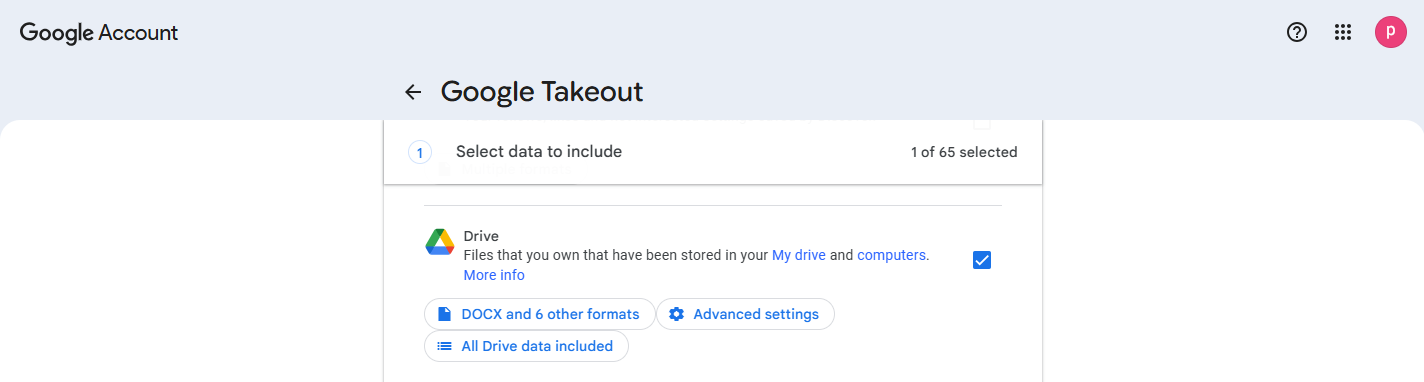
- Select Only Google Drive Data
Google automatically selects data from dozens of services by default. To make the process cleaner, click Deselect all at the top of the page. Then scroll down until you find Drive and check the box next to it. This ensures only your Google Drive files are included in the export.

- Choose Specific Folders (Optional)
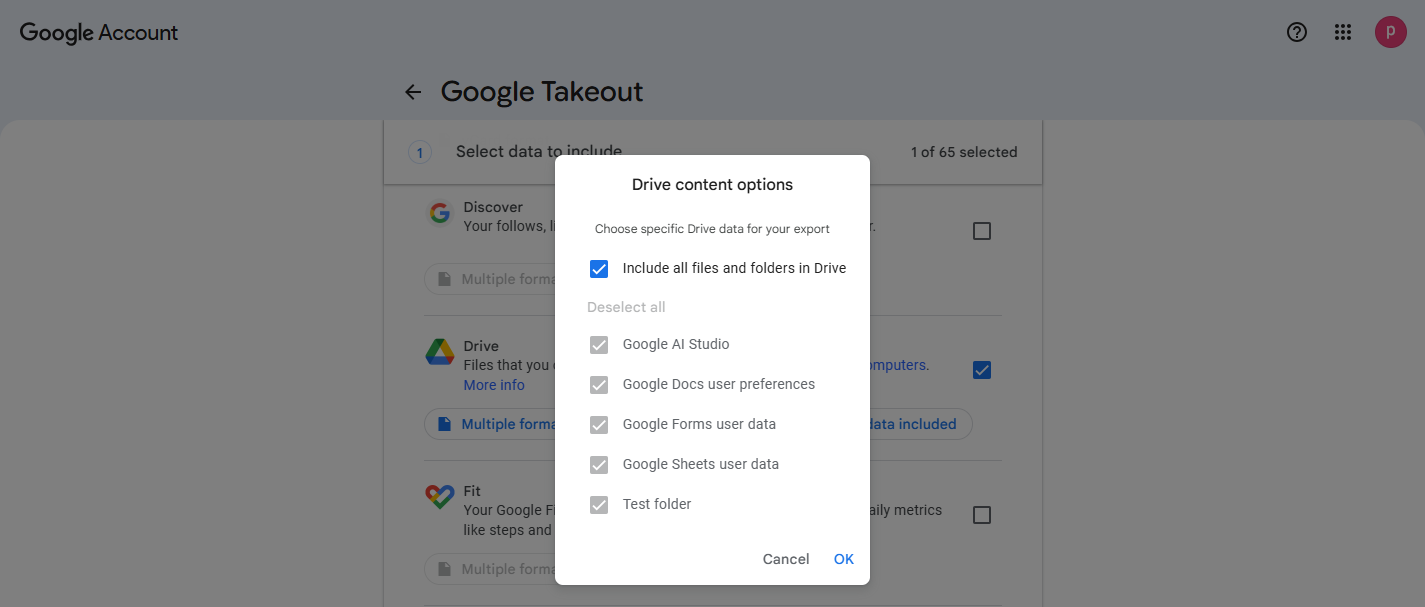
If you don’t want to download your entire Drive, click All Drive data included.
From there:
– Uncheck Include all files and folders in Drive
– Select only the folders you want to back up
– Click OK to save your selection
This is useful if you only need important projects, photos, or work files.
- Configure Export Settings
Scroll down and click Next step.
For the best results:
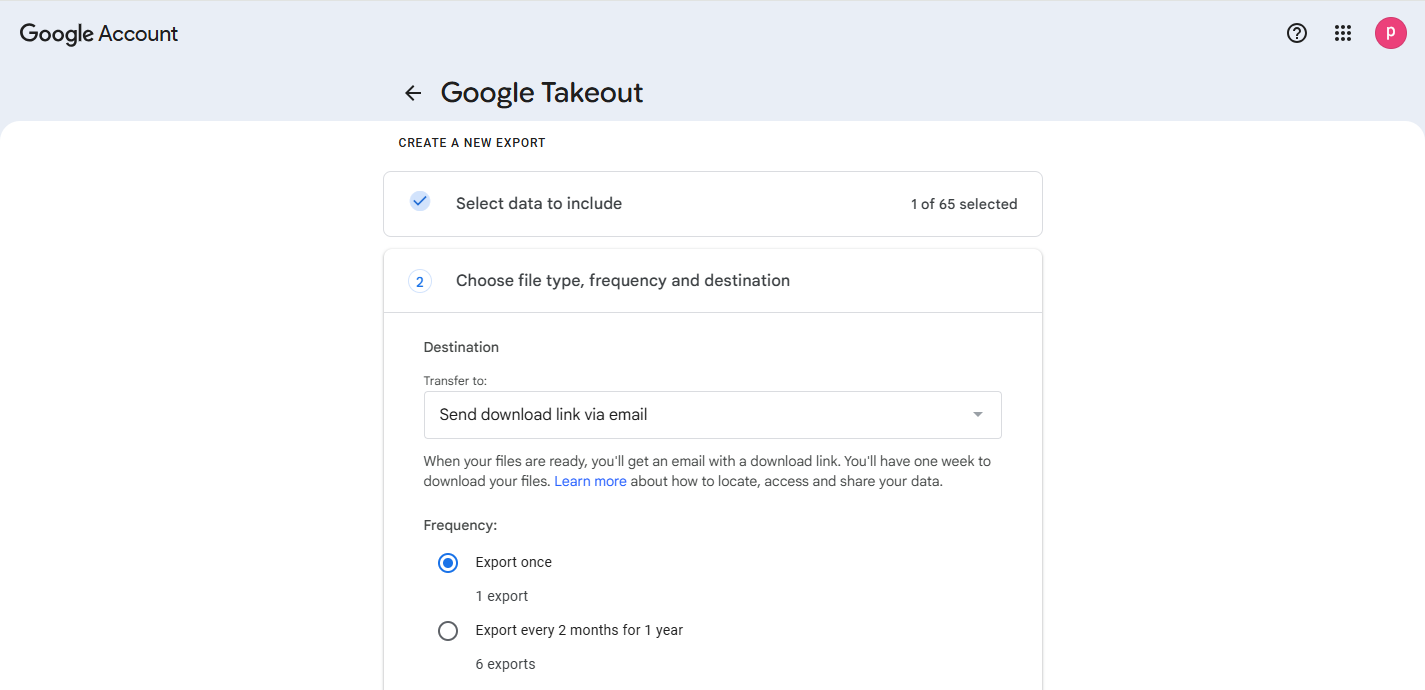
– Keep Delivery method set to Send download link via email
– Set Frequency to Export once
This creates a single downloadable backup archive.
- Choose File Type & Archive Size
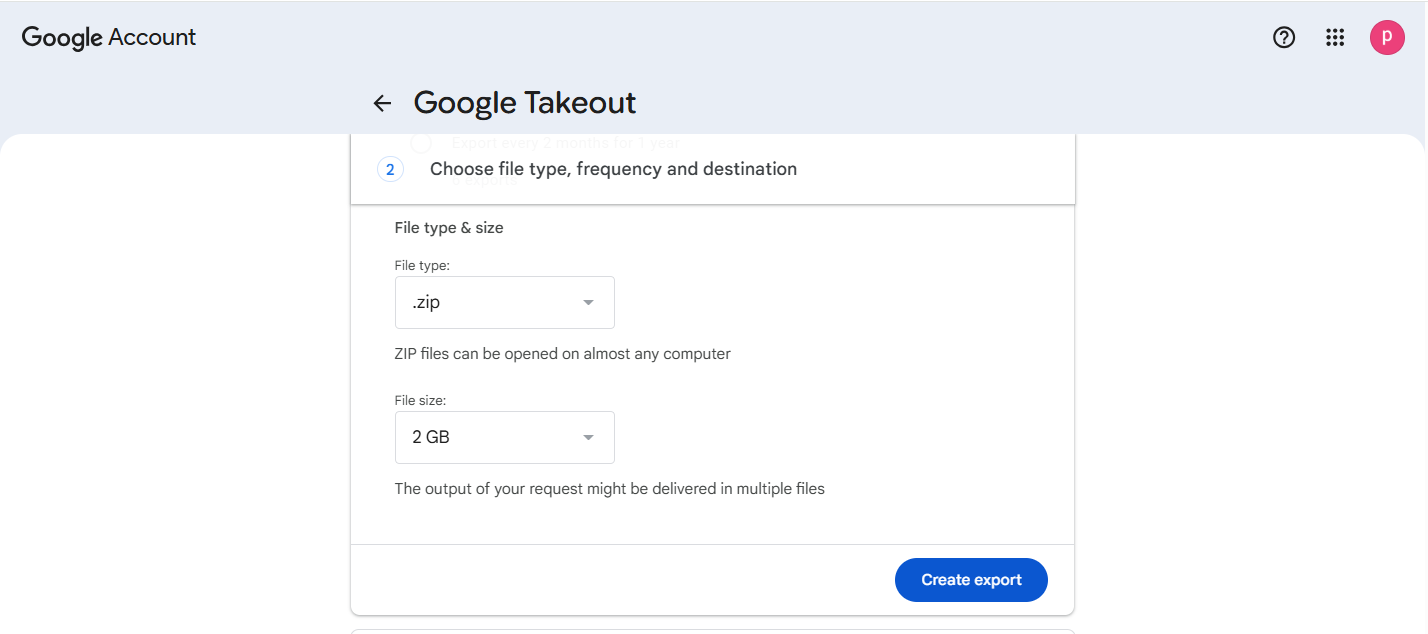
Leave the export format as .zip. Under File size, choose how large each ZIP file can be before Google splits the archive into multiple parts.
Pro Tip: If your internet connection is stable, choose 10 GB or 50 GB. This helps avoid ending up with dozens of smaller ZIP files.
- Create & Download Your Backup
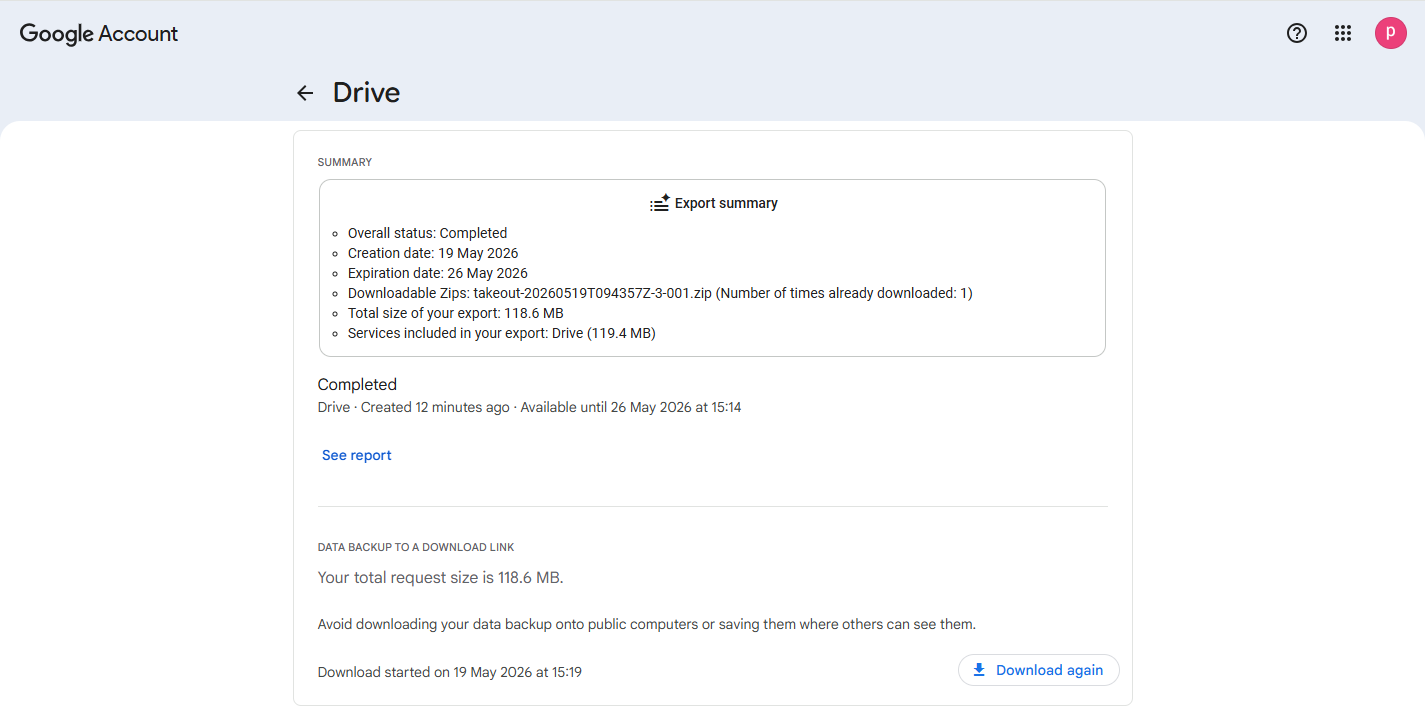
Click Create export. Google will begin preparing your backup in the background. Depending on how much data you have, this can take anywhere from a few minutes to several hours. Once it’s ready, Google will email you a download link titled “Google – Download Your Data.”
Simply:
– Open the email
– Click Download archive
– Re-enter your password for verification
Save the backup to your computer or external storage device
Important Limitations of Google Takeout
Before relying on Google Takeout as your main backup method, there are a few important limitations to understand:
File Conversion Issues
Google Docs, Sheets, and Slides are automatically converted into Microsoft Office formats like:
- .docx
- .xlsx
- .pptx
While usually accurate, formatting and layouts can occasionally change during the conversion process.
Shared Drives Are Not Included
Google Takeout only exports files stored in your personal My Drive.
Files from:
- Shared Drives
- Team Drives
- Files owned by others and shared with you
will not be included in the backup.
Download Links Expire
Your backup download link is temporary:
- Valid for only 7 days
- Limited to 5 downloads
After that, you’ll need to create a new export.
No Automatic Backup
Google Takeout is a manual backup solution. It creates a snapshot of your files at one specific moment in time.
It does not:
- Automatically sync changes
- Track file updates
- Create scheduled backups
To keep your backup current, you’ll need to repeat the process regularly.
How to Backup Google Drive Using Google Drive for Desktop
Google Drive for Desktop is Google’s official app for syncing your cloud storage with your computer. Unlike Google Takeout, which creates a one-time downloadable archive, this tool continuously syncs your files in real time. That means your local copy stays updated automatically whenever changes are made in Google Drive.
However, if you want to use it as a true backup solution, it’s important to choose the right sync mode.
Google Drive offers two options:
- Stream Files: Files stay mainly in the cloud and only download when opened.
- Mirror Files: A complete copy of your Google Drive is stored directly on your computer for offline access.
For proper local backup protection, Mirror Files is the better choice because it creates a full local copy of your cloud data.
How to Set Up Google Drive Desktop Mirroring
1. Download & Install Google Drive for Desktop
Visit the official Google Drive website and download the installer for your operating system.
- On Windows, run: GoogleDriveSetup.exe
- On macOS, open: GoogleDrive.dmg
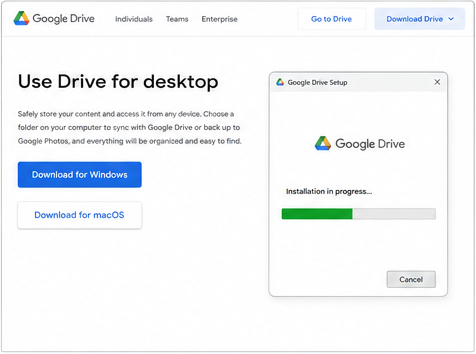
Follow the installation steps and launch the app once setup is complete.
2. Sign In to Your Google Account
When prompted, click Sign in with browser.
A secure browser window will open where you can:
- Select your Google account
- Enter your login credentials
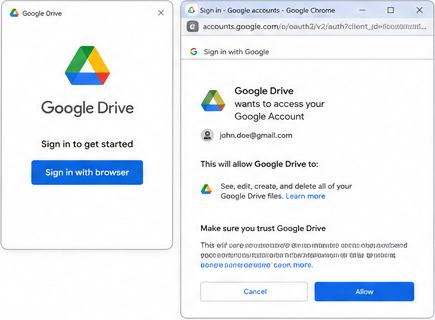
- Grant permission for the app to access your Drive files
Once verified, the app will connect to your cloud storage.
3. Open the App Preferences
After installation:
- On Windows, click the Google Drive icon in the system tray (bottom-right corner)
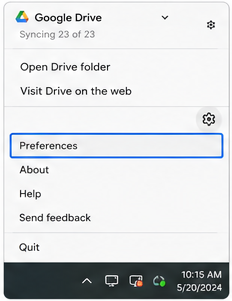
- On Mac, find it in the menu bar (top-right corner)
Then:
- Click the Settings Gear (⚙️)
- Select Preferences
4. Go to Drive Sync Settings
Inside the Preferences panel, click the Folders from Drive or Google Drive tab on the left sidebar.
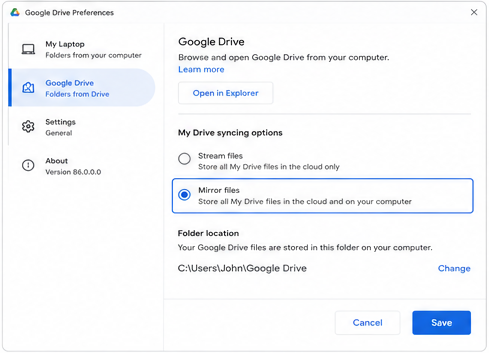
This is where you control how your cloud files are stored locally.
5. Enable “Mirror Files” Mode
Under My Drive syncing options, switch from:
- Stream files → to → Mirror files
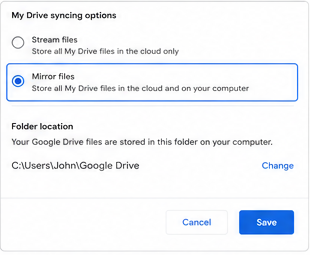
This tells Google Drive to download and maintain a full copy of your cloud files on your computer.
Important:
Before enabling mirroring, make sure your computer has enough free storage space.
For example:
- If your Google Drive contains 100 GB of data
- You’ll need at least 100 GB of available local storage
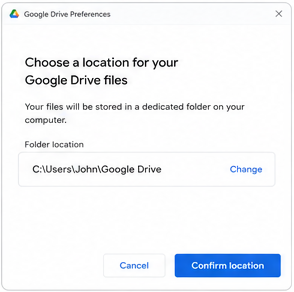
6. Confirm the Local Backup Folder
Google Drive will ask you to confirm where your mirrored files should be stored.
By default, the files are saved inside a dedicated Google Drive folder within your user directory.
Once confirmed:
- Click Confirm location
- Click Save
- Restart the app if prompted
Google Drive will then begin downloading and syncing your files automatically.
Important Limitations of Desktop Mirroring
While desktop mirroring is convenient, it’s still important to understand its limitations before relying on it as your only backup method.
Changes Sync Instantly — Including Deletions
Mirroring works in both directions.
That means if:
- A file gets deleted in Google Drive
- Ransomware encrypts cloud files
- Someone accidentally overwrites data
those changes can instantly sync to your computer as well.
In other words, synced corruption can spread quickly.
Large Drives Can Consume Significant Storage
Keeping a full offline copy of your cloud files can take up a huge amount of disk space, especially for businesses or users with large media libraries.
Over time, this may:
- Slow down system performance
- Fill your SSD or hard drive
- Reduce available space for other applications
Shared Drives Cannot Be Fully Mirrored
Google Drive for Desktop only supports streaming for Shared Drives.
Unfortunately, Google does not currently allow full local mirroring of Shared Drive structures through the desktop app.
So if your organization relies heavily on Shared Drives, you may need a dedicated third-party backup solution for complete protection.
A Perfect way to Backup Google Drive without limitations
Users can choose the Shoviv third-party tool to effectively back up Google Drive data to an external hard drive or a computer’s local drive. Shoviv Google Drive Backup Tool is more straightforward to use and offers various features to get data into the computer. This software allows users to back up multiple Google Drives at once.
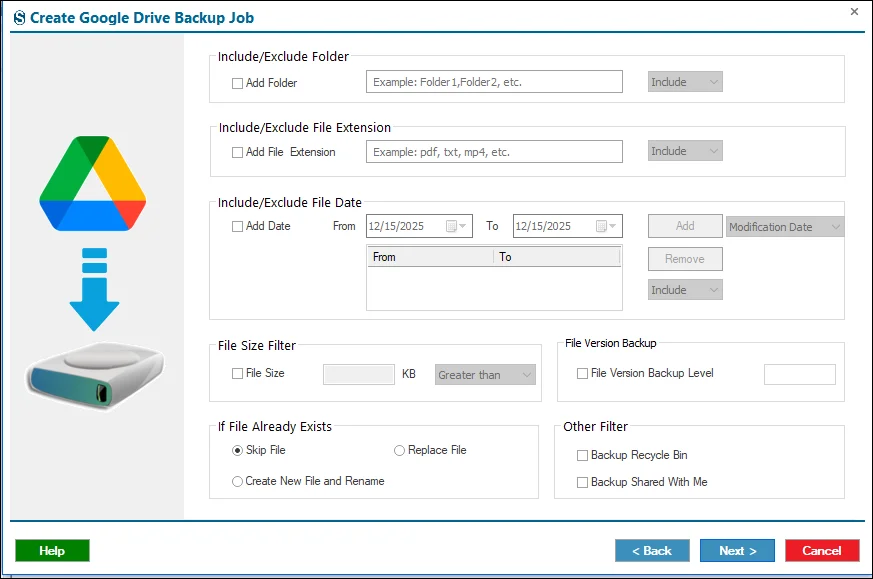
- It provides multiple filter criteria to backup Google Drive data, including folder, date, file extension, file type and file size.
- This tool smoothly runs, and no matter the size or count of the Google Drives, users want to back up at once.
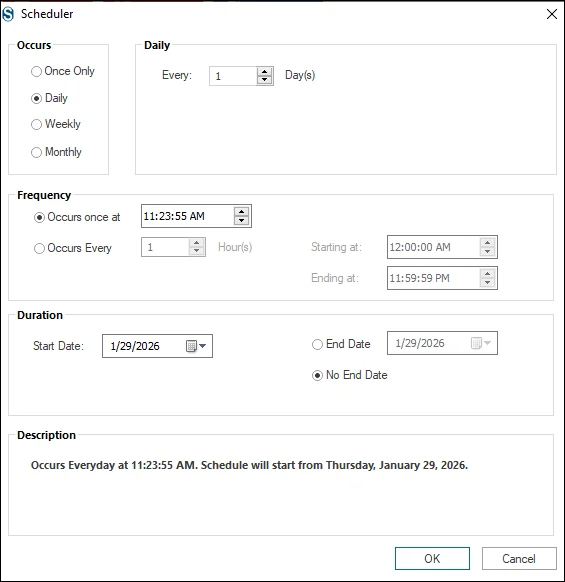
- Users can also periodically set the Google Drive backup at the desired date & time using its scheduler option.
- The interface of this tool is simple, and any user can use it without difficulty.
Steps to backup Google Drive using a professional solution:
- Download and install the Shoviv Google Drive Backup Software.
- After that, launch the tool on your device and enter details to connect Google Drive/ Google Workspace and local drive.
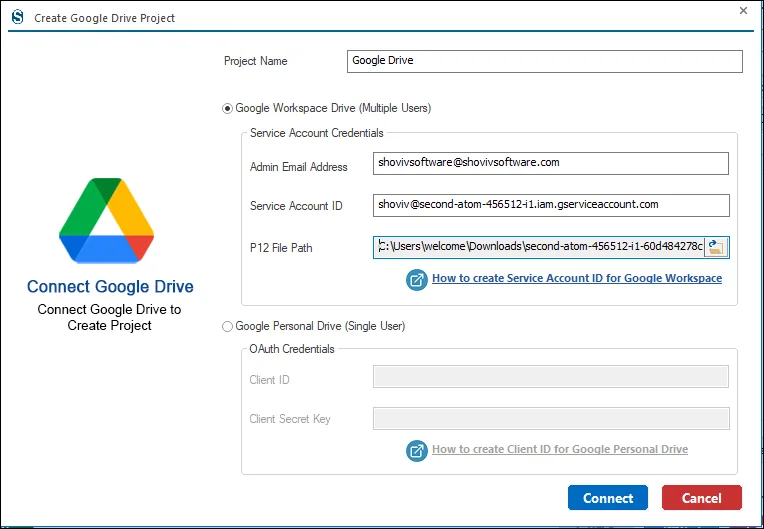
- Choose the Create Job option from the ribbon bar and hit it.
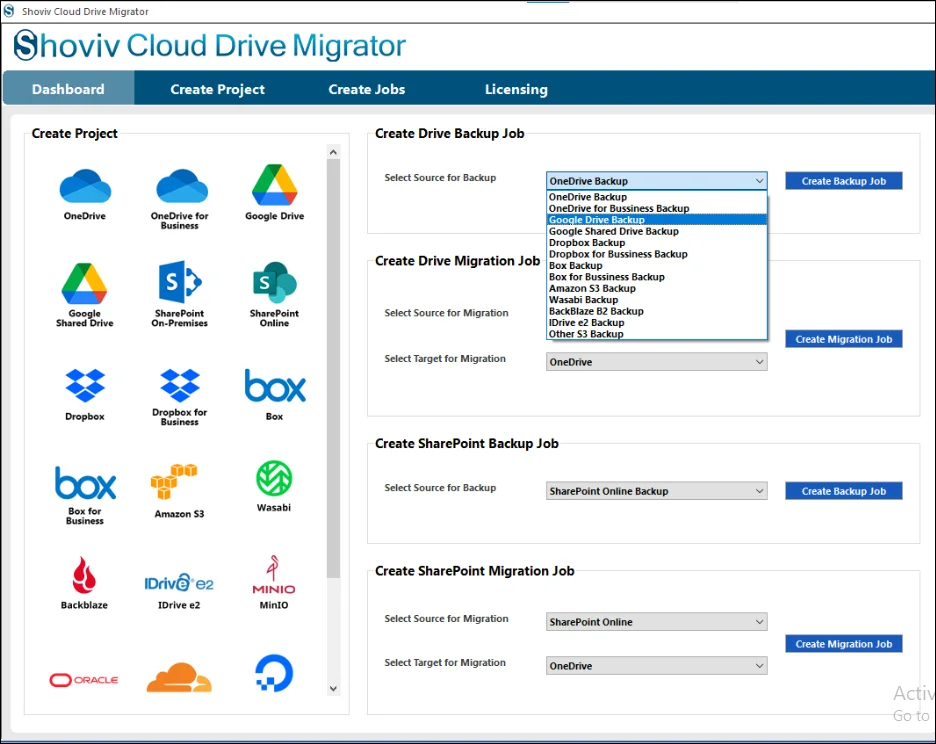
- Then, select the Source (Google Workspace) and the target (File System) and click the Create Job button.
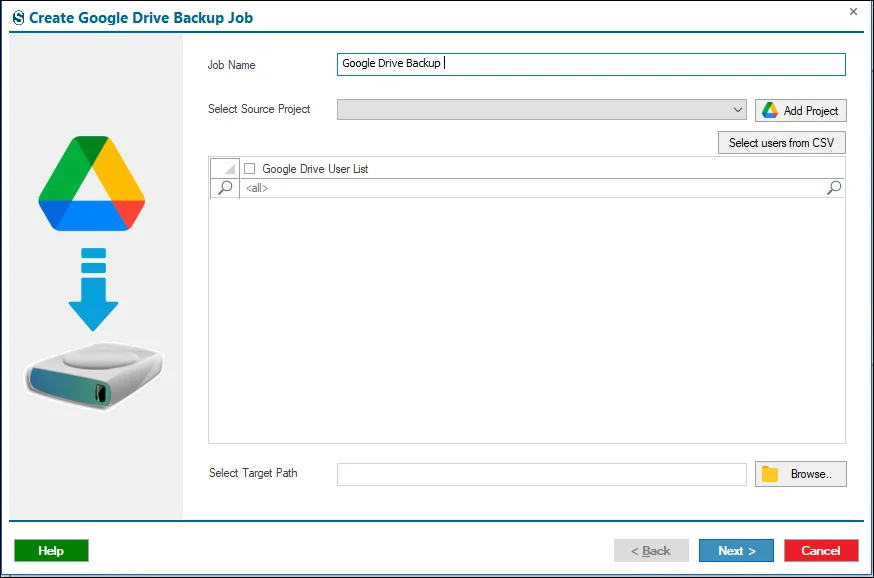
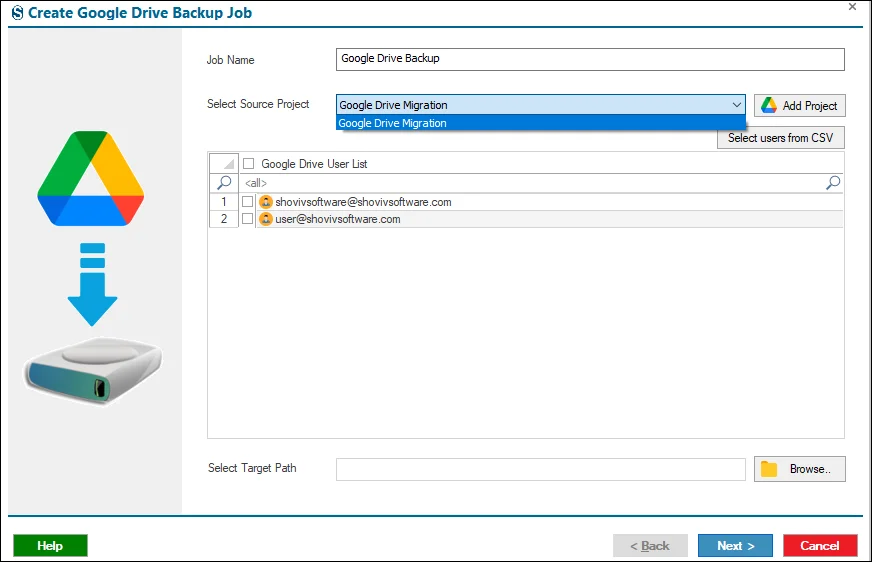
- Type a name for the Backup job, choose the source and target projects, and click the Next button.
- Set filters from the various criteria if needed to include or exclude items, and click Next.
- On the Settings page, schedule a backup if you want and click the Finish button.
- The software will start backing up Google Drive to your local drive or file system.
Wrapping Up
In the above sections, we understand various free ways to back up Google Drive into a local drive. These solutions are easy to use but come with a few drawbacks. That is why they are not preferable for larger Google Drive data backups. Users should look after the Shoviv Google Drive Backup Software to smoothly and securely backup Google Drive data locally. Users can also try this tool’s free trial version on their system before getting its full version.
Frequently Asked Questions and Answers
Ans. Yes, you can back up Google Drive to OneDrive as well as 20+ other cloud drives using the Shoviv Google Drive Backup Tool. It securely transfers files while preserving folder structure and data integrity.
Ans. Yes, you can recover deleted files from Google Drive. After deleting files, it will move to the trash folder, and you can retrieve data within 30 days. If you have a backup of the data, you can recover data from the backup even after 30 days.
Ans. The frequency of taking data backup depends on how often you modify or add new files to your Google Drive. You can schedule backup on a daily, weekly or monthly basis using the Shoviv Google Drive Backup and Restore Tool.
Ans. To organize Google Drive files and make backups more efficient, kindly consider these points:
1. Keep the folders by category, such as finance, work, marketing, etc., for efficient management and backup.
2. Place the essential files into a separate folder, which is easy to find.
3. Give names to the documents that you can find quickly, like Meeting 2 Jan 2025, Makerting.pdf, etc.
4. To reduce clutter, please remove the unnecessary files from your Google Drive account.