Whether you’re switching jobs, offboarding an employee, or simply reorganizing your workspace, knowing how to transfer Google Drive to another account is an essential skill for any Google Workspace user or administrator. This guide covers every method — from moving an entire Drive using the Admin Console to transferring individual files between accounts — so you always have the right approach for your situation.
Why You Might Need to Transfer Google Drive Data
Before diving into the how-to, it helps to understand the common reasons people look for ways to transfer Google Drive to another account:
- Employee offboarding — When a team member leaves, their files need to move to a manager or successor to prevent data loss.
- Role transitions — Centralizing project files under a new owner is cleaner than managing scattered access permissions.
- Organizational restructures or mergers — Data needs to align with the new reporting structure.
- Legal and compliance holds — Records retention or audit obligations may require moving files to a designated, controlled account.
- Storage optimization — Accounts approaching their storage limit (common on Google Workspace Business Starter) benefit from redistributing data to accounts with more available space.
- Improved access control — Consolidating sensitive files under accounts with stricter security settings reduces exposure risk.
Method 1: Transfer an Entire Google Drive Using Google Admin Console
This is the most powerful way to move files from one Google Drive to another and is designed for Google Workspace administrators. It transfers ownership of all files in a user’s Drive to a target account in one operation.
Prerequisites
Before you start, both the source and target accounts must meet these conditions:
- Both accounts must belong to the same Google Workspace organization. Transfers to or from external accounts or personal Gmail accounts are not supported.
- Both accounts must be active — they need valid licenses and must not be suspended or deleted.
- The source account must not be on litigation hold. Files under a legal hold cannot be transferred.
- Google Drive must be enabled for the target account. To verify:
- Log in to the Google Admin Console at admin.google.com.
- Navigate to Directory > Users and select the target user.
- Scroll down to Apps and confirm that Drive and Docs shows a status of On.
- The target account must have sufficient free storage. Check storage usage under the Storage Use and Settings section of the target user’s profile.
Step-by-Step: How to Transfer Files from One Google Drive to Another (Full Account)
- Notify both users. Ask the source and target account holders not to add new files or change folder structure during the transfer. Also note that files in the Trash folder are not transferred — the source user should restore any Trash files they want moved before you begin.
- In the Google Admin Console, navigate to Apps > Google Workspace > Drive and Docs.
- Scroll down and click Transfer Ownership.
- In the From user field, enter the source account (the person losing ownership). In the To user field, enter the target account (the person receiving the files).
- Click Transfer Files.
- On the confirmation dialog, click OK.
- Wait for the confirmation email. Google sends a notification to both the source user, the target user, and the admin who initiated the transfer once it is complete.
What gets transferred? All files owned by the source account in their Drive — including files in folders — are transferred. Shared files owned by others are not included. Trash contents are also excluded.
Method 2: Transfer Google Drive During User Offboarding
If you’re deleting a user account, Google builds the Drive transfer step directly into the account removal wizard, making it easy to handle both tasks at once.
Follow Below Steps:
- In the Google Admin Console, go to Directory > Users.
- Select the user account you want to delete. Click More Options > Delete selected users.
- The Delete User wizard opens. In the Data in Other Apps section, use the search field to select the target account that should receive the Drive files. You’ll also have the option to include files that are not shared with anyone — tick this if you want a complete transfer.
- Review the other data preservation options on the same screen (Gmail, Calendar, Looker Studio) and configure them as needed.
- Click Delete User, then Done on the confirmation window.
This method is the most efficient way to transfer Google Drive to another account during staff offboarding, since it handles Drive, email archiving, and account removal in a single workflow.
Method 3: How to Move Individual Files from One Google Drive to Another
Sometimes you don’t need a full account transfer — you just need to move specific files or folders. The simplest way to do this without downloading anything is to use Google Drive’s built-in sharing and ownership transfer features.
Step-by-Step: Share and Transfer Ownership of Individual Files
- Go to drive.google.com and log in to the source account.
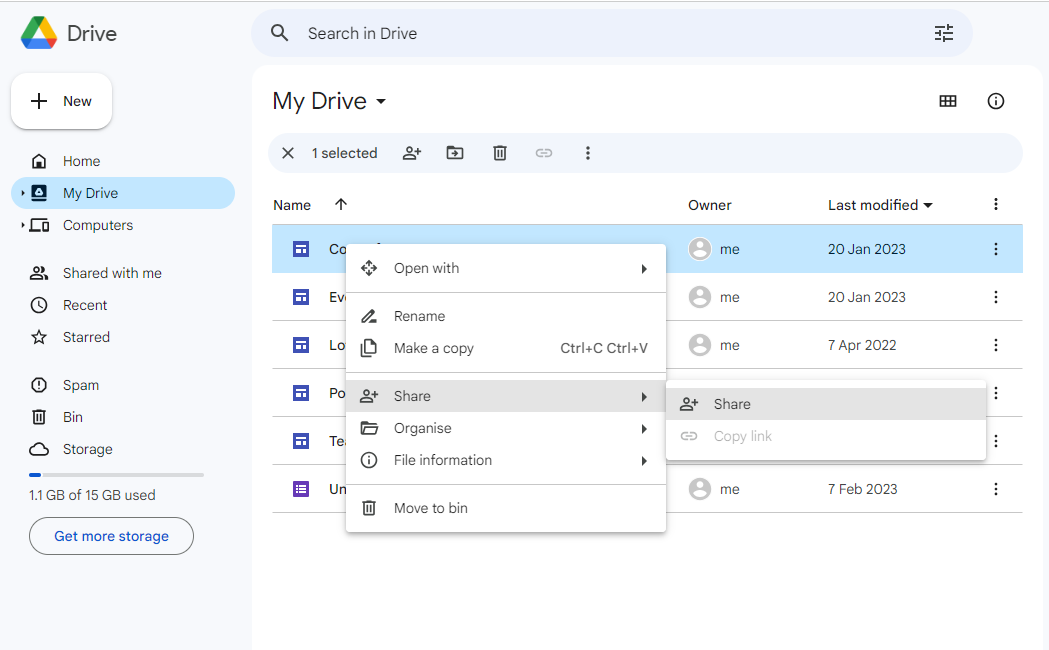
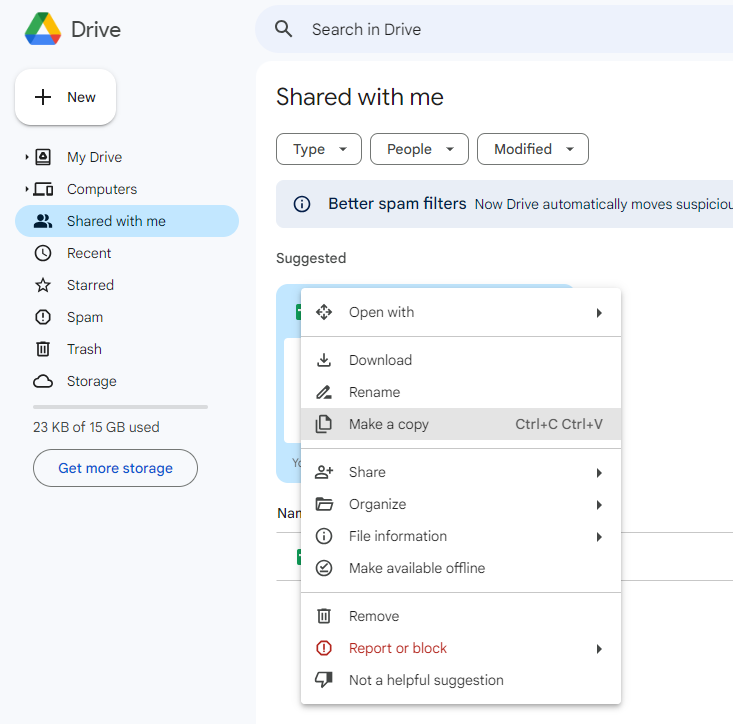
- Right-click the file or folder you want to move and select Share > Share.
- In the sharing panel, search for and select the target Google account.
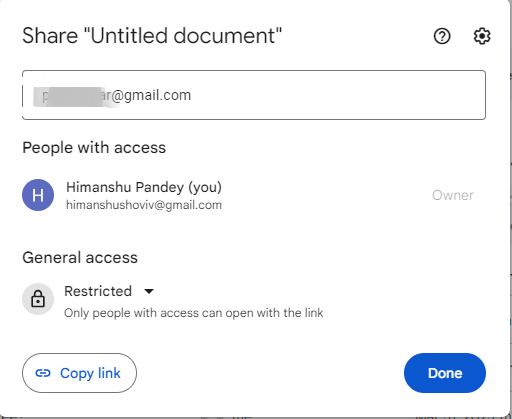
- Set the appropriate permission level (Viewer, Commenter, or Editor). You can also add an expiration date or customize the notification message. Click Send.
- You’ll see a shared icon appear next to the file name, confirming the share was successful.
- To fully transfer ownership (so the file lives in the recipient’s Drive), open the sharing panel again, find the target user, and use the permission drop-down to select Transfer Ownership.
- Confirm by clicking Yes in the dialog, then click Done.
Once ownership is transferred, the file appears in the target user’s Shared with me section. They can then add it to their own My Drive by right-clicking and selecting Add shortcut to Drive or Move.
Tip: For bulk individual file moves, this method works best for tens of files. For hundreds or thousands of files, use the Admin Console Transfer Ownership method instead.
Method 4: Download, Re-upload, and Share (Personal Accounts)
If you’re working with personal Google accounts (not Google Workspace), the Admin Console options above are unavailable. In that case, the manual approach is your best option.
- Download your files using Google Takeout (takeout.google.com). Select Google Drive and export your data as a ZIP file.
- Log in to the destination Google account in the same or another browser.
- Upload the files to the new account’s Drive by dragging and dropping or using the + New > File upload option.
This method works for how to transfer files from one Google Drive to another when both accounts are personal, but it does not preserve Google Docs/Sheets/Slides formatting natively — exported Docs become .docx files, for example. You may need to re-convert them after uploading.
Method 5: Professional Method to Transfer Google Drive to Another Account:
For the effortless migration of Google Drive, the Shoviv Google Drive Migration Tool is a one-stop solution. This tool is developed to address all the issues that professionals face while manually migrating Google Drive. Some of the highlighted features of this software are:
- Shoviv Google Drive Migration Tool works on job-based processing and allows the creation and running of multiple jobs.
- It can transfer one Google Drive to another, Google Drive to OneDrive, as well as Google Drive to Local Drive.
- Also, you can add OneDrive as the source and migrate to OneDrive, Google Drive, and Local Drive.
- Users can also schedule the migration after creating a job.
- Filter options to ease the migration process are also available; you can filter based on the folder, file extension, file size, date range, and file existence.
- This professional tool can migrate large-sized data in no time; it is a time-saving utility.
Key Differences Between Transfer Methods
| Scenario | Best Method |
|---|---|
| Workspace admin moving all files from a departing employee | Admin Console — Transfer Ownership |
| Deleting a user account and reassigning their Drive | Offboarding wizard in Admin Console |
| Moving a handful of specific files between Workspace accounts | Share + Transfer Ownership in Drive |
| Moving files between two personal (non-Workspace) accounts | Google Takeout download + re-upload |
| Large-scale, bulk, or recurring migrations across accounts | Shoviv Google Drive Migration Tool |
| Professionals needing advanced control, filters, and scheduling | Shoviv Google Drive Migration Tool |
Final Thoughts
Knowing how to transfer Google Drive data to another account—whether through the Google Admin Console, user offboarding procedures, or simple file-sharing methods—helps ensure a smooth transition and maintain business continuity. The best approach depends on your specific requirements, the volume of data involved, and the level of control needed during the transfer process.
While Google’s native methods work well for basic migrations, they can become time-consuming when dealing with large datasets, multiple users, or recurring migration projects. In such cases, a dedicated solution like the Shoviv Google Drive Migration Tool can help automate the process, simplify management, and support efficient large-scale migrations. Before finalizing any migration, always verify that all files, permissions, and folder structures have been transferred successfully to avoid data accessibility issues later.
Frequently Asked Common Questions:
No, The Admin Console Transfer Ownership feature only works between accounts within the same Google Workspace organization. Cross-organization or personal account transfers require downloading and re-uploading files.
Yes, When using the Admin Console transfer, the folder hierarchy is maintained in the target account.
It depends on the amount of data. For large Drives, it can take several hours. Google sends a confirmation email to all parties when the process is complete.
Only files owned by the source account are transferred. Files shared from other accounts remain with their original owners.
Yes, After ownership is transferred, the original owner loses edit access. They may still have view or comment access depending on the permissions set on individual files.
No, Accounts on litigation hold cannot have their Drive data transferred until the hold is lifted.