Microsoft OneDrive is a leading cloud storage platform that enables easy file management, collaboration, and productivity. However, relying solely on the cloud can expose critical data to risks like breaches, accidental loss, or limited access during poor internet connectivity. To ensure data security and offline availability, backing up OneDrive files to a external hard drive is essential. This guide explains the key reasons and practical methods to safely back up and restore your OneDrive data on an local drive for complete protection and uninterrupted access.
Why do you need to backup OneDrive to an External Hard Drive?
Microsoft OneDrive is a reliable cloud storage service, but no platform is entirely immune to risks. Creating a local backup on an external hard drive ensures that your important files stay protected, accessible, and under your complete control—whether managing personal documents or critical business data.
Key Reasons to Back Up OneDrive Files:-
- Accidental or Intentional Deletion – Safeguard data from human errors or malicious actions by employees or collaborators.
- Free Up Cloud Space – Move large or redundant files to external storage to avoid costly premium upgrades.
- Protection from Malware & Viruses – Restore clean copies of files if ransomware or infected uploads compromise your OneDrive.
- Offline & Uninterrupted Access – Access essential documents without internet or during cloud outages.
- Version & File Recovery – Retrieve older versions or overwritten files without relying solely on cloud versioning.
- Compliance & Security – Meet data retention requirements and reduce exposure to potential cloud security breaches.
- Faster Large-File Transfers – Transfer or share big files directly from a local drive without straining internet bandwidth.
How to Back up OneDrive to the External Hard Drive?
Following a few built-in methods, you can safeguard your OneDrive data without using paid tools. These options let you copy or sync files directly to a external hard drive, though they can be time-intensive for large data sets and not suitable for professional use.
Way 1. Download via OneDrive Web App
Access your files online and save them to a local drive. Follow the steps below:
- Connect the external hard drive to your device.
- Sign in to the OneDrive web portal and select the required files or folders.
- Click Download (or use the three-dot menu). Files are saved to your default downloads folder.
- Move or drag the downloaded items to your external hard drive, or change your browser’s download location to save them directly.
Drawbacks of this Method:-
- Manual process—no automatic or scheduled backups.
- Large data sets can take hours to download.
- Requires a stable, high-speed internet connection.
- Backups remain vulnerable if your local machine fails before transfer.
Way 2. Use the OneDrive Sync Client (Desktop App)
Keep a mirrored copy of OneDrive on your device and move it to an external hard drive. Follow the steps below:-
- Install or open the OneDrive desktop app on Windows or Mac.
- In the system tray, right-click the OneDrive icon and select Settings > Account > Unlink this PC.
- Locate the OneDrive folder in File Explorer (or Finder on Mac).
- Drag and drop the folder to your external hard drive, or use the Change location option during setup to set the local drive as the new OneDrive destination.
Drawbacks of this Method:-
- Needs sufficient free space on your local disk before moving to an external hard drive.
- Two-way sync can spread ransomware or accidental deletions to the cloud.
- Full backups of large libraries may be slow and require strong internet connectivity.
Way 3. Direct File Transfer from the OneDrive Folder
Ideal if OneDrive is already syncing to your PC. Follow the steps below:-
- Plug in the local drive.
- Open the OneDrive folder from File Explorer (Windows) or Finder (Mac).
- Copy or drag selected files and folders straight to the external hard drive.
Drawbacks of this Method:-
- Manual copying offers no scheduled or incremental backup.
- It is unsuitable if you haven’t already synced OneDrive to your device.
Way 4. Professional Method: Backup OneDrive to an External Hard Drive
Protecting OneDrive data is best done with a dedicated backup solution rather than manual downloads, which are slow, error-prone, and lack automation. A tool like Shoviv Office 365 Backup & Restore Tool provides a streamlined, secure way to create offline copies of important files—whether for personal use or large business environments.

Backup OneDrive to External Hard Drive Step by Step:-
- Download and install the Shoviv Office 365 Backup & Restore Tool on your device.
- Launch the software and select the Connect option from the main interface.

- Connect your OneDrive account by entering the required login credentials of Office 365.

- Authenticate the account and allow the tool to access OneDrive data securely.
- After a successful connection, choose the OneDrive you want to back up.

- Set the local or external hard drive path as the destination to store the backup files.

- Select OneDrive as the source for the backup.

- Select the drives that you want to back up.

- Do required settings such as thread count, login attempts in the case of network failure, and control over the failed items

- Apply the filters if there is a need.

- You can also schedule the backup job to set the periodic backup.
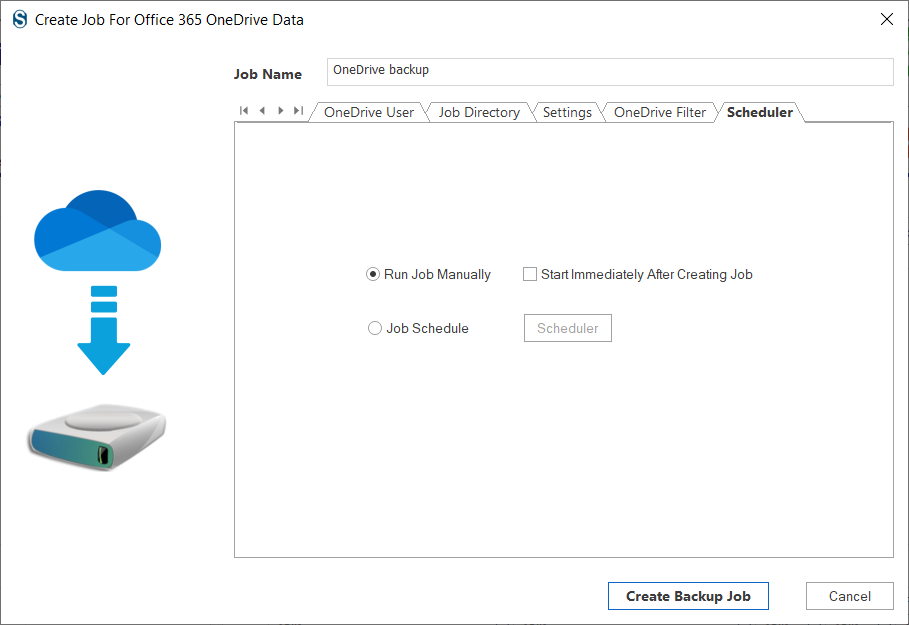
- Start the backup process and wait until the software completes copying OneDrive files to the chosen location.

- Once finished, verify the backup data in the selected external hard drive to ensure all files are stored safely.
Final Words:
In this blog, we have discussed how to back up OneDrive to external hard drive, then provided the four possible solutions: including manual and professional. While manual methods can work for small datasets, they require time and constant attention. A professional tool like Shoviv OneDrive Backup & Restore Tool ensures automated, secure, and scheduled backups, giving you complete and offline access to your critical files whenever needed.
Frequently Asked Questions: –
Yes, The software supports scheduled and incremental backups, ensuring your files remain updated without manual intervention.
With this professional tool, users can back up OneDrive data without any size limitation. The software can back up various OneDrive accounts without any size limitation.
Yes, You can choose specific mailboxes or folders within the tool, allowing you to back up only the needed data.
No, The tool offers an intuitive interface that allows even non-technical users to perform backups and restores with simple step-by-step instructions.