
Opening an OLM file on Windows 11 or 10 isn’t as straightforward as double-clicking a document—especially when the file is initially designed for macOS. But not to worry! This blog will guide you through an OLM file, how to open it in Microsoft Windows using both manual and professional methods, and why professional tools like Shoviv OLM Converter are the best solution. This blog will answer the most frequent question: how do I open my OLM file in Windows Outlook.
What is an OLM File?
An OLM (Outlook for Mac’s file) is a proprietary file format used by Microsoft Outlook on macOS. It stores emails, contacts, calendars, tasks, and other mailbox items. Since this format is Mac-based, it cannot be directly opened on Windows Outlook.
What are the reasons for opening OLM files on a Windows device?
There are several situations where viewing an OLM file on a Windows machine is essential:
- Migrating Between Platforms: When moving from a Mac to a Windows device, users must keep their Outlook emails, contacts, and calendar items accessible.
- Working Across Different Systems: Teams that mix macOS and Windows may share Outlook data. Windows users might need to open OLM files sent by Mac-based colleagues.
- Recovering Email Backups: Old email archives saved in the OLM format may need to be opened later on a Windows OS for reference or restoration.
- Investigation Digital Evidence: During e-discovery or forensic investigations, crucial email evidence may be stored in OLM files, requiring access on a Windows platform.
That’s why users often seek professional solutions to access OLM files in Windows.
Manual Method to Open OLM Files in Windows 11 and 10
You can use a Gmail account as a bridge to move your Outlook for Mac (OLM) data into Outlook for Windows. This process relies on IMAP syncing, so your emails flow from Mac to Gmail to your Windows PC.
Step-by-Step Process:-
Step 1. Prepare Gmail for IMAP Access
- Sign in to Gmail using a browser on your Windows computer.
- Go to Settings > See All Settings > Forwarding and POP/IMAP.
- Under IMAP Access, enable IMAP and save changes.
Step 2. Add Gmail Account to Outlook for Mac
- Launch Outlook on your Mac and open Tools > Accounts.
- Click the Plus ‘+’ icon and choose New Account.
- Enter your Gmail address and password.
- For manual setup, use:
- Incoming (IMAP):gmail.com, Port 993, SSL enabled
- Outgoing (SMTP):gmail.com, Port 564, SSL enabled
- Wait for Outlook to verify the account.
Step 3. Copy OLM Mail to Gmail
- In Outlook for Mac, create a new folder inside the Gmail mailbox.
- Right-click the OLM mailbox or specific folders you want to migrate and select Copy to Folder.
- Choose the new Gmail folder and allow time for synchronization (large mailboxes may take hours).
Step 4. Configure the Same Gmail Account in Outlook for Windows
- Open Outlook on your Windows 11 or 10
- Go to File > Info > Account Settings > Add Account.
- Select Manual Setup or Additional Server Types, then IMAP.
- Enter the same Gmail credentials and IMAP/SMTP settings as above.
- Complete the setup and let Outlook download all synced messages.
Once the sync finishes, the emails previously stored in the OLM file will appear in your Windows Outlook folders and be ready for everyday use.
Limitations of This Free Method:-
- Large mailboxes can take many hours to upload and re-download.
- Specific attachments, embedded images, or complex formatting may not transfer perfectly.
- Contacts, calendars, and other non-mail items are not reliably migrated.
- High chances of data loss or corruption during synchronization.
- It requires technical expertise in Outlook and IMAP settings.
While manual methods work in minimal cases, they are risky and impractical for regular users. The process can damage your data integrity and waste valuable time. Instead, a professional OLM converter utility ensures a safer and more efficient way to open OLM files on Windows 11 and 10.
Open OLM in Microsoft Windows 11 and 10: Using an Automated OLM Converter Tool
The Shoviv OLM Converter is one of the most reliable utilities for opening and accessing OLM files in Microsoft Windows. It allows seamless conversion of OLM files into PST format, which Windows Outlook fully supports.
Key Features of Shoviv OLM Converter:
- Bulk OLM Import – Add and process multiple OLM files of any size in a single conversion session.
- Versatile Output Formats – Convert mailbox data to PST, MSG, ICS, EML, HTML, or vCard as needed.
- Preserved Structure & Metadata – Retains the original folder hierarchy and keeps email properties and formatting intact.
- Direct Cloud Export – Option to migrate mailboxes straight to Office 365 or an on-premises Exchange Server.
- PST Size Management – Control and optimize the size of the resulting PST file during export.
- Incremental Export – Supports exporting only new or changed items to save time and avoid duplication.
- Advanced Filters – Apply Folder-based criteria or a specific Date Range to refine what gets converted.
How to Open OLM File in Windows 11/10 Using Shoviv OLM Converter
Follow the below step-by-step guide:-
- Download and install Shoviv OLM Converter Software on your Windows system.

- Move for OLM to PST Conversion and launch the tool and click on Add/Browse OLM Files and import your OLM file.
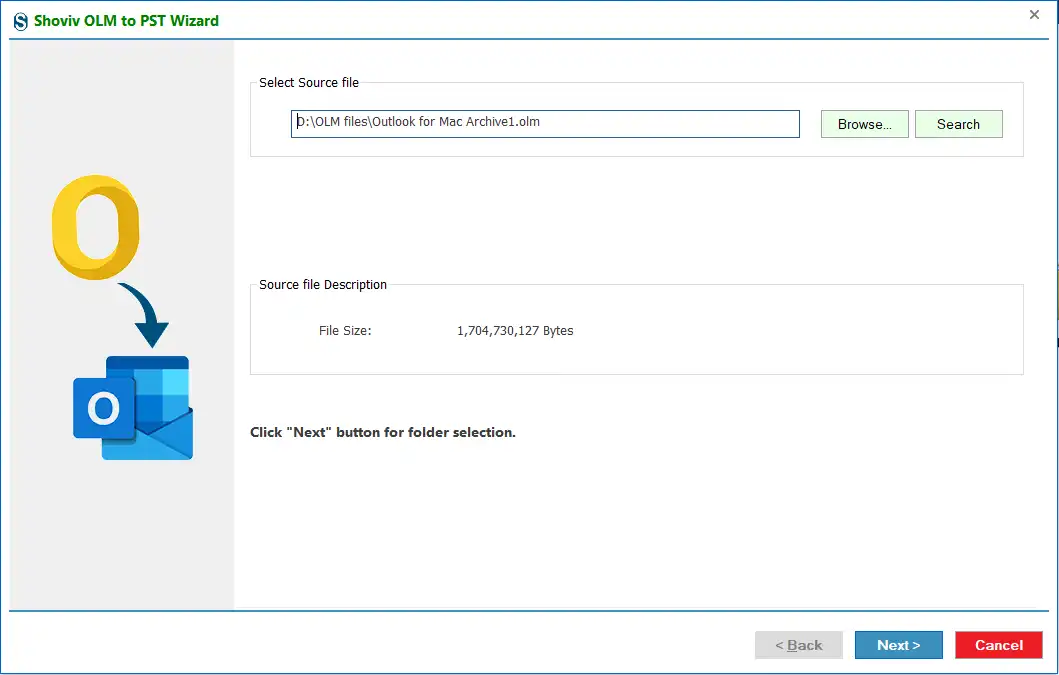
- Preview OLM data (emails, contacts, calendar, etc.) within the tool interface.
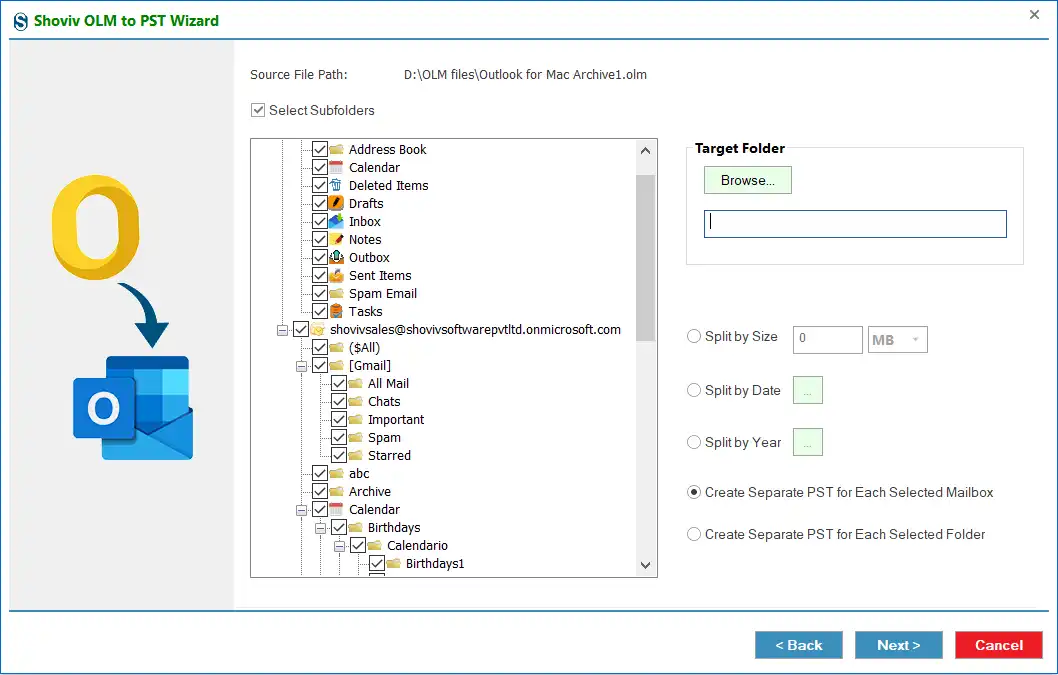
- Choose destination path and other optional settings (like PST split, etc.).
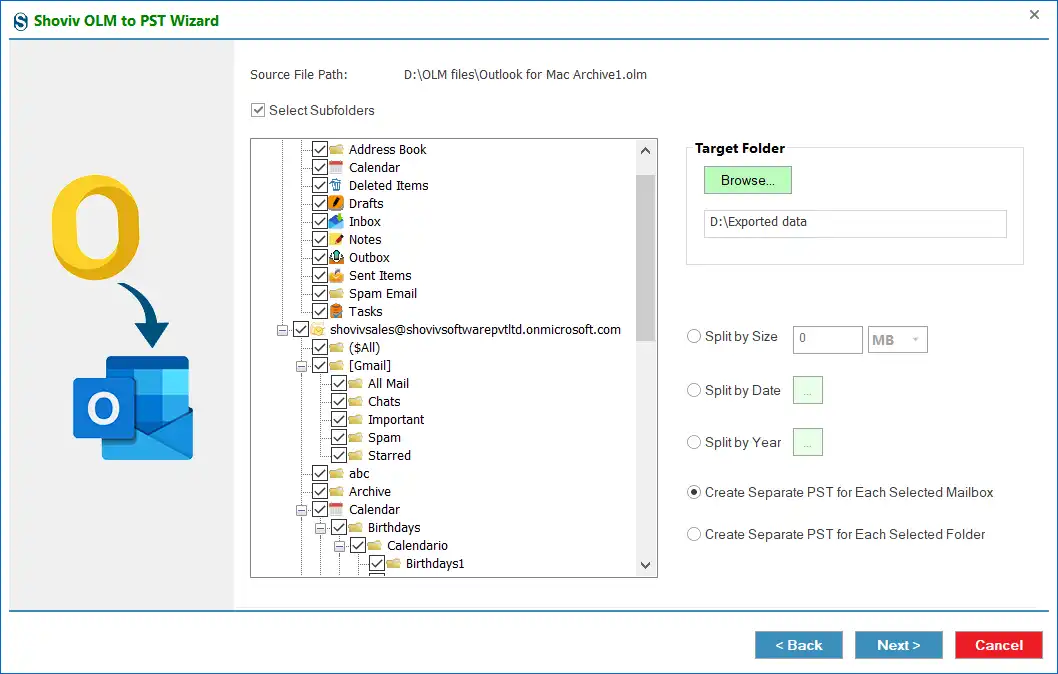
- Click Next to begin the conversion process.
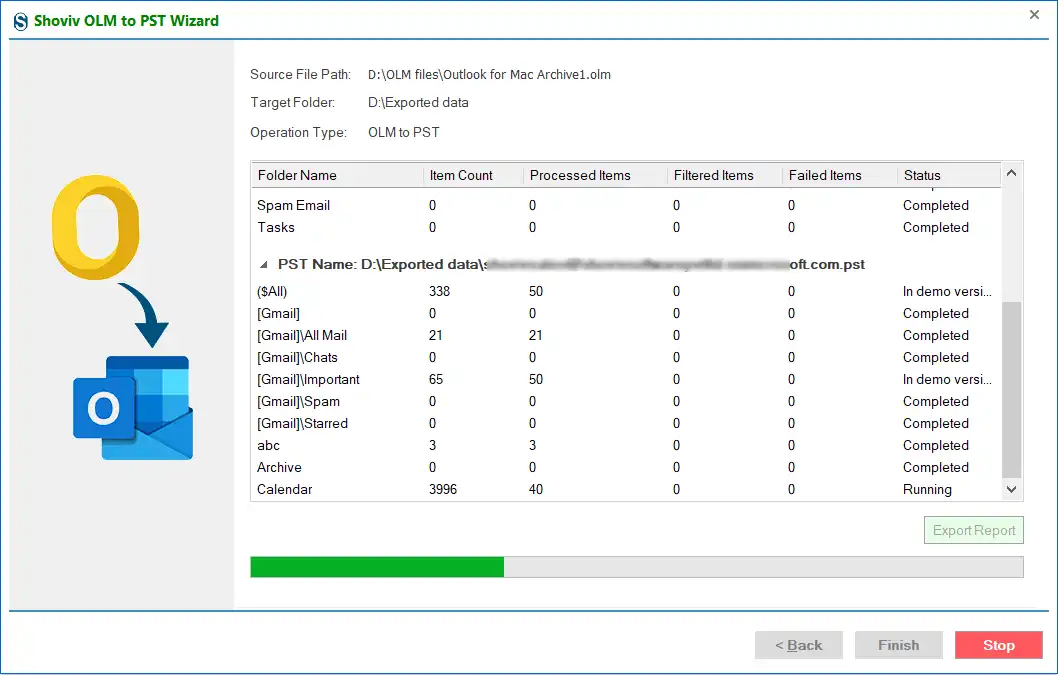
- Once done, open the converted PST file in Microsoft Outlook for Windows.
Gist of the Blog:
This post explored practical ways to access an OLM file on a Windows 11 or 10 device. Because OLM files are designed specifically for Outlook on Mac, opening them directly in Windows Outlook is not possible until you convert to PST. As discussed, there are several situations where users may need to view or migrate this data. While the article includes a step-by-step manual method, it has certain limitations. To simplify the process, we highlighted a reliable, user-friendly tool that converts OLM files to PST, making it easy to import and use the data within the Windows environment.
Frequently Asked Questions
No. Outlook for Windows doesn’t support OLM files. You must first convert the OLM data to a compatible format such as PST to open OLM file in Windows Outlook.
Yes. Shoviv OLM Converter software preserves email structure, metadata, and all attachments during conversion. It is tested and verified utility.
No. Manual techniques are slow, complicated, and unsuitable for bulk or large-sized OLM files.
Yes. The software supports Windows 11 and earlier versions like Windows 10, 8, and 7. Moreover, it is compatible with all versions of Windows OS.
Yes. A free trial lets you preview your data and convert a limited number of items (first 50 items per folder). A paid license is required for unlimited conversion.


