
Microsoft Outlook is a widely used email client that helps manage emails, calendars, contacts, and tasks. However, like any software, it’s not immune to occasional hiccups. One particularly frustrating error some users encounter is ‘Outlook has exhausted all shared resources.’ This cryptic-sounding message usually halts email communication and disrupts workflow. In this blog, we’ll decode this error and explore manual and professional methods to fix it. Let’s dive into the details and restore your Outlook’s productivity.
What does the “Outlook has Exhausted All Shared Resources” error mean?
The error “Outlook has exhausted all shared resources” typically arises when Outlook cannot access necessary system or memory resources. Moreover, these ‘Shared Resources’ refer to the memory allocations, system files, registry entries, and temporary data that Outlook needs to function correctly.
Why does the error happen?
Here are the common causes of the error:
- Low system memory or RAM usage spikes
- Corrupt Outlook profile
- Too many add-ins or conflicting applications
- Corrupt OST (Offline Storage Table) file
- Antivirus or firewall interference
- Software updates that weren’t applied properly
This error is particularly frustrating because it can appear during everyday use — such as while sending or receiving emails — and often persists even after restarting the application.
How to Fix the Error: Manual Methods
Several manual troubleshooting methods can resolve the ‘Outlook has exhausted all shared resources’ error. Below are some of the most effective ones, but they are not guaranteed:
Method 1: Close Unnecessary Applications & Restart Outlook
Sometimes the error is due to limited system resources, especially on systems with lower RAM.
To resolve the problem, complete the following steps:
- Press Ctrl + Shift + Esc to open the Task Manager.
- Under the Processes tab, close all unnecessary applications.
- Look for any duplicate or zombie Outlook.exe processes and end them.
- Restart Outlook.
It frees up memory and system handles, giving Outlook the necessary resources.
Method 2: Disable Unnecessary Add-ins
Add-ins can slow down Outlook and lead to performance issues, especially if they’re outdated or not essential. To disable them, follow these steps:
- Open Outlook.
- Go to File > Options > Add-ins.
- At the bottom, select COM Add-ins and click Go.
- Uncheck all unnecessary add-ins and restart Outlook.
Method 3: Repair the Outlook Profile
A corrupted Outlook profile can cause this error, so repair your Outlook Profile on time. Below are the processes to do it:
- Open Control Panel > Mail > Show Profiles.
- Select your current profile and click Remove.
- Next, click ‘Add’ to set up a new profile and enter your email account details.
Method 4: Update Outlook
Outdated versions of Outlook may not play nicely with newer Windows updates. Here are the steps:
- Open Outlook.
- Go to File > Office Account > Update Options > Update Now.
Method 5: Run Outlook in Safe Mode
Safe Mode turns off all add-ins and extensions that might be causing conflicts. Take the following actions to fix the problem:
- Press Windows + R, type outlook.exe/safe, and press Enter.
- If Outlook opens without issue, go to: –
File > Options > Add-ins > COM Add-ins > Go
- Please turn off all add-ins and enable them to identify the culprit individually.
Once the problematic add-ins are found, remove or update them to the latest version.
Method 6: Increase Virtual Memory
Virtual memory supplements your physical RAM. The instructions below will help you fix the issue:
- Right-click on This PC > Properties > Advanced system settings.
- Under Performance, click Settings > Advanced > Virtual memory.
- Increase the paging file size or set it to ‘System Managed.‘
Method 7: Repair Office Installation
A faulty installation of Office could be to blame. Here’s how you can resolve the issue:
- Go to Control Panel > Programs and Features.
- Then right-click on Microsoft Office
- Choose Changes > Quick Repair or Online Repair.
Method 8: Rebuild the OST File
If the OST file is corrupt, you can recreate it. Perform the steps below to address the error:
- Close Outlook
- Navigate to %LOCALAPPDATA%\Microsoft\Outlook.
- Locate and rename your OST file (e.g., filename.old.ost).
- Relaunch Outlook to automatically generate a new OST file.
If none of the workarounds work for “Outlook has exhausted all shared resources”, then consider using the professional tool.
Professional Method: Use Shoviv OST to PST Converter
If the error persists even after trying all manual methods, the problem could be linked to a corrupt or oversized OST (Offline Storage Table) file. A reliable and efficient way to fix this is by converting the OST file to a PST file using a professional tool like Shoviv OST to PST Converter.
Key Features of Shoviv OST to PST Converter:
- Converts large or corrupted OST files to PST with no data loss.
- Preserves email structure, formatting, and metadata.
- Allows selective conversion of folders or items.
- Moreover, it provides a preview before conversion.
- Offers direct export to Office 365 and Exchange Server.
- Compatible with all versions of Microsoft Outlook on Windows OS.
How do you use the Shoviv OST to PST Converter Tool?
Here’s the process to use it:
- Firstly, download and install the Shoviv OST to PST Converter.

- Open the tool and select the “OST File Recovery Mode”.

- Add the OST file and check the Advanced Scan option.
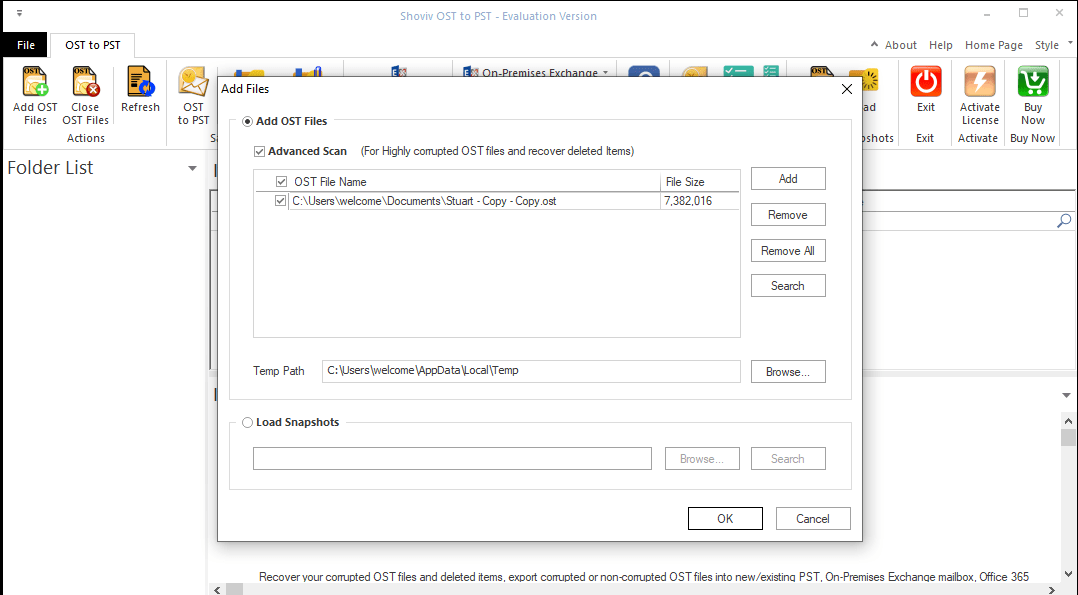
- The tool will scan, recover, and display a preview of all mailbox items.
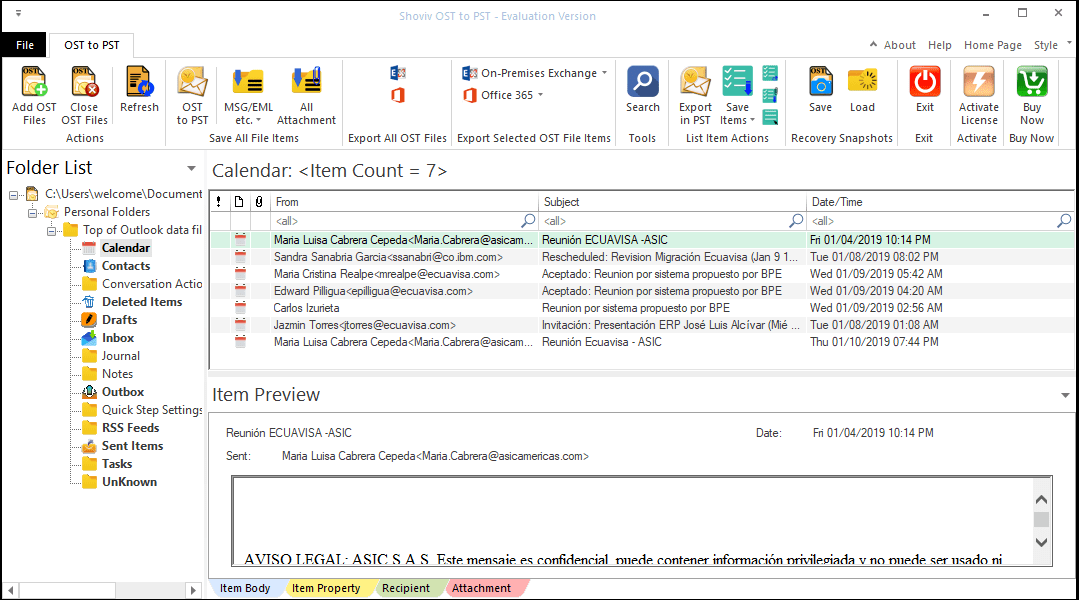
- Click the items/folders you want to export.
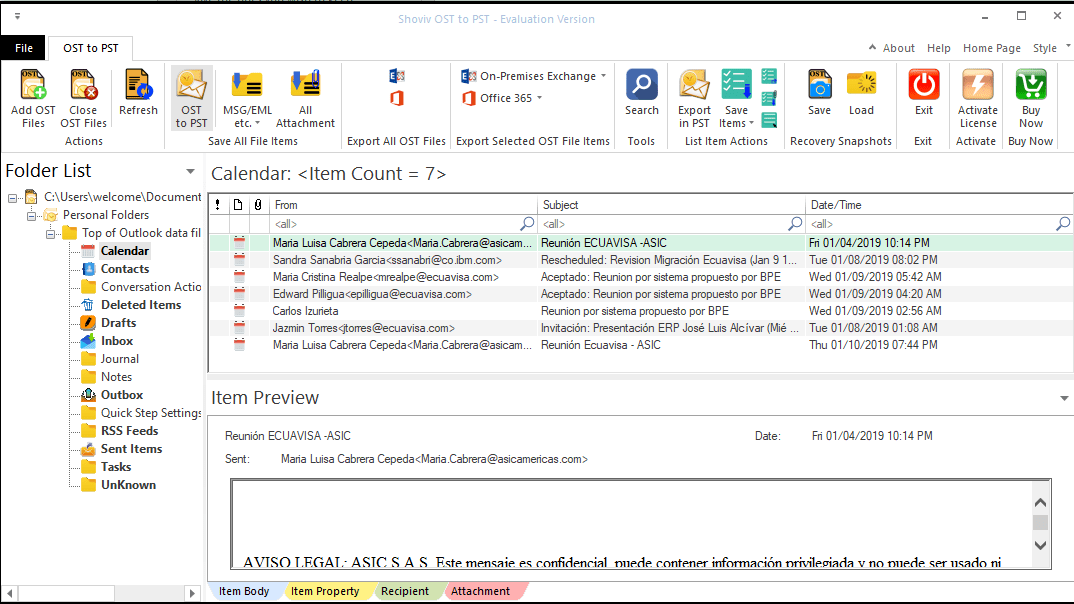
- Opt OST to PST option from the ribbon bar.
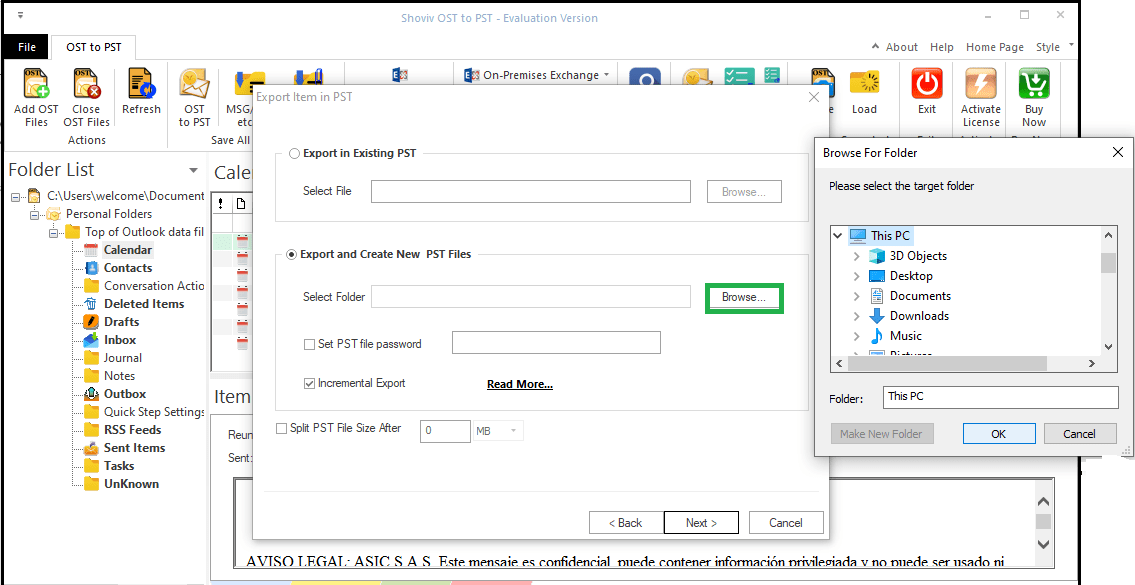
- Do settings as per the need. Moreover, browse the location where the resultant PST file will be saved.
- The conversion process will start, and you can see the conversion report and save it if required.

- Once complete, you can import the PST file into Outlook via:
File > Open & Export > Import/Export > Import from another program or file > Outlook Data File (.pst)
Benefits of Choosing This Tool Over Manual Techniques:
- No technical skill required.
- Reliable even for severely corrupted OST files.
- Saves time and preserves integrity.
- No limitations on the number of OST files and, size of the file.
- Plus, provide a free demo of 50 per folder before purchasing the tool.
Final Words:
The ‘Outlook has exhausted all shared resources’ error can seem intimidating, but it is generally manageable. From checking add-ins and repairing your Outlook profile to recreating OST files, there are various manual options at your disposal. However, these don’t work on your data, which is critical. In that case, a professional tool like Shoviv OST to PST Converter provides a fast, effective, and secure solution.
Popular Reads:-
- Fix If Windows is Not Opening Outlook in Safe Mode!
- How to Convert MBOX to MSG Format? (Individual Email Files)
- Outlook Archiving Not Working! What Should I Do to Fix it?
- How to Repair Outlook Calendar When It’s Not Responding?
- My Outlook Emails are Stuck in the Outbox! What’s Going On?
- Should You Delete an OST File? If so, Then Why, When & How?
- Repair Outlook Profile for Office 365 and Exchange Account
Frequently Asked Questions
Shoviv OST to PST Converter is built to handle even inaccessible or severely corrupted OST files. It recovers and converts data without altering the original structure or integrity of the emails, contacts, calendars, and other items.
The software provides a split PST facility that helps users manage the resultant PST size.
No, there is no limitation on the number of OST files or their size.
The demo version is just a restricted version that allows converting the first fifty items per folder. However, you can preview the recovered file.


